
Account and billing
Privacy basics
What Twintual reads, how to export or delete your data, secure your account, and manage devices and email.
Go to this screenYou decide what Twintual can read, and you can see what it did. This article covers what Twintual reads, where to find your privacy controls, how to export or delete your data, how to keep your account safe, and - if you belong to a workspace - what your admin can and cannot see. For the full legal detail, open the Privacy Policy from Trust & privacy.
What does Twintual read?#
Twintual reads only what you connect. That means the channels and calendars you add in Settings, under Channels & profiles.
- You control access. You choose what to connect and what each connection can do. For a calendar, you can share only when you are busy and keep the details hidden. See Calendar.
- You can leave things out. For some channels you pick exactly which conversations Twintual may read. For example, in Slack you choose the direct messages and channels, and anything you leave unticked stays unread. A NEVER READ list shows the folders and channels Twintual skips.
- Sign-in stays with the provider. Twintual uses the official sign-in of each provider (OAuth). It never sees your password for that service.
- It reads before it acts. Connections are read-only until you approve something to send. See Approve and send.
- You can stop at any time, and delete that channel's data too. Select Disconnect on a channel in Channels & profiles. Twintual stops reading it immediately, and the conversations and attachments Twintual had already imported from that one channel are deleted at the same time - this is a real deletion, not just "stop reading." Content still in the original app (your Gmail inbox, your Slack workspace, and so on) is untouched; this only removes Twintual's own copy. See Connect your channels.
Twintual learns facts about the people you talk to as it reads your conversations. You can add your own facts too.
What does Twintual do with what it reads?#
Twintual uses what it reads to help you: it summarizes, prepares drafts for you to review, suggests meeting times, and files things quietly according to your rules.
- Drafts are yours to approve. Twintual writes a draft for you to review. Nothing is sent until you approve it, unless you turn on Autopilot for certain low-risk replies. See Needs you and drafts and Autopilot, rules and automations.
- You can see what it did on its own. Open Settings, then Trust & privacy, and select See everything Twintual did. Every automatic action is listed with the reason, an Undo and a Not like this option, so Twintual learns.
- Deleting your account does not delete your messages elsewhere. Content in Gmail, Slack, Teams and other source systems stays where it is.
Where is my data stored?#
Your data is stored in the EU. Twintual's primary servers are in Finland, and encrypted backups are kept in EU cloud storage.
The Privacy Policy (open it from Trust & privacy) is the legal source for how your data is handled. If anything in this article and the Privacy Policy ever disagree, the Privacy Policy is the one that is correct.
What does Twintual store, and for how long?#
Twintual keeps your data in the EU (see Where is my data stored?). How long it keeps it:
- Messages and drafts: kept while your account is active.
- A deleted account: when you delete your account, your data is purged within 30 days.
- Backups: backups expire within 30 days.
- A disconnected channel: disconnecting a channel deletes what Twintual imported from it (see What does Twintual read?).
Deleting is real deletion, not just hiding. Deleting your account removes your account and the data that goes with it (see How do I delete my account?).
Security basics that are true today: Twintual never sees the password to a connected account - sign-in to each provider (Gmail, Slack, and so on) goes through that provider's own official sign-in (OAuth), not through Twintual. Connections are read-only until you approve something to send (see What does Twintual read?).
For the legal detail, including the outside companies that help Twintual run the service, read the Privacy Policy in Trust & privacy. If you need something more specific than it states, contact Twintual support.
Does Twintual train AI on my messages?#
No. Twintual does not train AI models on your content, and the AI provider Twintual uses does not train on data sent through its API.
This is a different question from Personalize your twin: tone and voice, which is about personalising your own drafts to your voice. For the legal detail on how your data is used, read the Privacy Policy in Settings, then Trust & privacy.
Where are my privacy and data controls?#
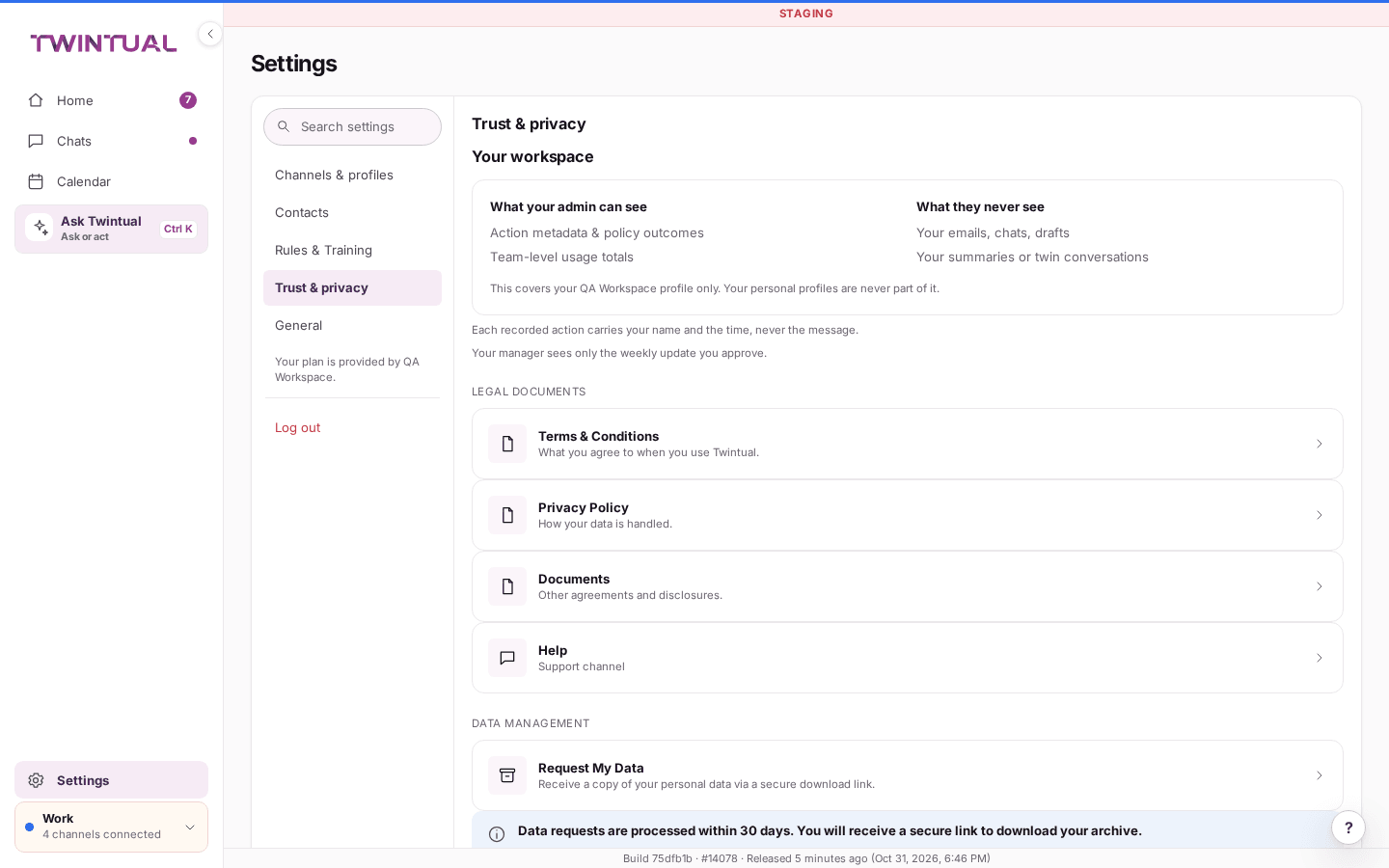
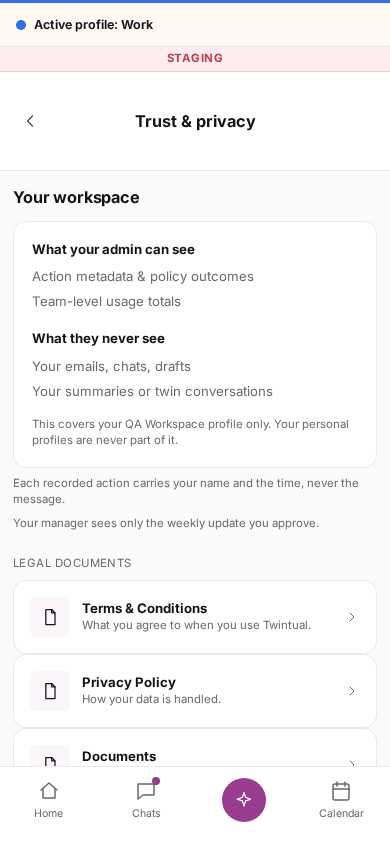
Go to Settings, then Trust & privacy. The page has these groups:
- Legal documents: Terms & Conditions, Privacy Policy and Documents (other agreements and disclosures).
- Data management: Request My Data, to get a copy of your data, and See everything Twintual did.
- Not used by Twintual AI: conversations and senders you have chosen to keep out of drafts, summaries and your brief.
- Marked private: conversations Twintual flagged as sensitive on its own. See What is a sensitivity flag, and how do I clear it?.
- Danger zone: Delete Account.
Sign-in and device controls are in Settings, under Trust & privacy. Notification and email choices are in Settings, under General.
On the phone app, some of these pages open on desktop and show Continue on desktop. Open Twintual in a browser on a computer to use them.
What is a sensitivity flag, and how do I clear it?#
Twintual looks for conversations that seem private - for example something marked confidential, or that looks like an HR matter, legal or privileged content, or other sensitive personal information - and holds them out of your daily brief, contact memories, previews and Team Pulse. You can still open and read the conversation itself as normal; only those automatic features skip it.
In Chats, a flagged conversation shows a banner: "This looks like a private conversation", with "You can stop Twintual's AI from using this conversation." Select Don't use with Twintual AI if you agree, and confirm. That conversation (and, if you choose, everything from that sender) then also stops being used for drafts and summaries, not just held back automatically.
If Twintual got it wrong, clear the flag:
- Go to Settings, then Trust & privacy.
- Under Marked private, find the conversation. Its row shows why it was flagged, such as Looks like an HR matter or Looks like sensitive personal information.
- Select Not private.
Twintual un-flags it right away - no extra confirmation - and you see "{name} is no longer marked private." It goes back into your brief, contact memories, previews and Team Pulse like any other conversation. If nothing is currently flagged, the list says "Nothing is marked private right now."
How do I stop Twintual's AI from using a conversation?#
Besides the automatic hold a sensitivity flag puts on a conversation, you can opt a conversation - or everything from one sender - out of Twintual's AI yourself, any time, for any reason.
- In Chats, open the conversation and select ....
- Select Don't use with Twintual AI, and confirm.
- If you want every message from that sender left out too, not just this one conversation, choose that option when asked.
The conversation shows a Not used by Twintual AI label from then on, with an Undo if you change your mind right away. To review everything you have opted out, or to opt back in later, go to Settings, then Trust & privacy, under Not used by Twintual AI.
Opting out stops Twintual from using that content in drafts, summaries, your daily brief and contact memories. It does not delete the conversation - use Delete a channel's data or Delete my account for that.
How do I get a copy of my data?#
You can request an export of your data and download it from a secure link.
- Go to Settings, then Trust & privacy.
- Under Data management, select Request My Data.
- In Request my data, select Request data export.
Twintual prepares an archive and emails a secure link to your account's email address. The request is processed within 30 days.
The request shows its state: Requested while it is being prepared, Ready when you can download it, and Expired when the link has run out.
- Ready: select Download. The link works for 24 hours.
- Expired: the link no longer works. Select Request again to get a new one.
If you open an old link from your email and it has expired, the page says That link expired. You can ask for a new one from there, and Twintual emails you a new link when it is ready.
How do I delete my account?#
Deleting your account is permanent. It removes your Twintual account and the data that goes with it, and it cannot be undone.
- Go to Settings, then Trust & privacy.
- Under Danger zone, select Delete Account.
- Read the warning. If you have a paid plan, it tells you the plan is cancelled today.
- Type DELETE to confirm, then select Delete account.
You are signed out everywhere when it is done. If something goes wrong, you see Deletion failed. Nothing was deleted and you are still signed in.
Deleting your account does not delete content in Gmail, Slack, Teams or other source systems. Only what Twintual holds is removed.
If you own a team, you cannot delete your account yet. Manage the team's members and billing in Team & billing first. See Billing and plans.
How do I see where I'm signed in?#
Go to Settings, then Trust & privacy, and open Devices and sessions. You see each device with its approximate location and when it was last active. Your current device is marked This device.
- To sign out a device, select Log out of that device next to it. Its session ends at once, and this one stays signed in. To sign out several devices on the web, do this for each one under Other sessions.
- In the phone app, Devices and sessions also has Log out of all other devices. Every device except this one is signed out within a minute.
If you see a device you do not recognise, sign it out and reset your password. If you need more help, contact support.
Will Twintual tell me about new sign-ins?#
Yes. Twintual warns you about changes that affect your account:
- New sign-in to your account: someone signed in from a device or place you have not used before. Your password and your data are unchanged.
- Sign-in details changed: your password, email or two-step verification changed, or a new sign-in method was added.
- Suspicious access blocked: Twintual blocked an attempt to get into your account. Nothing was accessed.
You see these as a notice on Home, and a new sign-in also arrives by email. Security email is always sent. If it was not you, open Devices and sessions, sign out that device and reset your password.
How do I change or reset my password?#
If you have forgotten your password, select Forgot password? on the sign-in page.
- Enter your email and select Email me a verification code.
- Open your email and enter the 6-digit code.
- Under Choose your password, set your new password and select Finish.
Choose a password you do not use anywhere else. Twintual tells you if it is too short.
If you think someone else has your password, reset it and then sign out your other devices from Devices and sessions.
How do I turn on two-step verification?#
Two-step verification adds a 6-digit code from an authenticator app each time you sign in, on top of your password.
- Go to Settings, then Trust & privacy.
- Under Two-step verification, select Set up two-step verification.
- Scan the QR code with your authenticator app. If you cannot scan it, enter the Setup key in the app instead. The key is shown once, so add it before you leave the page.
- Enter the 6-digit code the app shows and select Turn on.
The Status shows On when it is active. From then on, sign-in asks you to Enter your verification code. After too many wrong codes, you have to wait a short moment before trying again.
To turn it off, select Turn off two-step verification and enter the current code. Your account is then protected by your password alone.
Some workspaces require two-step verification. If yours does, you see Your workspace requires two-step verification, and your account stays closed until you turn it on.
What if I lose access to my authenticator app?#
Save recovery codes before this happens - they are the only way back into your account if your authenticator app is gone and nobody at Twintual can bypass two-step verification for you without one.
Save your recovery codes:
- Go to Settings, then Trust & privacy.
- Under Recovery codes, select Generate recovery codes (or Generate new recovery codes if you already have a set - the old ones stop working as soon as you do this).
- Enter the current 6-digit code from your authenticator app.
- Twintual shows ten codes. Each works once, in place of a 6-digit code. Copy them somewhere safe - a password manager, not a screenshot on the same phone as your authenticator app. They are shown only this once.
- Select I've saved these codes.
Use a recovery code to sign in:
If you no longer have your authenticator app, select Lost access to your authenticator app? on the verification-code screen, enter one of your saved recovery codes instead of a 6-digit code, and select Use this code. Twintual signs you in and turns off two-step verification for your account, since the authenticator app that protected it is gone. Set it up again from Settings, then Trust & privacy, once you are back in.
Using a recovery code also uses up the rest of that batch - generate a fresh set once you have re-enrolled, rather than assuming the others still work.
Which notifications and emails does Twintual send?#
Twintual keeps required messages apart from optional ones.
- Always sent: Security, Billing, Connection and Service email. These cannot be turned off, because they protect your account, concern your plan, tell you when a channel needs you to reconnect, or warn you about maintenance and incidents.
- Optional email: Product news, Recaps and Channel launches. They are off until you turn them on.
To choose, go to Settings, then General. In Notifications, select Manage, then Notification settings, and select Open on the Email for your whole account card. Turn each optional email on or off. Your record shows what you agreed to and when.
Every optional email has an unsubscribe link. Selecting it stops only that kind of email, and you see You've been unsubscribed. Security and billing email still arrives. Select Manage email preferences to review your choices.
Notifications on your device are separate. Twintual asks before it turns them on, and says what it will and will not send. It does not send marketing. You can change this any time under Settings, then General, then Notifications. If notifications are off on this device, email and Needs you in the app still work. See Needs you and drafts.
What can my workspace admin see?#
If you belong to a workspace, your admin manages policies and seats, and can see your name, email address and role like any member list. Beyond that, they see team-level totals and when things happened, and action metadata for the profiles your workspace manages. They never see the content of your emails, chats, drafts or summaries.
- Managed profile: follows your workspace's policy, and your admin sees action metadata for it from the day you join - never its content.
- Personal profile: yours alone. Your admin sees nothing in it.
In Channels & profiles, a profile tells you which kind it is: Managed by the workspace name, or Yours, not visible to your workspace.
Where can I ask a privacy question?#
Start with the Privacy Policy in Settings, under Trust & privacy. It explains how your data is handled.
- For questions about your workspace's rules, ask your workspace admin.
- For anything else, contact Twintual support.
What if this involves a legal request, a regulator, or a suspected data breach?#
If you are contacting Twintual about a subpoena, a court order or another legal demand, about a data protection authority or other regulator, or because you suspect a data breach or unauthorized access to your account, contact Twintual support directly rather than the help assistant chat. These go straight to a person on Twintual's team with full context - the chat will not try to answer a question like this itself, and it does not make account-deletion, data-deletion or disclosure decisions on its own in any case.
For other topics, see Getting started.
Where should I go next?#
Related reading.
- Connect your channels to what Twintual can see and do with a channel.
- Search and what's new to see everything Twintual did, with the reason.
- Notifications and availability hours to which notifications and emails Twintual sends.