
Daily use
Needs you and drafts
See what needs your attention, review the draft your twin wrote, and understand what happens when it is unsure or cannot draft.
Go to this screenThe Needs you list on Home is where Twintual puts the things that are waiting on you. Your twin reads your messages, writes a draft where it can, and leaves the decision to you. Nothing is sent until you approve it, unless you turn on Autopilot for certain low-risk replies. See Autopilot, rules and automations.
What is the Needs you list?#
Needs you is a card on Home. It lists the conversations and follow-ups that are waiting for something from you, such as a reply, a decision or a meeting to confirm.
Each item shows a title, the channel it came from, how long ago it arrived, a priority tag and one line about what is going on. The number on the card is the real total, even if the card only shows the first few items.
- Select Review to read the item and the draft your twin prepared.
- Select See all → to open Chats with the Needs you filter on, so you can see every item.
- When nothing needs you, the card says so. If no channel is connected yet, you see Nothing is connected yet and a Connect a channel button. See Connect your channels.
Why is something in my Needs you list?#
An item lands in Needs you when your twin reads a message and decides that you are the one who has to act. That can be a direct question, a request, a follow-up you are waiting to send, or a meeting that needs your answer.
The one line of context on the card tells you why. Select Review, and then Why? to see the sources behind the draft.
Some items are not directly meant for you, for example when you are only in copy or the message went to a list. In that case the card has an Ask for line that says who your twin thinks the message is for, with a short reason such as "you're CC'd" or "you were @mentioned". You can correct your twin with This is for me or Not for me. Your answer teaches the twin for next time.
What are FYI and quietly handled items?#
FYI items are messages that are worth knowing about but do not need a reply from you, such as newsletters, summaries and updates. Your twin files them under Quietly handled instead of putting them in Needs you.
Each item in Quietly handled keeps its sources, so you can see why it was filed. If you disagree, select Undo. The item goes back to Needs you, and your twin learns that it was yours.
Filing something as FYI does not send anything to anyone.
How do I dismiss a need?#
Select the × (Dismiss) button on the card. The item leaves Needs you and you see a message, Dismissed from Needs you, with an Undo button.
Dismissing does not send anything and does not reply to the person. It only removes the item from your list. If the dismiss does not go through, the item stays on your list and you see a message saying so. Try again.
If your plan is read-only, dismissing stops working until your plan is active again.
How do I snooze a need to deal with it later?#
If an item belongs to a conversation, its card has a clock button, Snooze. Select it and choose when you want the item back, using one of the presets or your own date and time.
The item leaves Needs you and comes back at that time. You can see everything you snoozed in Chats, under the Scheduled filter, on the Snoozed tab. Select Unsnooze there to bring an item back sooner.
What does it mean when my twin is not sure?#
Sometimes your twin cannot tell whether a message is for you or just for your information. The card then carries a Not sure tag and a short reason.
You make the call with the two buttons on the card:
- Needs me keeps the item in Needs you as a normal need.
- FYI: file it removes it from Needs you, lowers the count and files it under Quietly handled. You can undo this.
Either way, your choice teaches your twin how to handle similar messages next time. Nothing is sent to the other person.
What if my twin could not write a draft?#
Your twin does not always manage to write a reply. When that happens, the conversation still appears in Needs you, and you write the reply yourself.
- Open the item from Needs you with Review, or open the conversation in Chats.
- If you see No draft could be prepared. You can write your reply here., type your reply in the field.
- If you see Twintual could not write a draft this time. Try again, or write your reply here., select Try again to ask for a new draft, or write your own.
- Select Approve & send when you are happy with it.
For a follow-up where no reply can be prepared, Twintual says so and asks you to open the conversation to write it.
Why are drafts waiting for me in the morning?#
If your twin finishes drafts outside your availability hours, it does not send you push notifications. The drafts wait in Needs you until you are back.
When this happens, Home shows a banner that says your window has ended and how many drafts are waiting. Your twin keeps working, but it does not disturb you.
You set your hours on the Availability page, under Settings, then Channels & profiles, and your push window and quiet hours in Notification settings. To learn how they work together, and what marking a contact as VIP does and does not change, see Notifications and availability hours.
How do I find everything that needs me in Chats?#
Open Chats, or select See all → on the Needs you card. Then choose the Needs you chip at the top.
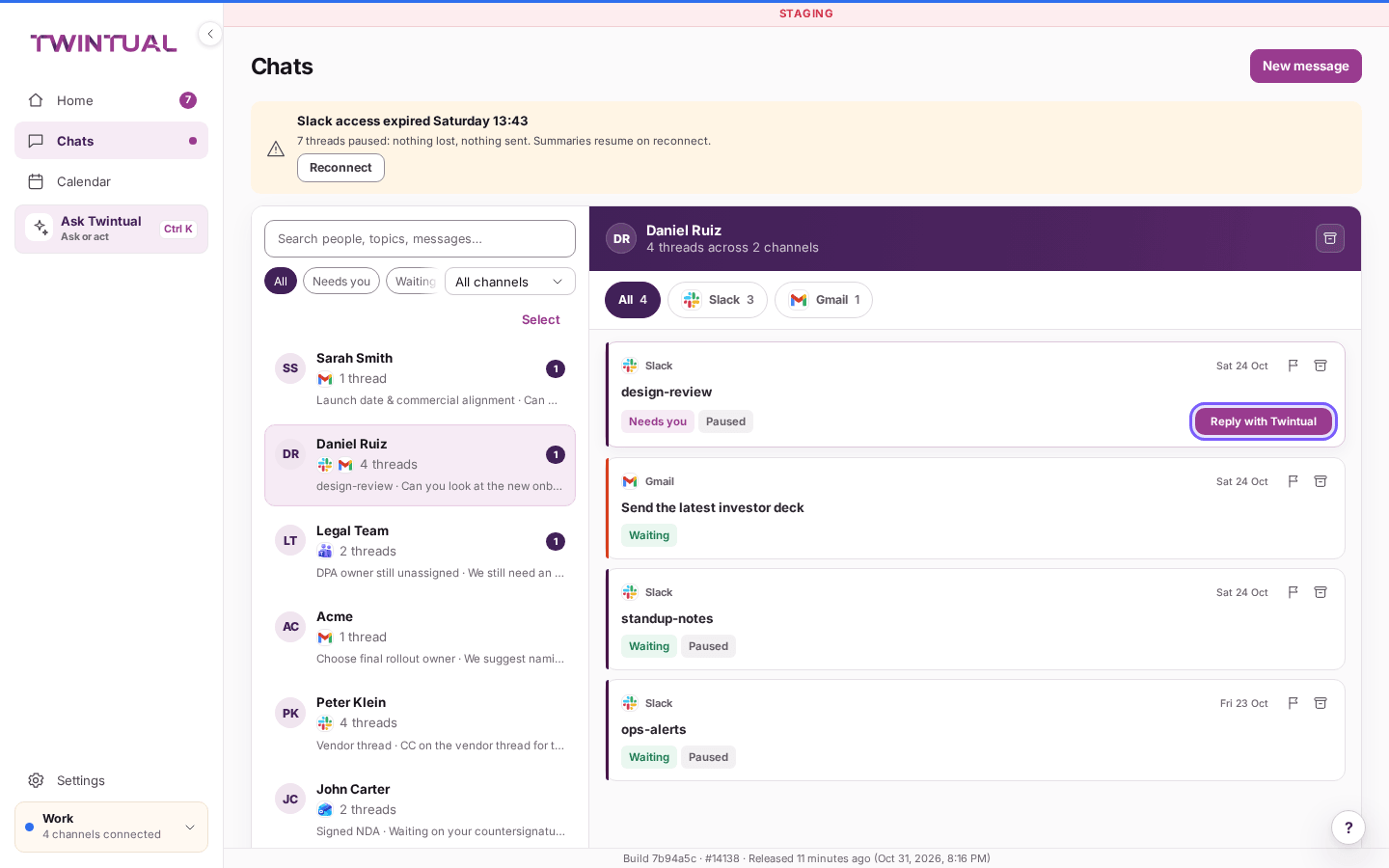
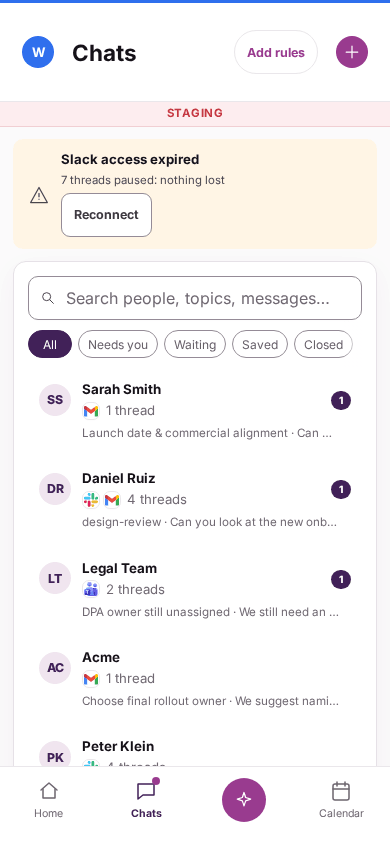
Chats lists one row per person. Each row shows the person's name, the channels you talk on, how many conversations there are, and a count of how many need you. Select a person to see their conversations on the right.
The other chips help you find things in other states: All, Waiting, Saved, Starred, Closed, Filtered and Scheduled. A dot appears next to Chats in the sidebar while something needs you.
What can I do in a conversation with a draft?#
Select a person in Chats, then open one of their conversations. Each conversation card shows a summary, the channel, how old it is and its state (Needs you, Waiting, Saved or Closed).
On a conversation that needs you, select Reply with Twintual. The draft opens in the field, already written. Read it, change it if you like, and send it. For all the ways to edit and send, see Approve and send.
- View last messages shows the latest messages in the conversation, so you can check the context. Hide last messages closes them.
- Under the draft, a short line explains why your twin wrote it, and you can open the sources.
- On other conversations, select Write new message to start your own reply.
- Select the person's name to open their Contact briefing. See People and contacts.
Your draft is saved as you type. If you close the conversation and come back, it is still there.
Where should I go next?#
Once something is in your list, these cover what happens next.
- Approve and send to review a draft and send it.
- Autopilot, rules and automations to let Twintual handle more on its own, safely.
- Daily brief, Pulse and weekly review to see your day summarised in one place.
- Notifications and availability hours to control when a need interrupts you.