
Daily use
Calendar
See your day, answer invitations, find a time with people and book meetings, all in one place.
Go to this screenThe Calendar shows your events from every calendar you connect. Twintual uses it to avoid conflicts, to offer times and to help you book meetings. Nothing is booked or sent for you without your say-so.
How do I connect a calendar?#
You connect calendars in Settings, under Channels & profiles.
- Open Calendar. If you have no calendar yet, you see No calendars connected. Select Connect in Settings (on a phone-width screen, Connect calendar).
- You can also go to Settings, then Channels & profiles, and select + Connect calendar in the CALENDARS section of the profile you want.
- Choose your calendar provider. You can connect Google, Microsoft 365, Apple iCloud, or a read-only feed URL.
- On the next step, Choose how Twintual should use this calendar, pick the Profile, give the Calendar name, and choose what to Share with Twintual (see the next question). For a feed, paste the Feed URL. For Apple, enter your Apple ID and an app-specific password (not your normal Apple ID password).
- Select Connect calendar.
- For Google and Microsoft 365, sign in with your provider when it asks.
Each calendar belongs to one profile. If a calendar needs you to sign in again, you see Sign in again next to it. Select it so Twintual can keep reading that calendar.
What can Twintual see in my calendar?#
When you connect a calendar, Share with Twintual starts on busy and free only, and your event titles stay private. You choose this per calendar, and you can let Twintual read full event details so it can prepare you for meetings.
- Go to Settings, then Channels & profiles.
- Find the calendar in the CALENDARS section and open its management panel.
- Under Share with Twintual, choose one of three options: Busy and free only (titles stay private) shares only busy and free with scheduling, Full event details (for work context) lets Twintual read titles and details, or Nothing (ignore this calendar) keeps the calendar connected without Twintual reading it for availability or scheduling at all.
When details are hidden, Twintual can still avoid conflicts without revealing why you are unavailable. Choosing Nothing keeps the calendar connected without Twintual using it. You can also disconnect a calendar from the same panel. Twintual then stops reading and syncing it, and you can reconnect it later.
How do I switch between day, week and month?#
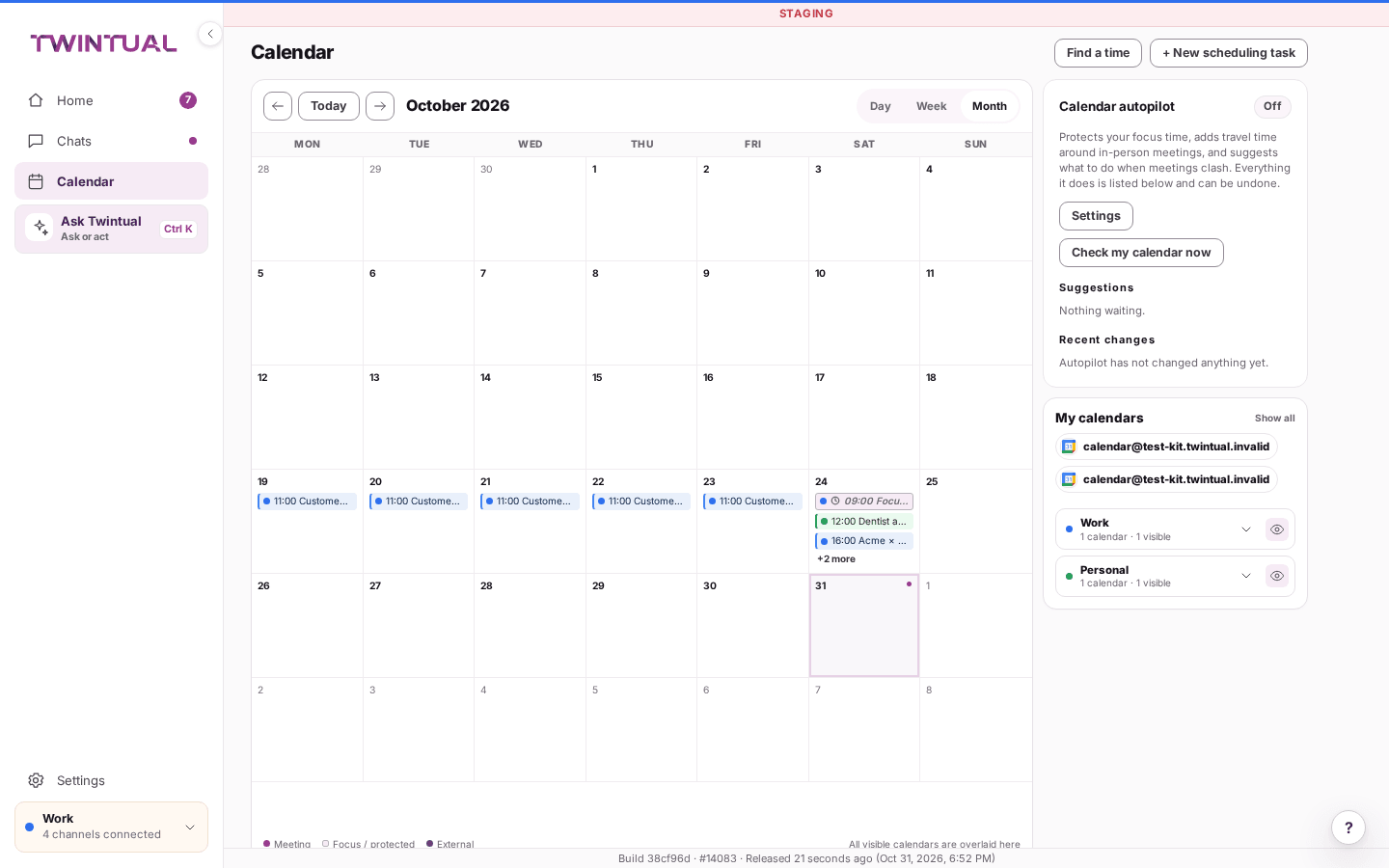
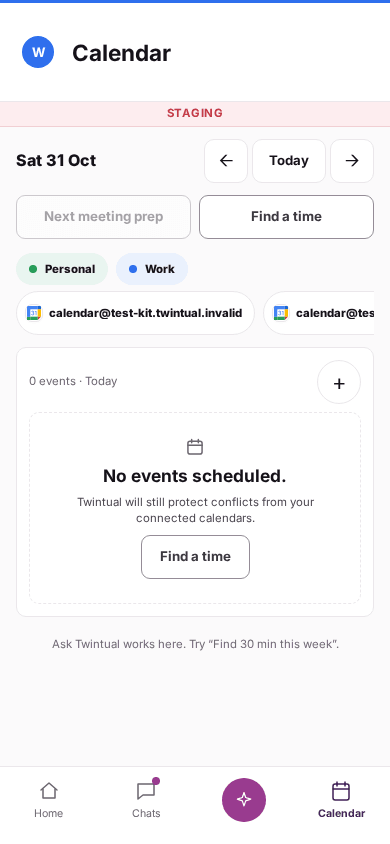
Use the Day, Week and Month switch at the top of Calendar.
- Use the arrows to move to the previous or next day, week or month.
- Select Today to jump back to the current day.
- In Month, select a day to open it. If a day has more events than fit, you see a link such as +2 more that opens the full list for that day.
- In Day and Week, a line marks the current time.
On the phone app, tap Today at the top to choose a view, and tap the arrows to move through time.
How do I show or hide a calendar?#
Use My calendars on the right side of Calendar. Each connected calendar has a toggle, and you can show or hide a whole account at once. Select Show all to bring everything back.
Hiding a calendar only changes what you see on the Calendar page. Twintual keeps using your connected calendars to avoid conflicts. To stop Twintual from reading a calendar, disconnect it in Settings, under Channels & profiles.
On the phone app, the calendar chips under the toolbar (for example Work and Personal) show or hide each profile's events.
How do I see my calendar in other time zones?#
Go to Settings, then Calendar, and open Calendar time zones. You can show up to two more time zones beside your own in the Day and Week views. Once you have added one, you can also select the time zone heading above the hours in the Day or Week view to change them.
Your events stay where they are. Only the hours are read in each zone. To change which zone is your main one, select Make main next to it in Calendar time zones.
How do I accept or decline an invitation?#
Invitations that wait for your answer appear on your calendar marked Invitation, with Accept and Decline buttons.
- Select Accept or Decline right on the event.
- For more options, open the event. Under Your answer you can choose accept, Maybe or decline, add a short note to the organizer, and, for repeating events, choose This event only or All events in the series.
- Select Send answer. Your answer goes to the organizer only when you press that button, and you can undo it for a few seconds afterwards.
If you decline, you can also use Decline and remove to take the meeting off your calendar. The organizer is told you declined, and the other guests keep the meeting.
You can only answer when your calendar allows changes. If your plan is read-only, answering invitations is switched off until your plan is active again. See Why is my calendar read-only?.
What does "Suggested by Twintual" mean on an event?#
An event marked Suggested by Twintual is a meeting Twintual proposed for your calendar, for example from a conversation. It waits for your answer.
Select Accept to add it, or Decline to dismiss it.
How do I ask people for a time that works?#
Use Find a time. Twintual drafts a message with your free slots, and you review it before it goes out.
- Select Find a time at the top of Calendar and make sure Meeting is chosen.
- In TO, search for and select one or more people.
- Add a TOPIC and choose the DURATION.
- Under WHEN, choose This week, Next week or Custom (then set FROM and TO dates).
- Check the MESSAGE. You can edit it, or use Make shorter or Regenerate.
- Select Ask for availability.
Twintual uses only your visible calendars to include your free slots. If the message does not go out, you see Nothing was sent and your text is kept.
After you send it, the scheduling can show up on Home with a clear next step, such as waiting for a reply or approving the booking once a time is agreed. If nobody replies, you can stop it or pick it up yourself.
You can also start scheduling from a person's contact card with Schedule, or from a conversation in Chats with Schedule a time.
How does Twintual check whether a time really works for the other person?#
When Twintual looks for a time, it checks every attendee's calendar where it can, not just yours.
- Each person shows as Checked or Not checked in the message it drafts. Checked means Twintual can see that person's calendar, for example a colleague on the same Microsoft 365 organisation.
- When everyone could be checked, you see Free in your Work window and no conflict on their calendar.
- When only your own calendar could be checked, you see Free in your Work window, and the message asks the other person to confirm rather than assuming.
On a contact's card, a Time zone line shows where Twintual thinks that person is, for example "Maria is in Madrid time", inferred from their calendar. Select Confirm if that is right, or Change to correct it.
Can I change the time Twintual offered?#
On a proposal you have not sent yet, select Pick another slot next to a time to swap it for a different free one. Twintual looks for a new time and rewrites the message, keeping your other choices as they were. If the time you picked is taken in the meantime, you see That time is no longer free. Pick another.
If the original request already had a video-call link, such as Zoom, Google Meet or Microsoft Teams, Twintual keeps that same link when it proposes a different time. Only the time changes, not how you will meet.
What happens when the other person replies?#
Twintual reads replies to a scheduling message and moves it along on its own, with one of these outcomes:
- They agree on a time: the task moves to Time agreed, ready for you to approve and book.
- They decline: the task closes as Failed. Twintual tells them it stopped scheduling and released the times it was holding; nothing else is sent.
- They ask to change something: Twintual keeps negotiating if it can still write back to them. If the agreed time falls through and there is no conversation left to use, you get a Needs you item asking you to reach out yourself.
- They ask a colleague to take it over: Twintual adds that person to the conversation and keeps negotiating with both.
- Nobody answers in time: the task closes as Failed once the window you gave has passed.
See Where do I see all my scheduling tasks? for where these states show up.
Do I have to approve every follow-up message myself?#
When you approve a scheduling task's first message, choose an Approval mode:
- Approve each send (the default): Twintual asks you before every message it sends for this task.
- Auto follow-ups on: you approve the message and its times once. Twintual then sends the follow-ups on its own, up to the limit you choose, for as long as those times stay free.
This is a one-time choice for that task only, never a setting for every task.
If anything about the plan changes after you approve it (the times are no longer free, the meeting length or the people change, or there is no approved plan to follow), Twintual turns auto follow-ups off for that task, tells you why, and asks before the next send. You can also select Stop auto follow-ups on the task at any time.
Where do I see all my scheduling tasks?#
On Home, scheduling shows up in Open loops (web) or the Scheduling card (phone app). You can also open a person's contact card and look under Scheduling.
Each task shows who it is with, its state (for example Negotiating, Needs approval, Stalled, Time agreed or Booked), and a line saying what happens next. From there you can:
- Approve a message or booking that is waiting for you.
- Edit the message before it goes out.
- Stop the task. Twintual asks you to confirm, then stops scheduling and releases any times it was holding.
How do I find time for focused work?#
In Find a time, switch the mode to Focus block.
- Add a TITLE.
- Choose the DURATION and WHEN (Today, This week or Custom), then select Find a slot.
- Under SUGGESTED SLOTS, choose one. It is added directly to your calendar.
Twintual suggests slots based on your calendar and your calendar preferences. If no slot fits, try a longer period. If the slot you picked was taken in the meantime, the list refreshes and you can choose another.
How do I approve and book a suggested meeting?#
When Twintual has a time that works, a Scheduling suggestion card appears next to your calendar with Review & book and Alternatives.
- Select Review & book.
- Check the time and the person. Select Why? to see why Twintual picked it.
- Choose your options, such as Send attendee confirmation and keeping your external-meeting buffer.
- Select Approve & book.
Twintual books the meeting on your calendar only when you select Approve & book. Select Alternatives to compare other times, and choose Review on the one you prefer.
You can also approve a booking from Home when a scheduling task says it is waiting for you.
What if a booking does not go through?#
Nothing is booked unless you see a confirmation. These are the usual reasons it did not go through:
- That time was taken in the meantime. Pick another time.
- This suggestion is out of date. The request changed since Twintual proposed the time. Nothing was booked. Open the latest suggestion.
- Your calendar needs you to sign in again. Reconnect it in Settings, then try again.
- Your workspace requires approval for calendar changes. Ask your workspace admin.
- Your account is read-only. Booking works again when your plan is active.
If the meeting was booked but the confirmation to the attendees could not be sent, you get a reminder on Home to send it by hand.
What happens when two events overlap?#
Twintual flags a new overlap between two events in the suggestion card with Needs a look and a Review button. The text says which event overlaps which.
Twintual does not move or decline anything for you. You decide which event to keep. Open either event to answer, reschedule or cancel it.
If a new invitation overlaps a meeting you already have, the meeting window tells you which invitation overlaps.
What if a meeting is moved or cancelled?#
Cancelled meetings are marked Cancelled and moved ones Moved. Open the meeting to see who changed it, when, and what the old time was.
- Moved: you can choose Accept new time or decline it.
- Cancelled: the meeting stays visible for reference, with no actions.
When you move a meeting that has guests, Twintual asks whether to tell them. Choose Update and tell the guests, Update without telling them, or Keep it where it was.
If you organize a meeting, you can use Reschedule or Cancel meeting. When you cancel, you can add a message for your guests, and you can undo it for a few seconds. Some providers, such as Google Calendar, cannot carry a message with a cancellation, so guests get the provider's own notice.
How do I add or change an event?#
- Add an event: click or drag on an empty time in Day or Week. A Create an event box opens where you add a title, guests, location or video link, calendar and description. You can choose whether to send the guests a confirmation. Select Save.
- Change an event: open it and select Edit to change the title, date, start, duration, location or description. In Day and Week you can also drag an event to move it or drag its edge to change its length.
- Remove an event: open it and select Delete event.
A short Undo appears after most changes. Some events cannot be changed, such as events from a read-only calendar, events you did not organize, cancelled events, all-day events and events still waiting for your answer.
How does Twintual help me prepare for a meeting?#
For your next meeting, a Before this meeting card appears next to your calendar once Twintual has prepared it. It can include:
- the Agenda
- Who is coming
- recent conversations with them
- Open items: what You owe, what you are Waiting on them for, and what is To decide
- Suggested talking points and the Sources they came from
Select Open full prep for the whole page, or Catch me up to open your briefing for the day. On the meeting page you can also select Prepare me, or ask Twintual a question under ASK TWINTUAL ABOUT THIS MEETING. If there is nothing to prepare, you see a note saying so. For the rest of what Twintual does around a meeting, see Meetings.
How do I set my meeting and focus preferences?#
Twintual learns how you like to schedule. You can see and correct it in the Learned preferences card next to your calendar.
- Select Correct a preference.
- Under MEETING PREFERENCES, set the BUFFER BEFORE EXTERNAL MEETINGS and turn FOCUS BLOCKS on or off. For focus blocks you choose PREFERRED DAYS, PREFERRED TIME, MINIMUM DURATION and PROTECTION (Protect, Move only if urgent or Flexible).
- Under WHEN TWINTUAL CAN BOOK MEETINGS, set your available days and hours separately for each profile.
- Under CUSTOM PREFERENCE, type your own rule, for example never scheduling meetings before 10:00 on Mondays, and select Add.
- Select Save preferences.
Sometimes Twintual shows a Proposed preference based on your choices. It changes nothing until you select Accept. Select Dismiss if you disagree.
Why is my calendar read-only?#
If you see Your plan is read-only, you can still look at your calendar, but answering invitations, finding a time and booking are switched off. They work again once your plan is active.
Also, when you are offline these actions wait until your connection is back. To restore full access, see Billing and plans.
Where should I go next?#
Related reading.
- Meetings: prep, briefings and follow-ups to prep, briefings and follow-ups for a specific meeting.
- Profiles to a profile's own availability hours.
- Notifications and availability hours to how push windows and quiet hours interact with meetings.