
Daily use
Approve and send
Review a draft, edit it, choose how it goes out, undo it, and know what to do when a send fails or is paused.
Go to this screenYour twin writes the draft and you decide. Nothing leaves your account until you select Approve & send, and you get a short window afterwards to take it back.
How do I approve and send a reply from Home?#
- On Home, find the item in the Needs you card and select Review.
- Read WHAT'S HAPPENING and YOUR ACTION to see the situation and what is being asked of you.
- Read the draft. It is already written and sits in an editable field. Change anything you like.
- Check the channel shown on the draft, so you know where it will go.
- Select Approve & send.
The item leaves Needs you, and you see a message with Undo. Twintual marks the conversation as Waiting, because the next move is now the other person's. If you close the review with the × button, nothing is sent.
If you are not sure why the twin wrote what it wrote, select Why? to open the sources.
For a meeting that needs your answer, the button reads Approve & book instead, and you also get Alternatives.
How do I approve and send from a conversation?#
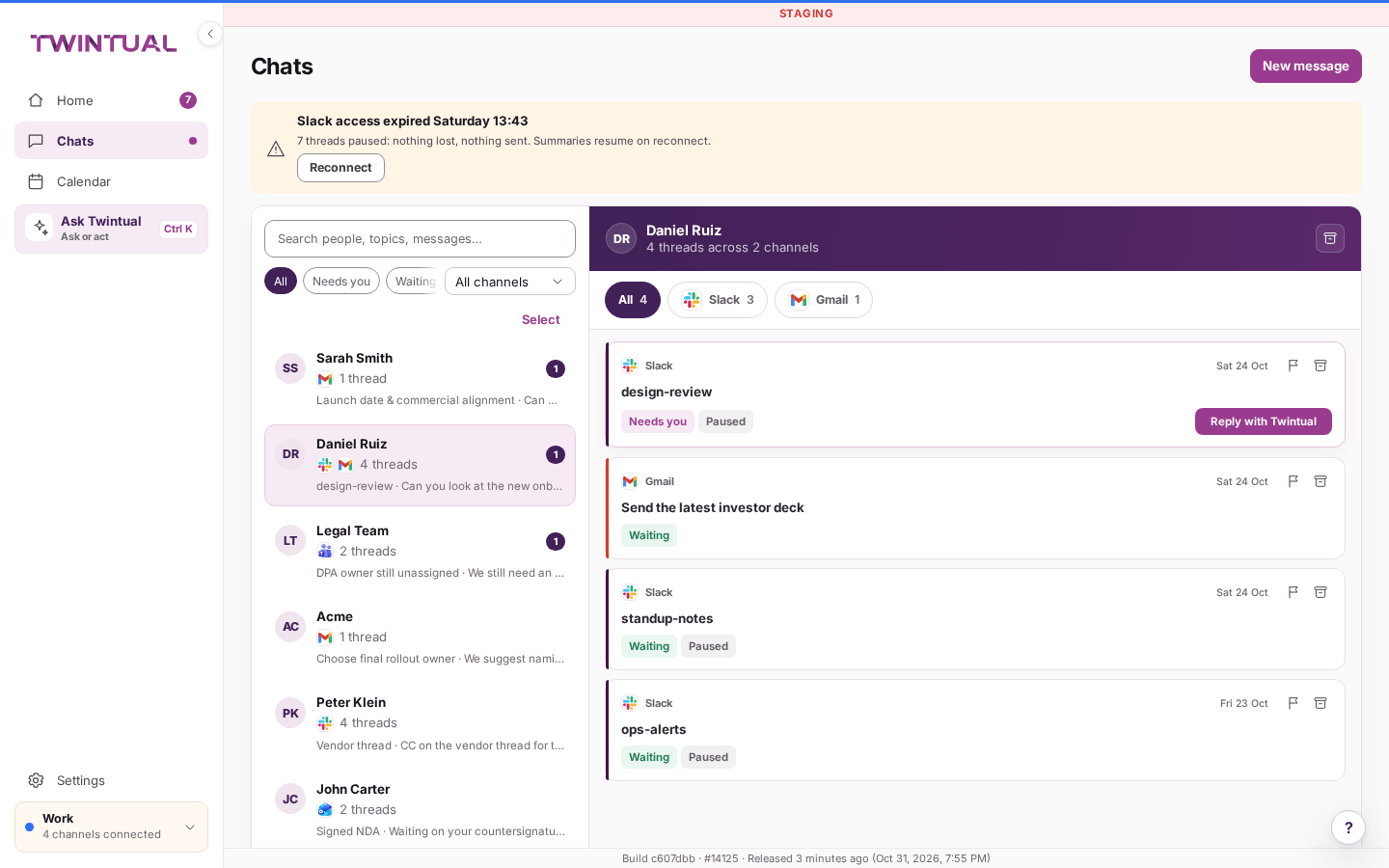
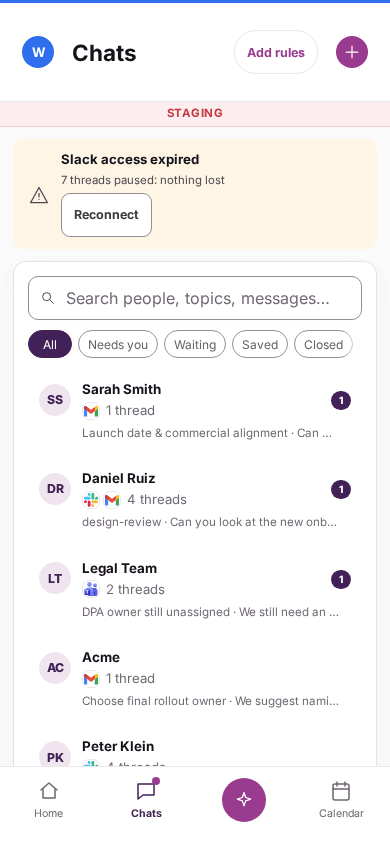
- Open Chats and select the person.
- Open the conversation. On one that needs you, select Reply with Twintual. The draft appears in the field.
- Read it and edit it if you want.
- Select Approve & send.
If the field is empty, Twintual asks you to write a message first. The reply goes out on the same channel the conversation is on. After it is sent, the conversation shows Waiting and the item disappears from Needs you.
To start a conversation from scratch, use New message. Choose who it is to, choose a channel under Via, add a Subject if it is email, and write your message or select Draft with Twintual. Then select Send message.
How do I edit or shorten a draft?#
Select the text of the draft and type. You can change, delete or add anything. Your edits are saved as you type, and they are still there if you leave and come back.
To make it shorter, select Make shorter. Twintual rewrites the draft and keeps the changes you already made. If the rewrite does not work, you see The rewrite could not be made. Your text is unchanged.
Other tools in the same area:
- Attach file adds a file from this device. On the phone you can also choose a file from a connected drive. See Files and knowledge sources.
- Voice input lets you dictate. The words are added to the draft, and no audio is stored.
- See it in shows a preview of the draft translated into the other person's language, when that applies.
What is a quick reply?#
Sometimes Twintual notices that a conversation is similar to one you have on another channel. It shows a line such as Similar WhatsApp follow-up detected. with a button, Add a quick reply.
Select it to open a second draft. This second draft has its own button, Send via followed by the channel name. It is sent and undone on its own, separately from your main reply.
You do not have to use it. If you ignore it, nothing happens.
How do I choose which channel or address a reply goes through?#
A reply goes out on the channel of the conversation you are in. A reply to an email is an email, and a reply to a WhatsApp message is a WhatsApp message. The channel name is always shown next to Approve & send.
- You also see Sending as followed by a profile name, and a line saying which address and channel it goes from.
- If your email account has more than one address, a From picker appears so you can choose the one to send from.
- If a conversation belongs to a different profile than the one you have open, a warning tells you so. The reply goes out as the profile that owns the conversation. Switch profiles first if you do not want that.
- For a new message, you pick the channel yourself, under Via.
How do I undo a message I just sent?#
Right after you approve, Twintual holds the message for a short time and shows Message sent via followed by the channel, with an Undo button. Select Undo while it is on screen to stop the message from being sent.
Once the time is up, the message goes out and you cannot take it back. If you are too late, you see Too late to undo. The message has already gone out.
You can choose how long you get under Settings, then General, in Undo window. The same window applies to archiving, snoozing, rules and merges.
Can I send a message later?#
Yes. In the reply field, select Send later and pick a time. The button then reads Scheduled for followed by the time.
To see or change what is scheduled, open Chats and choose the Scheduled chip. The Scheduled sends tab lists them. For each one, you can select Edit time or Cancel send. The same chip also has Snoozed and Reminders tabs.
If you want to be told when nobody answers, turn on Remind me if no reply on the draft and pick when.
What does "Your first reply is sent" mean?#
The first time you approve a reply, you see a banner, Your first reply is sent. It confirms that the message went to the person from your own account on that channel, not from a Twintual address.
It also states how Twintual always works: your twin drafts, you decide, and nothing is sent without you. The banner is a one-time welcome. It is not a sign that anything went wrong.
What happens if a message fails to send?#
If a send does not go through, nothing is sent and your words are not lost.
- In a conversation, you see Nothing was sent. and Could not send. Your reply is back in the field. Your draft is still there. Check your connection, then select Approve & send again.
- From Home, the item goes back to Needs you with your draft, and you see Try again.
- If it says Still sending, we'll tell you if it fails, wait. You will see a message if it fails.
- If a new message arrived, or the conversation changed, you are asked to read the latest message and send again.
Sending again never produces two copies of the same message.
What if it says Twintual could not confirm my reply was delivered?#
Sometimes the channel does not answer in time, so Twintual cannot tell whether your message went out. First you may see Still sending, we'll tell you if it fails. If it stays unclear, you see We could not confirm that your reply to the person was delivered. It may still go out. with Check again.
This is different from a failed send. Here the message may already be on its way, so Twintual does not send it a second time by itself.
- Select Check again. Twintual looks at the conversation once more.
- If it still cannot tell, open the conversation in the channel itself, for example your Sent folder or the chat, and see whether the message is there.
- Only write it again if it did not arrive. If it did, you are done.
If it says Your reply to the person was not sent. Your text is still in the reply box., nothing went out. See What happens if a message fails to send?.
What if my channel is disconnected or needs me to sign in again?#
When a channel is disconnected, Twintual cannot send on it. Home and Chats show a banner naming the channel and the time it disconnected. It says the affected conversations are paused, that nothing is lost and nothing is sent, and that summaries resume when you reconnect.
Your draft stays where it is and stays editable. In place of Approve & send you see the reason, for example This channel needs you to sign in again., with a Reconnect button.
- Select Reconnect.
- Sign in to the channel again.
- Go back to the draft and select Approve & send.
For more about connecting channels, see Connect your channels.
Why does Twintual say sending is paused?#
Your plan includes a number of sends for each billing cycle. When you reach it, Approve & send is replaced by a message that sending is paused and a See plans button.
Twintual keeps reading your messages and writing drafts. Sending from Twintual starts again when your billing cycle renews or you change plan. Nothing is charged automatically. Each message that is delivered counts as one send.
Sending can also be paused for other reasons. The message on the draft says which one, and has a button for the next step:
- Blocked by company policy means your organization does not allow that send.
- A trial that ended, a plan that ended or a payment that failed pauses sending until you fix it. The button takes you to See plans, Update payment or Go to billing.
See Billing and plans for what each plan includes.
Why can't I reply on WhatsApp?#
WhatsApp Business only lets you send free-form messages for a limited time after the other person last wrote to you. When that time is over, you see The 24-hour window with this contact is closed.
Instead, you send one of your approved WhatsApp templates. Choose a template from the list on the draft. If you have none, you can request one there.
Where should I go next?#
Related reading.
- Needs you and drafts to why something needed you in the first place.
- Personalize your twin: tone and voice to make future drafts sound more like you.
- Autopilot, rules and automations to see which replies Twintual can send without asking.