
Daily use
Notifications and availability hours
Choose what Twintual notifies you about, set your push window, quiet hours and daily brief, manage email, and understand how this differs from your Availability hours.
Go to this screenTwintual only interrupts you when something needs a decision from you. You decide how: a push notification on your device, an email, or neither, and during which hours. This article covers the notification settings, the Notifications list, and how they relate to the hours on the Availability page.
Where do I find my notification settings?#
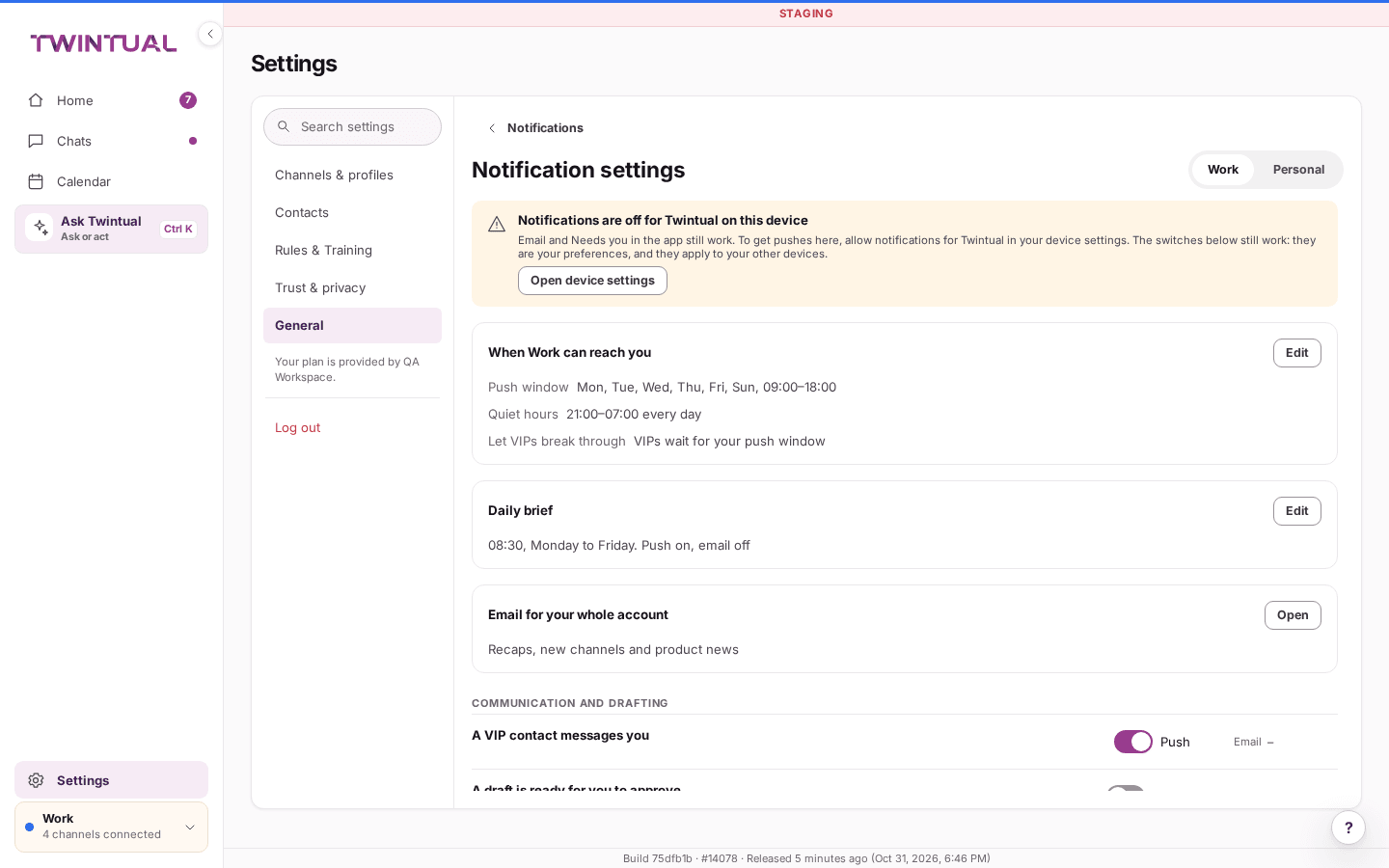
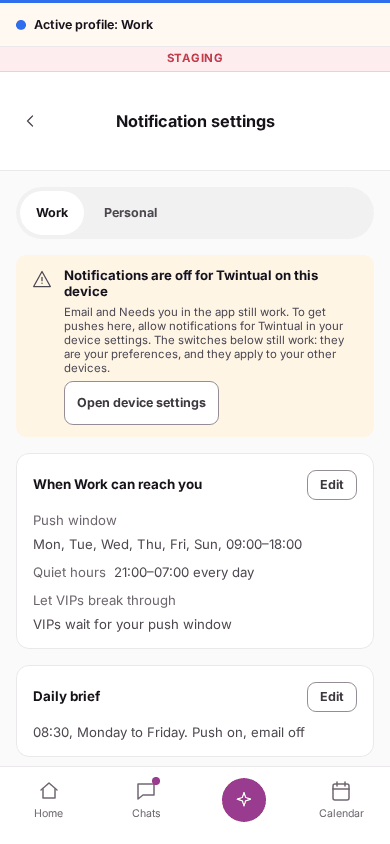
Go to Settings, then General. In the Notifications row, select Manage. That opens the Notifications list. The last row of the list, Notification settings, opens the settings themselves.
- Open Settings, then General.
- In Notifications, select Manage.
- Select Notification settings.
The old address /notifications leads to the same Notifications list.
What is in the Notifications list?#
The Notifications list holds notices about your account: security, billing and channel connections. Each row shows a title, one line of detail, the profile it belongs to (when it belongs to one) and the time. A dot marks a notice you have not opened yet. Some rows have a button for the next step, such as reconnecting a channel.
Things that need a reply or a decision are not here. They are on Home, under Needs you. See Needs you and drafts.
Select a notice to open what it is about. If that thing no longer exists, belongs to another profile, or you no longer have access to it, Twintual tells you so and offers the nearest useful place, such as Go to Chats, See your channels, or a button to switch profile and open it. When there is nothing to show, the list says No notices.
How do I choose what notifies me by push or by email?#
On Notification settings, the events are grouped, for example Communication and drafting, Calendar, Connection and sync health, Security and account, Billing and subscription, Onboarding and activation, and Value proof and product. Each event is a row with a Push control and an Email control.
- A switch means you decide. Turn it on or off.
- Always on means it cannot be turned off. Security email works this way, because it protects your account.
- Sent by Stripe means the email comes from Stripe, our payment provider, so there is nothing to set.
- A dash means that event has no push, or no email.
- Off by default appears on optional emails you have not turned on. Next to it, Email preferences takes you to the optional email lists. See How do I manage email and unsubscribe?
The settings are kept per profile. If you have more than one profile, use the tabs at the top to switch between them. Changes are saved as you make them, and there is no Save button.
A few rows have extras. A draft is ready for you to approve has a push control labelled Every draft. The row You have not replied for a while lets you set two numbers, First flag, in hours and Second flag, in hours. The second must be greater than the first.
Two lines at the bottom of the page set expectations. Twintual sends at most 5 pushes a day. After that, it sends one push saying how many items need you. And under What deliberately never notifies you can see what Twintual will not notify you about, such as every inbound message or "you have not checked Twintual today" reminders.
Which rows you see depends on your account. For example, if a workspace provides your plan, billing notices go to the billing owner and admins, and a line on the page says so.
How do I set my push window and quiet hours?#
Each profile has a card titled "When" plus the profile name plus "can reach you", for example "When Work can reach you". It shows your Push window and your Quiet hours.
- On Notification settings, select Edit on that card.
- Under Push window, switch it on or off. When it is on, pick the days and set Start and End.
- Under Quiet hours, set Start and End. Quiet hours apply every day, for example 21:00 to 07:00.
Changes are saved as you make them. An overnight range, where the end is earlier than the start, is accepted. The end cannot be the same as the start, and the push window needs at least one day.
If you switch the push window off, the pushes that follow it are switched off too. You see Off while the push window is off next to them. Security, billing and connection alerts are not held back by the window.
Under Break through quiet hours you see the only things that may reach you during quiet hours. They are security events, a payment failure and connection loss on every profile, and, only on a profile that has push on, a meeting that starts in 10 minutes and a meeting cancelled or moved less than 2 hours before it starts. For how each profile behaves, see How do push window and quiet hours work for each profile?
What does not get a push is not lost. It waits in Needs you. See Why are drafts waiting for me in the morning?
How do I change my daily brief?#
The Daily brief card on Notification settings shows when your brief arrives and whether it comes by push, email or both.
- Select Edit on the Daily brief card.
- Set the Time.
- Choose the days. You need at least one.
- Under Send it by, choose Push notification, Email, Push and email or Do not send.
- Select Save.
On the phone, the same fields open in a sheet from the bottom of the screen.
How do I make sure important people reach me?#
You can mark a contact as VIP in Settings, under Contacts. Select the Mark as VIP button on their card. A VIP tag appears. Select the button again to remove it. VIP is set per profile.
On Notification settings, two rows relate to VIPs: A VIP contact messages you and A draft is ready for you to approve. For drafts, the row says you get a push when the draft answers a VIP or something you asked for. Each row has its own Push switch, so check it is on for the profile you care about.
By default, being a VIP does not change your hours: pushes still follow your push window and quiet hours, and the list under Break through quiet hours does not include VIP messages. To hear from your VIPs at any time of day, open the schedule editor and turn on Let VIPs break through. A VIP message then pushes even outside your push window and quiet hours, and it still counts toward your 5 pushes a day. It is off unless you turn it on.
How are Replies hours different from my notification hours?#
Twintual has two places where you set hours, and they do different jobs.
- Notification settings (Settings, General, Notifications) is about interruptions. Your Push window, Quiet hours and Daily brief decide when Twintual may push to your device.
- Availability (Settings, Channels & profiles, then Availability on a profile) is about your working week. It has three kinds of hours, picked under Kind of hours: Meetings ("Times Twintual may offer or accept for meetings"), Focus ("Protected time. Twintual never offers it") and Replies ("When replies and notifications may come through").
On Availability you can also set a time zone, add Dates off for holidays, trips and time out of office, and give a channel its own hours. The page shows which hours apply and where they come from. For more on this page, see Can each profile have its own availability hours?.
To control when your phone buzzes, use the Push window and Quiet hours on Notification settings. Those are the settings that decide when a push is sent to your device.
How do I turn push notifications on for this device?#
Twintual asks first, and only once something actually needs you. The first time an item lands in Needs you, Home shows a dialog titled Turn on notifications. It explains what Twintual will send (a reply waiting for your approval, a meeting to confirm, and a channel that needs you to reconnect) and what it will not (marketing, or a running count of everything your twin did).
- Select Turn on notifications to continue. Your browser or phone then shows its own permission prompt.
- Select Not now to say no. No system prompt appears.
After Not now, Twintual can ask once more, at least 30 days later. After a second refusal, it does not ask again. Nothing is lost if you decline: email and Needs you in the app still work.
If notifications are blocked on this device, Notification settings shows a banner, Notifications are off for Twintual on this device. To get pushes here, allow notifications for Twintual in your browser or device settings. The switches on the page still work. They are your preferences, and they apply to your other devices.
How do I manage email and unsubscribe?#
Optional email is managed in Email preferences. To open it, go to Notification settings and select Open on the Email for your whole account card, or select Email preferences next to an optional email that is off.
- Email you choose is Channel launches, Recaps and Product news. They are all off until you turn them on. Product news also covers release notes, tips, a nudge if you have been away, and your daily brief by email.
- Email you always get is Security, Billing, Connection and Service. They cannot be turned off, because they affect your account, your plan or how a channel works.
- Your record lists what you turned on or off, and when.
Every optional email has an unsubscribe link. Opening it stops that kind of email right away. You do not need to sign in. Twintual shows You've been unsubscribed and tells you that security and billing email still arrives. Select Manage email preferences to review your choices. If the link does not work, you see That link did not work and nothing has changed.
For the bigger picture of what Twintual sends, see Which notifications and emails does Twintual send?
Where should I go next?#
Related reading.
- Profiles to a profile's own channels and calendars.
- Daily brief, Pulse and weekly review to change when your daily brief arrives.
- Privacy basics to which emails and notifications Twintual sends.