
Daily use
Personalize your twin: tone and voice
Personalize your own drafts. Set your tone, answer a few questions about how you work, correct drafts so your twin learns your voice, and see, change or forget everything it knows. This is not about AI model training.
Go to this screenTraining is where you personalize your twin: you teach it your tone, your voice and how you work, so its drafts sound like you. This is personal to your own profiles. It is not about Twintual or its AI vendors training AI models on your messages; for that question, see Does Twintual train AI on my messages?. You stay in control: you can read, reword or forget anything it has learned, and a draft is never sent until you approve it.
Where do I find Training?#
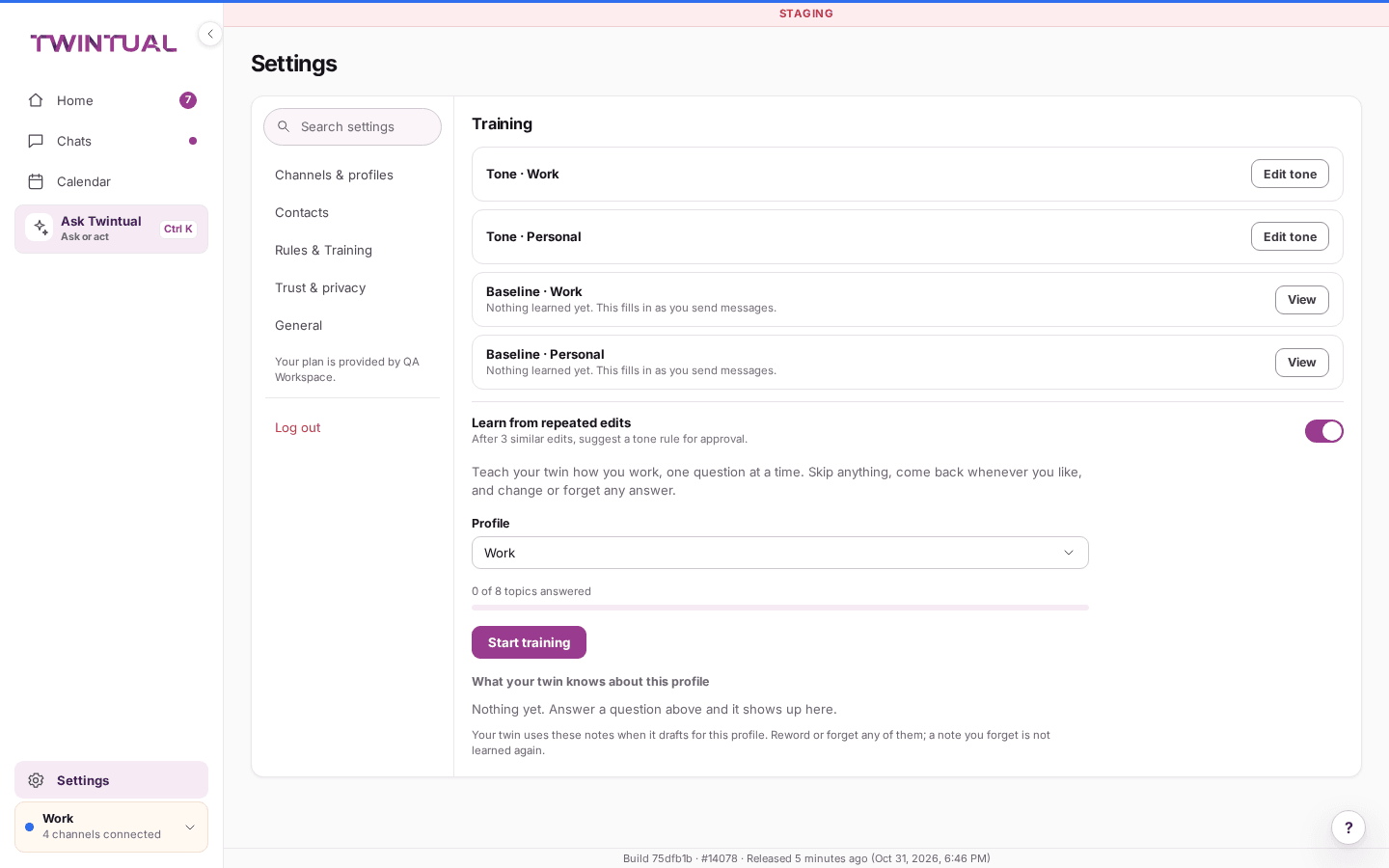
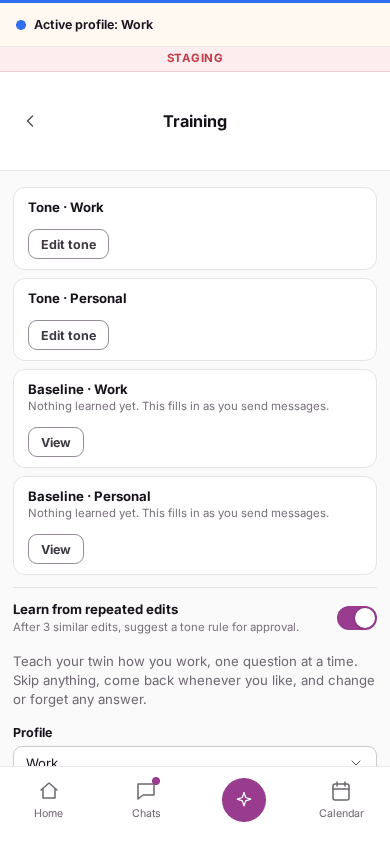
Open Settings, then Rules & Training. You can also select Open Training on the Teach your twin card on Home.
The page has three parts, from top to bottom:
- Tone and Baseline for each profile, plus a switch called Learn from repeated edits.
- The guided questions, with a progress bar such as "3 of 8 topics answered".
- What your twin knows about this profile, where every note you taught is listed.
The guided questions and the notes belong to one profile at a time. If you have more than one profile, a Profile selector appears above them so you can choose which profile you are teaching. What you teach in one profile stays in that profile. See Profiles.
How do I set my tone?#
Each profile has a row called Tone followed by its name, for example Tone · Work. Under it you see your description of the tone, or the traits you chose.
- Select Edit tone on the row.
- Under How it sounds, select the traits that fit: Concise, Detailed, Warm, Formal or Emoji OK. You can pick more than one.
- In Describe the tone in words, write it your own way, for example how direct or friendly you are.
- In Sign-off, type how you end a message.
- Select Save.
If a sample is available, you also see a reply drafted in your style from a real thread in your inbox. It is only an example for teaching, and it is never sent. Your tone applies to the profile you edited. Other profiles keep their own.
You first picked your tone during setup. See How do I make drafts sound like me?.
What has Twintual learned about how I write?#
Under the tone row, each profile also has a row called Baseline followed by its name. It says how many sent messages Twintual has learned from, or "Nothing learned yet. This fills in as you send messages."
Select View to open it. The baseline is built from messages you sent from that profile, and it updates each time you send. It can show:
- How you write, a short description of your style.
- Your tendencies, shown as words such as Lower, Middle or Higher, not as scores.
- Phrases you use, your own words used more than once.
- Openings and sign-offs, how you usually start and end, and about how many words you write.
You cannot edit the baseline, but you can wipe it. Select Forget what Twintual has learned, then confirm with Forget. Twintual starts again from your next sent message. Your sent messages are not affected and your tone settings stay as they are. This cannot be undone, which is why it asks first.
How do I teach my twin how I work?#
Select Start training. Twintual asks eight questions, one at a time, about:
- Your role and what you are responsible for.
- What matters most to you this quarter.
- Anything about how you write that it should know. This step has a button, Open tone and writing settings, back to the tone row.
- The people who matter most, and why.
- What it should always do and never do.
- When you work and when you are not available.
- What people usually ask you and how to answer.
- What it should bring to you and what it can handle quietly.
For each question, type your answer in Your answer. A few sentences is plenty, and each answer can be up to 500 characters (a counter shows how many you have used). Select Save and continue to move on. On the last question the button reads Save and finish.
You do not have to answer everything:
- Skip for now moves on and saves nothing.
- Back returns to the previous question.
- Finish later takes you back to the overview.
Once you have started, the button on the overview reads Continue training. When every topic has an answer, it reads Go through the questions again, and you can add more at any time.
Can I answer by voice?#
Yes. Each answer box has a microphone button, Answer by voice.
- Hold the button while you speak, or tap it once to start and tap again when you are done.
- Wait for Turning your voice into words....
- Your words appear in the answer box. Fix anything that was misheard, then save.
If your browser has not allowed the microphone, you see "The microphone is not allowed. Allow it in your browser settings, or type your answer." If you see "Did not catch that. Try again or type.", try once more or just type. Typing always works.
Voice works the same way when you dictate a change to a draft. See How do I edit or shorten a draft?. The audio is turned into text and then deleted. See Privacy basics.
How do I see, change or forget what my twin knows?#
Scroll to What your twin knows about this profile. Every answer you saved is a note, grouped by topic such as Role and responsibilities or Always and never. Under each note you see where it came from (for example Training question or Suggested question) and the date.
- Select Edit to reword a note, then Save. Select Cancel to leave it as it was.
- Select Forget to remove a note. A note you forget is not learned again.
Your twin uses these notes when it drafts for this profile. If you see "Nothing yet. Answer a question above and it shows up here.", you have not saved any yet.
If a note will not save, the page tells you why, for example that you wrote nothing, that it is too long, or that your twin already knows it. When a profile has as many notes as can be kept, forget one first.
How does my twin learn from my corrections?#
Whenever you edit a draft before approving it, you are teaching your twin. Two things use that:
- Learn from repeated edits. This switch sits at the bottom of the tone and baseline rows. With it on, after 3 similar edits Twintual suggests a tone rule for your approval. The suggestion appears in Settings, then Rules & Training, marked "proposed by Twintual", with Accept and Dismiss. Nothing changes until you accept. The switch is one setting for all your profiles.
- Questions your twin would like answered. When you correct the same thing in several drafts, a card with that title appears on the Training page. A question such as "How do you usually sign off your messages?" shows how often you corrected it, for example "Corrected 3 times recently". Select Answer, type or speak, and select Save. Answering once saves you correcting it again.
The baseline also keeps updating as you send, as described above. Nothing is sent without your approval. See Needs you and drafts and Approve and send.
What about my signature and the address I send from?#
These live with your channels, not on the Training page.
- Email signature: in Settings, then Channels & profiles, open Manage on an email channel. Email signature is added below every reply and new email you send from Twintual. Select Detect from my sent mail to have Twintual find it, or edit it or Clear it yourself.
- Profile signature: in Channels & profiles, select the rename button (the pencil, tooltip Rename) next to a profile's name. Under Profile signature you can set a default for every email account in that profile that has no signature of its own. A signature on an account or address wins over it.
- Send-as addresses: for Gmail, Outlook and other email accounts, Send-as addresses in the same Manage panel lists other addresses you can send from. Each can have its own signature. When you have more than one, a From picker appears on the draft. See How do I choose which channel or address a reply goes through?.
Where are my other preferences?#
Training covers your voice and what your twin should know about you. Other preferences have their own place:
- How you like to schedule meetings and focus time: see How do I set my meeting and focus preferences?.
- Written rules such as "if an investor has not replied, follow up": Settings, then Rules & Training.
- How much Twintual does for you per contact: Autopilot, linked from the Training page. It is off until you turn it on.
- Notification hours per profile: see How do push window and quiet hours work for each profile?.
Why can't I change my training?#
If your plan is read-only, you can read your tone, baseline and notes but not change them. You see a note that the account is read only. When you are offline, saving is switched off until your connection is back. See Billing and plans.
Where should I go next?#
Related reading.
- Approve and send to edit and send a draft.
- Autopilot, rules and automations to turn repeated edits into a rule.
- People and contacts to what Twintual remembers about one person.