
Account and billing
Billing and plans
Choose or change a plan, pay by card, understand your trial and limits, and manage invoices and cancellation.
Go to this screenPlans and billing are managed in the web app, on a larger screen. This article covers choosing a plan, paying, changing or cancelling it, and what happens when something goes wrong. For exact prices and plan limits, see the Choose a plan page in your account.
What plans are there?#
Twintual has three plans for individuals and small teams: Basic, Plus and Professional. Each plan sets how many profiles, channels per profile and sends per month you get.
To compare them, go to Settings, then Team & billing, and select See plans (or Choose a plan, or Change plan, depending on where you are). The Choose a plan page shows what each plan includes and marks the most popular one.
If you need a plan for a team or a company, select Talk to sales on the same page and send your question.
How does the free trial work?#
Your 15-day trial of the Basic plan starts when you connect your first channel, not when you sign up. You do not need a card to use it.
Signing up on its own does not start the clock: until you connect a channel, your trial has not started. Only your account's first connected channel starts it, and only once: connecting more channels later never restarts or extends it.
Choosing a plan during the trial charges your card that day and ends the trial. If you go back without paying, nothing is charged and your trial carries on.
The Team & billing page tells you when no card is on file. Your plan and your usage are shown under Current plan.
What happens when my trial ends?#
Twintual becomes read-only. You see a message such as Your trial ended: your twin kept the receipts, or on Home a note that Twintual is read-only.
- Your history stays safe, and reading it stays free. Select Keep reading my history to carry on reading.
- Sending, approving and booking are switched off until you have a plan.
- Select Subscribe (or See plans) to choose a plan and pick up where you left off. Nothing from before is owed.
If you are part of a team, it is read-only for everyone. Only your workspace admin can choose a plan, and they have been told.
How do I choose a plan?#
- Go to Settings, then Team & billing, and select Choose a plan.
- On Choose a plan, pick Monthly or Annually under Billing cycle.
- Select the button on the plan you want, for example Choose Plus.
- On Review your plan, check what you get and the amount under Due today. Select Continue to payment.
- On Payment, enter your card and select Subscribe.
Your card is charged when you subscribe. Everything you connected stays as it is.
Should I pick monthly or annual billing?#
Use the Monthly and Annually switch under Billing cycle at the top of Choose a plan. The page shows the amounts for each, so you can compare before you decide.
You can change the cycle later. On Choose a plan, pick the other cycle, then select Switch to annual billing or Switch to monthly billing on your current plan and confirm the change.
How do I pay by card?#
You enter your card on the Payment step, inside Twintual, in Stripe's secure card form. Twintual never sees or stores your card number. Nothing is charged until you confirm the payment.
After you select Subscribe, you see Activating your subscription… for a few seconds while Stripe confirms the payment.
If you see Payment received. and your plan is not ready yet, you do not need to pay again. Carry on in the app, and your plan appears in Team & billing as soon as it is ready.
What if my card is declined?#
You see Your card was declined. Try another card. Nothing was charged.
- When you are buying a plan, enter a different card or check the details and try again.
- When you are changing plan, your plan stays as it was. Update the card, then try again.
- If your bank needs to approve the payment, you see Your bank needs to approve the charge. Select Open Stripe and finish the approval there. Until then your plan stays as it is.
- If there is no card on file, you see Add a card first. Nothing has changed.
What happens if a renewal payment fails?#
Twintual becomes read-only and you see Payment failed: Twintual is read-only. Your last payment did not go through.
- Select Update payment method on the Team & billing page. This opens the Stripe customer portal.
- Update your card there.
- Come back to Twintual. Access returns as soon as the payment succeeds.
While the payment is unsettled you cannot change plan. You see Settle the payment before changing your plan.
If the payment is not settled at all, your plan ends and you see Your plan has ended. Choose a plan to pick up where you left off. Nothing from before is owed.
In a team, a failed payment makes Twintual read-only for everyone on the team. The team owner is asked to update the card, and members see that the workspace admin has been told.
If your card is about to expire, Twintual sends you a notification about 14 days beforehand, named Card expiring, telling you your card expires at the end of that month and year. If you visit Team & billing before your next renewal, you also see a banner there, The card on file expires on and the date. Update the payment method before then so the next renewal goes through.
What are usage limits, and what happens at the limit?#
Your plan includes a number of Profiles, Channels (per profile) and Sends (per month). Team & billing shows how much you have used of each.
- Sends: when you reach your sends for the cycle, sending is paused. Twintual keeps reading and drafting. Sending starts again when your billing cycle renews, or at once if you change plan. Nothing is charged automatically.
- Profiles and channels: at the limit, you cannot add another one. Remove a profile or disconnect a channel in Channels & profiles, or select See plans to get more room.
- Over the limits after a change: if your use is above what a plan allows, you see a message that your use is over your plan's limits. Choose a plan that fits, remove a profile, or disconnect a channel. Select Keep reading my history to look at your history in the meantime. Twintual works again once your use fits your plan.
When you are close to your sends, Twintual shows how you are pacing this cycle so you can plan ahead.
How do I change my plan?#
- Go to Settings, then Team & billing, and select Change plan.
- Select the button on the plan you want, for example Switch to Professional.
- Check What changes today and Due today.
- Select Confirm change.
- For safety, Twintual emails you a 6-digit code under Confirm it's you. Enter it to finish. Nothing changes until you do.
A change of plan starts as soon as you confirm, and uses the card you already have on file. You are not refunded or credited for the time left on your current billing period.
If you use more than the new plan allows, Twintual warns you first. After the change you are asked to choose a plan that fits.
If the change is taking longer than usual, you see Taking longer than usual. Check Team & billing in a moment to see your plan.
How do I cancel?#
Cancelling is done in the Stripe customer portal.
- Go to Settings, then Team & billing.
- Select Manage subscription.
- On Continue in the Stripe portal, select Continue to Stripe.
- Cancel your subscription there.
When you come back, Team & billing shows Cancellation scheduled in Stripe, and says you keep your plan until the end date. After that, Twintual becomes read-only and your history stays free to read.
Changed your mind? Select Resume plan before the end date.
How do team plans and seats work?#
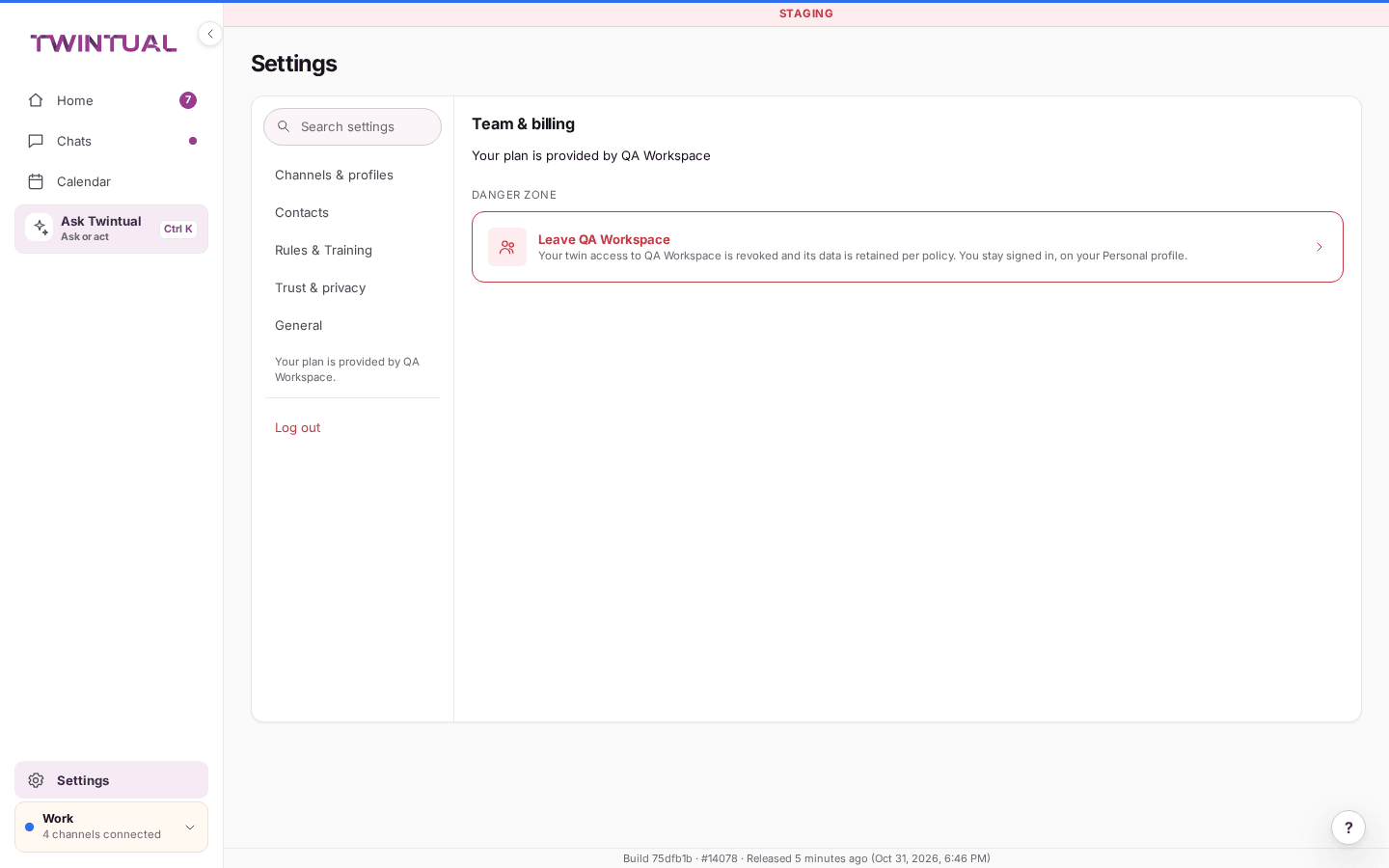
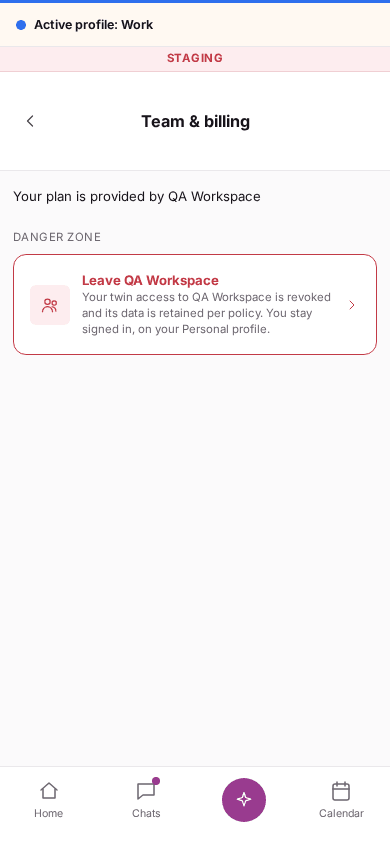
The Team & billing page covers both your team and your subscription.
- If you have no team, you see No team created yet and your profiles stay personal. Select Start a team to create one.
- Once you have a team, select Manage team to see Available seats. Select Invite member to invite someone. Invitations need an available seat, and you can select Add seats whenever you need more.
- If your plan is provided by a workspace, Team & billing says Your plan is provided by the workspace name. Only the workspace admin can change it.
If your team becomes read-only because of a trial that ended or a plan that went over its limits, it is read-only for everyone on the team. Only the workspace admin can choose a plan or fix the limits.
Where do I find invoices and my billing details?#
On Team & billing, you see your Payment method and a list of Invoices. If you have none yet, you see No invoices yet.
Cards, invoices, tax and cancellation open the Stripe customer portal. Select PDF in the Stripe portal next to an invoice to get it. To update your card, select Update.
How do I use a promotion code?#
When you buy a plan, select Add promotion code on the Payment step and enter your code. The discount shows before you pay.
A promotion code and a referral reward are not combined. Twintual applies the larger one and keeps the other for your next payment.
How do I earn a free month by inviting 3 friends who subscribe?#
If you pay for Twintual, you can invite friends and earn a free month for every 3 friends who subscribe.
- Open the profile menu and select Invite a friend.
- Select Copy invite link, or share it with your friends. Your invite code and Invite link are on the page.
- Once a friend subscribes to a paid Twintual plan, the referral counts toward your reward.
- Once 3 friends who subscribe are counted, you unlock a free month. It can take a little while to show up, and it comes off one of your upcoming renewals - you can see it under Credits on Team & billing. Select See the credit in Team & billing to go there.
Keep inviting: every new group of 3 friends who subscribe earns another free month (up to a few times a year).
If a friend invited you, you can enter their Referral code when you set up your profile.
Can I manage billing from the phone app?#
Not in the phone app. Plans, billing, invoices and cancellation are in the web app.
On the phone, these pages show Continue on desktop. Open Twintual in a browser on a computer to continue. You can select Back to Home to return.
If your plan or trial has ended, Twintual still shows your history on the phone in read-only mode. Open the web app to choose a plan, and everything works again on your phone as soon as the plan is active.
Where should I go next?#
Related reading.
- Invite a friend and team workspaces to earn a free month by inviting friends.
- Privacy basics to what happens to your data if you cancel.