
Get started
Connect your channels
Connect Gmail, Outlook, Slack, WhatsApp and more, fix a channel that signed out, and see what Twintual can read.
Go to this screenA channel is a place where people write to you, such as your email or a chat app. Each channel belongs to one profile. Your twin only reads what you connect.
Which channels can I connect?#
Twintual groups channels into email, messaging, meeting notes and support tickets.
- Email: Gmail, Outlook, and Custom Email for any other mailbox.
- Messaging: Slack, Teams, WhatsApp Business, Google Chat, Instagram Business DMs and Telegram.
- Meeting notes: Fathom and Fireflies, connected with an API key instead of signing in, and Zoom, connected with Zoom's own sign-in (see How do I connect Zoom?). See Can Twintual bring in notes from my calls?.
- Support tickets: Zendesk, Intercom, Help Scout and Freshdesk, each connected once for the whole team (Zendesk, Intercom and Help Scout by a workspace Admin; Freshdesk by any team member). See How do I connect Zendesk?, How do I connect Intercom?, How do I connect Help Scout? and How do I connect Freshdesk? below.
You see Connect next to each channel that is available to you. A channel marked Coming soon, such as Messenger Business, Fathom or Fireflies, is not available yet. Calendars and files connect from the same place. See the question about calendars and files below.
Your plan sets how many channels a profile can hold. If you reach the limit, you see "This profile has reached its channel limit". Select See plans or read Billing and plans.
How do I connect a channel?#
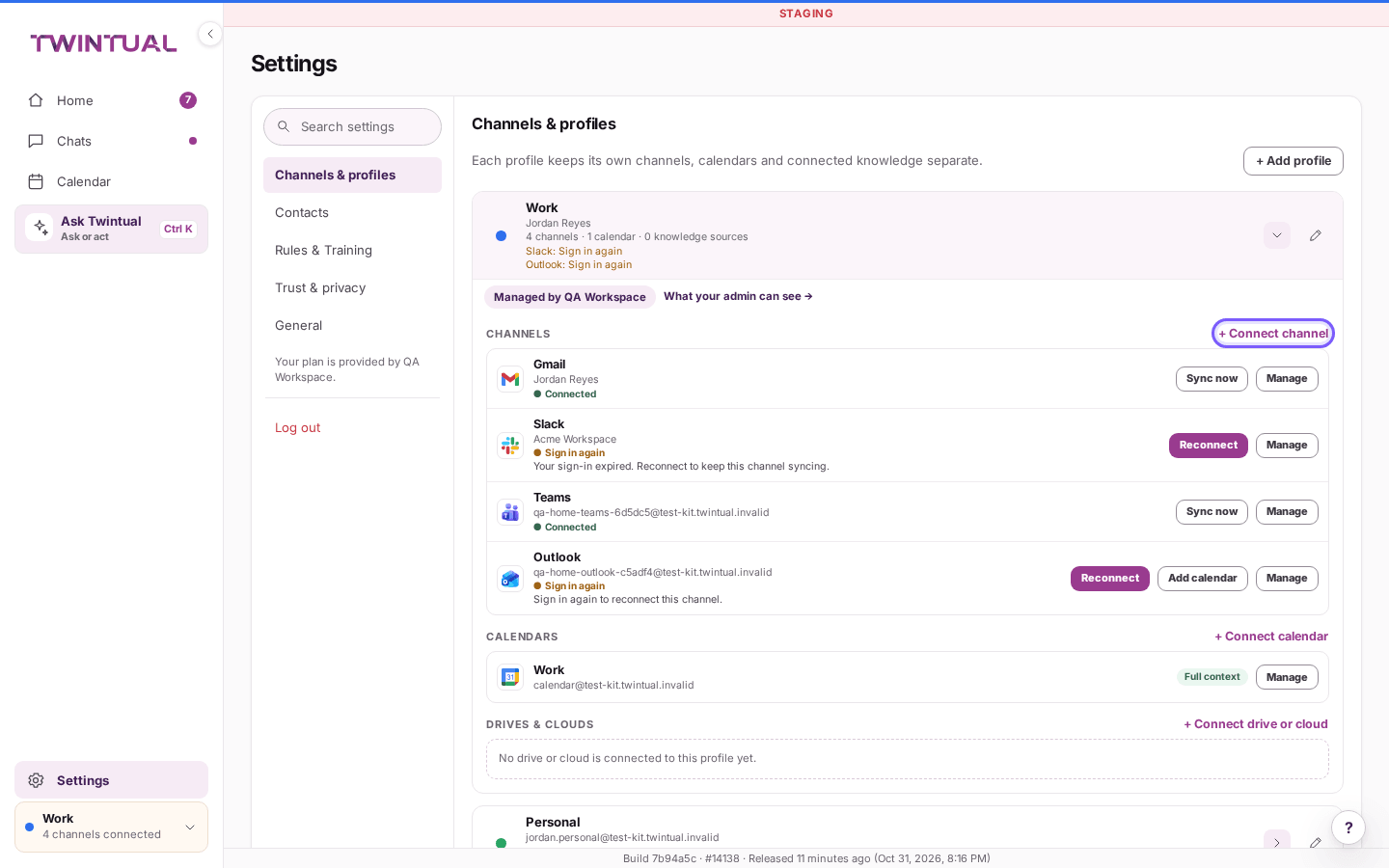
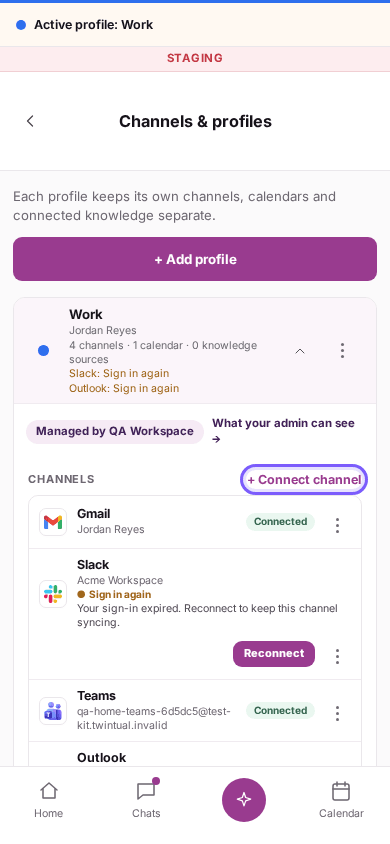
You connect channels in Settings, under Channels & profiles. During setup you can do the same on the Connect channels step.
- Open Settings, then Channels & profiles.
- Find the profile the channel should belong to.
- In the CHANNELS section, select + Connect channel.
- Choose the channel and select Connect.
- Sign in with the provider and approve access. You come back to Twintual when you are done.
Twintual uses the provider's official sign-in. It never sees your password. From Home you can also use Connect a channel when nothing is connected yet.
Each account can only be connected once. If you try to connect an account that is already linked to another profile, Twintual tells you which one. Use Profiles to move it instead.
How do I connect Gmail?#
- Open Settings, then Channels & profiles, and select + Connect channel in the right profile.
- Choose Gmail and select Connect.
- Sign in with Google and approve access.
Twintual may also connect the calendar of the same Google account. You see "Connecting your calendar too…" while it does. If you decline the calendar permission, mail still connects. You can add the calendar later with Add calendar on the channel's row.
Afterwards you may be asked to Choose your folders. Inbox and Sent are included to start. Add any other folders you want Twintual to read and select Save, or select Later. You can change this at any time from the channel's Manage panel with Choose folders.
How do I connect Outlook?#
- Open Settings, then Channels & profiles, and select + Connect channel in the right profile.
- Choose Outlook and select Connect.
- Sign in with your Microsoft account and approve access.
As with Gmail, Twintual may connect your Microsoft calendar at the same time, and you may be asked to Choose your folders. Select Save to keep your choice or Later to decide afterwards.
How do I connect a mailbox that is not Gmail or Outlook?#
Use Custom Email. It works with any mailbox that supports IMAP and SMTP, including one on your own domain.
- Open Settings, then Channels & profiles, and select + Connect channel.
- Choose Custom Email.
- Enter the Mail server, your Email address and your App password.
- Select Connect.
If the server does not accept your details, Twintual asks you to check the server address, the email address and the password. Use an app password if your provider offers one. It is stored encrypted and is used only to read and send for this mailbox.
How do I connect Slack?#
- Open Settings, then Channels & profiles, and select + Connect channel.
- Choose Slack and select Connect.
- Sign in to Slack and approve access to your workspace.
Right after, Twintual asks you to Choose what Twintual reads in Slack. Tick the direct messages and channels you want. Anything you leave unticked stays unread. Twintual never reads the whole workspace. If you are not ready, select Choose later.
How do I connect Teams?#
- Open Settings, then Channels & profiles, and select + Connect channel.
- Choose Teams and select Connect.
- Sign in with your Microsoft account and approve access.
Twintual then asks you to Choose what Twintual reads in Teams. It covers your chats and meeting threads. Anything you leave unticked is not read. Select Choose later if you want to decide afterwards.
How do I connect WhatsApp Business?#
Twintual connects to WhatsApp Business. Meta asks you to log in with Facebook once to link your WhatsApp Business number. Your chats stay in the WhatsApp Business app.
- Open Settings, then Channels & profiles, and select + Connect channel.
- Choose WhatsApp Business and select Connect.
- Log in with Facebook to authorise your WhatsApp Business account.
- If you already use the WhatsApp Business app, open it and scan the QR code shown there to link your number.
- If you are new to WhatsApp Business, you verify the number by SMS or voice call inside the Facebook login.
WhatsApp often fits your Personal profile better than Work. You can still add it to any profile you like.
Meta bills business-initiated WhatsApp conversations to your own Meta payment method, not to Twintual - Twintual does not charge or collect these fees. Replying within 24 hours of the customer's message is free under Meta's WhatsApp pricing.
How do I connect Google Chat?#
- Open Settings, then Channels & profiles, and select + Connect channel.
- Choose Google Chat and select Connect.
- Sign in with Google and approve access.
Twintual then asks you to Choose what Twintual reads in Google Chat. It covers your spaces and direct messages. Anything you leave unticked is not read. Select Choose later to decide afterwards.
How do I connect Instagram?#
Twintual connects to Instagram Business DMs, the direct messages of your business account.
- Open Settings, then Channels & profiles, and select + Connect channel.
- Choose Instagram Business DMs and select Connect.
- Sign in and approve access.
Instagram is reply-only. Your twin can answer a message someone sent you, but it cannot start a new conversation there.
How do I connect Telegram?#
Telegram connects to your own Telegram account, with your chats and channels. Twintual signs in to your account. It never stores your Telegram password. If you do not see Telegram in the list, it is not available to you yet.
- Open Settings, then Channels & profiles, and select + Connect channel.
- Choose Telegram and select Connect.
- Enter your phone number with the country code.
- Enter the verification code that Telegram sends you.
- If your account has two-step verification, enter that password too. Then finish.
How do I connect Zendesk?#
Zendesk is different from the other channels: it connects once for the whole team, not per person. Only a workspace Admin can connect it, and everyone on the team then sees the same shared support tickets through that one connection.
- In Zendesk, go to Admin Center, then Apps and integrations > APIs > Zendesk API, and generate an API token.
- In Twintual, open Settings, then Channels & profiles, and select + Connect channel.
- Choose Zendesk and select Connect.
- Enter your Zendesk subdomain (the part before
.zendesk.com), your admin email address and the API token you generated. - Select Connect.
Twintual uses the token to read your team's tickets and, once you click Send, to reply on them - the same approval step every channel uses. Nobody at Twintual, and nobody on your team other than an Admin, ever sees the raw token.
If you are not a workspace Admin, you see "Only a workspace Admin can connect Zendesk." Ask your Admin to connect it; you do not need to do anything afterwards - once it is connected, your own team's tickets show up for everyone the connection is shared with.
How do I connect Intercom?#
Intercom is different from the other channels, the same way Zendesk is: it connects once for the whole team, not per person. Only a workspace Admin can connect it, and everyone on the team then sees the same shared support conversations through that one connection.
- In Intercom, open your Developer Hub and create a new Private App for your workspace.
- On that app's Basic Info page, copy its Access Token and its Client Secret.
- In Twintual, open Settings, then Channels & profiles, and select + Connect channel.
- Choose Intercom and select Connect.
- Enter the Access Token and Client Secret you copied.
- Select Connect.
Twintual uses the Access Token to read your team's conversations and, once you click Send, to reply on them - the same approval step every channel uses. The Client Secret is used only to verify that a notification really came from Intercom, never to read or send anything. Nobody at Twintual, and nobody on your team other than an Admin, ever sees either value.
If you are not a workspace Admin, you see "Only a workspace Admin can connect Intercom." Ask your Admin to connect it; you do not need to do anything afterwards - once it is connected, your own team's conversations show up for everyone the connection is shared with.
How do I connect Help Scout?#
Help Scout is different from the other channels, the same way Zendesk and Intercom are: it connects once for the whole team, not per person. Only a workspace Admin can connect it, and everyone on the team then sees the same shared support conversations through that one connection.
- In Help Scout, open Your Profile, then My Apps, and create a new app.
- Copy that app's App ID and App Secret.
- In Twintual, open Settings, then Channels & profiles, and select + Connect channel.
- Choose Help Scout and select Connect.
- Enter the App ID and App Secret you copied. If you have also set up a webhook under Help Scout's Apps > Webhooks with a Secret Key, enter that too - it is optional.
- Select Connect.
- Open the Help Scout row and select Manage. Under Webhook URL, select Copy - this is the exact address for this connection, not a shared one, and it only works together with the Secret Key you entered in step 5.
- Back in Help Scout's Apps > Webhooks, paste the copied URL into the webhook's URL field and save.
Twintual uses the App ID and App Secret to read your team's conversations and, once you click Send, to reply on them - the same approval step every channel uses. The webhook secret, if you add one, is used only to verify that a notification really came from Help Scout, never to read or send anything; without it Twintual still keeps everything in sync by checking periodically instead. Nobody at Twintual, and nobody on your team other than an Admin, ever sees any of these values.
The webhook URL is specific to this one connection - if you ever disconnect and reconnect Help Scout, open Manage again and copy the new URL into Help Scout, since the old one stops working the moment you disconnect.
If you are not a workspace Admin, you see "Only a workspace Admin can connect Help Scout." Ask your Admin to connect it; you do not need to do anything afterwards - once it is connected, your own team's conversations show up for everyone the connection is shared with.
How do I connect Freshdesk?#
Freshdesk connects once for the whole team, the same way Zendesk, Intercom and Help Scout do - but any signed-in team member can connect it, not only an Admin. Once it is connected, everyone on the team sees the same shared support tickets through that one connection.
- In Freshdesk, open Profile Settings and copy your API Key.
- Note your Freshdesk domain - the part before
.freshdesk.comin your Freshdesk URL. - In Twintual, open Settings, then Channels & profiles, and select + Connect channel.
- Choose Freshdesk and select Connect.
- Enter your domain and API Key.
- Select Connect.
Twintual uses the domain and API Key to read your team's tickets and, once you click Send, to reply on them - the same approval step every channel uses. Nobody at Twintual, and nobody on your team other than whoever connected it, ever sees the API Key.
How do I connect Zoom?#
Zoom connects with Zoom's own sign-in and brings in your meeting transcripts. It sits under the MEETINGS heading.
- Open Settings, then Channels & profiles, and select + Connect channel in the right profile.
- Under MEETINGS, choose Zoom and select Connect.
- Sign in to Zoom if it asks, and approve the permissions on Zoom's screen. You come back to Twintual.
Twintual asks Zoom for two permissions only: to list your own cloud recordings and to read their transcript files. It never joins meetings, reads your chat or contacts, changes anything in Zoom, or downloads video or audio. If you cancel on Zoom's screen, nothing is connected.
How does Twintual use my Zoom transcripts?#
Check that Zoom is turned on under Meeting transcripts in Settings, then Calendar. After each meeting on your connected calendar that has a Zoom link, Twintual looks for its transcript. Zoom only makes one when the meeting was recorded to the cloud with the audio transcript on.
- Meeting briefs: a short summary of what was said is used in your daily brief and in the prep for your next meeting with the same people.
- Action items: things you or others promised in the meeting are added to your open items.
- Follow-up drafts: Twintual drafts a recap and holds it for your review. Nothing is sent until you click Send.
Twintual keeps a transcript for 90 days at most, then deletes it.
How do I remove Zoom?#
You can remove it from either side. Doing both is the cleanest.
- In Twintual: open Settings, then Channels & profiles, find Zoom, select Manage, then Disconnect, and confirm. Twintual stops reading Zoom, revokes its access with Zoom and deletes the Zoom sign-in it stored.
- In Zoom: open the Zoom App Marketplace, go to Manage, then Added Apps, find Twintual and select Remove. Zoom tells Twintual, which deletes the stored Zoom access and every Zoom transcript and summary it kept for that profile.
If you only disconnect in Twintual, stored transcripts are deleted within 90 days. Action items and drafts already made stay until you dismiss or delete them. Nothing in your Zoom account is changed or deleted.
Can I connect calendars and files too?#
Yes. Calendars and files connect from the same page, in their own sections of each profile.
- Calendars: in the CALENDARS section, select + Connect calendar. You can use Google Calendar, Microsoft 365, Apple iCloud Calendar (with an app-specific password) or a read-only ICS feed. On the phone app you can also use the calendar on the device. See Calendar.
- Files: in the DRIVES & CLOUDS section you may see options such as OneDrive, SharePoint and Notion. Twintual reads them only. It never changes your files. You choose what it can read. See Files and knowledge sources.
What if I cannot connect a channel?#
Find the message you see and follow it.
- "We couldn't connect" followed by the channel name: the sign-in did not finish and nothing was saved. Select Try again when you are ready.
- "This account is already connected to" another profile: each account can be connected once. Disconnect it there first, or move it with Profiles.
- "Your plan has reached its profile limit" or "This profile has reached its channel limit": your plan does not allow more. Select See plans. If you are a workspace member, ask your admin.
- "Not approved by your admin": your workspace admin controls which channels a Work profile can use. Ask your admin.
- "Only a workspace Admin can connect Zendesk", "...Intercom" or "...Help Scout": Zendesk, Intercom and Help Scout are each shared by the whole team and only an Admin can connect them. Ask your Admin - you do not need to do anything once one is connected.
- Your plan is read-only: you cannot add anything until it is active again. See Billing and plans.
- Custom Email says the server did not accept your details: check the mail server, the email address and the app password.
If you cancel the sign-in window, nothing is connected and you can start again.
How do I reconnect a channel that disconnected or asks me to sign in again?#
Sometimes a provider ends the sign-in, for example when access expires. Twintual tells you in two places. Home shows a banner that names the channel and has a Reconnect button. In Settings, under Channels & profiles, the channel shows a status.
- Sign in again: select it and sign in with the provider. Your last messages stay readable and nothing already read is lost.
- Access removed: access was removed at the provider. Sign in again to keep it syncing.
- New permissions needed or Reconnect to enable replies: sign in again and approve sending. Nothing is sent without your approval.
- Disconnected by your admin: your workspace admin ended it. Ask your admin.
- Sync stalled: the sync stopped making progress, so Twintual paused it. Try Sync now or Reconnect on the channel's row.
- Sync failed: try Sync now. If it keeps failing, try Reconnect.
- Paused: the channel is on hold. Use Resume in the channel's Manage panel.
If a channel has not synced for over an hour, Twintual keeps trying by itself. While a channel is signed out, its conversations are paused: nothing is lost and nothing is sent. Summaries resume when you reconnect.
How do I reconnect Custom Email, Telegram and other channels that do not use a provider sign-in page?#
Gmail, Outlook, Slack and most channels reconnect by signing in at the provider. A few have no provider sign-in page, so Reconnect opens that channel's own form instead. It updates the same connection, so nothing is duplicated and your messages stay.
- Custom Email: you need this when you changed your mailbox password, when your provider turned on an app password, or when the server says The IMAP server rejected your email address or password or The SMTP server rejected your email address or password. Select Reconnect and enter the Mail server, your Email address and your App password again. Use an app password if your provider offers one, because a normal password often stops working after a change.
- Telegram: select Reconnect, enter your phone number and the verification code Telegram sends you. If your account has two-step verification, also enter that password. Twintual never stores your Telegram password.
- Fathom and Fireflies: select Reconnect and enter a new API key. For Fireflies, also enter your webhook signing secret again if you use a Fireflies webhook: leaving it empty removes the saved one (see How do I make new Fireflies meetings arrive straight away?).
- Apple Calendar and other calendar links: select Reconnect and enter the details again.
Until you reconnect, the channel is paused: nothing is lost and nothing is sent. For the other statuses, see How do I reconnect a channel that disconnected or asks me to sign in again?.
How do I disconnect a channel?#
- Open Settings, then Channels & profiles.
- Find the channel under its profile.
- Select Manage on its row, then select Disconnect.
- Confirm. The window asks "Disconnect" followed by the channel name.
Twintual stops reading and syncing that channel. You can reconnect it later. Disconnecting does not remove anything in your email or chat account itself.
If you only want a break, open Manage and select Pause. Select Resume when you are ready. If a channel belongs in a different profile, you do not need to disconnect it. See Profiles.
What can Twintual see and do with a channel?#
Twintual only reads what you connect, and you stay in control.
- Official sign-in: you log in with the provider. Twintual never sees your password.
- Read-only until you send: Twintual reads and drafts. Nothing is sent until you click Send.
- You choose the permissions: open Manage on a channel. Under TWINTUAL CAN you see Read & summarize (required), Draft replies, Send after your approval and Tidy low-priority.
- You choose how far back it reads: under IMPORT HISTORY you pick how much past history to bring in.
- You can keep things off limits: under NEVER READ you list the folders or channels Twintual must skip.
- You can disconnect any time in Channels & profiles.
- Archiving, trashing and marking read/unread stay inside Twintual: they do not change the message in your Gmail, Outlook or other provider mailbox.
Slack, Teams and Google Chat let you tick exactly which chats and spaces are read. Mail lets you choose folders. For more about how your data is handled, read Privacy basics.
Where should I go next?#
Once a channel is connected, these guides help next.
- Profiles to keep work and personal channels apart.
- Files and knowledge sources to connect a drive or cloud too.
- Needs you and drafts to see what lands in your list once Twintual starts reading.
- Privacy basics to what Twintual does with what it reads.