
Daily use
Search and what's new
Find people, conversations, messages and files, use keyboard shortcuts, get help or send feedback, and see where Twintual's release notes appear.
Go to this screenSearch looks across everything Twintual has read for your active profile: people, conversations, messages and files. This article also covers the keyboard shortcuts, the Help window, and the What's new release notes.
How do I search everything?#
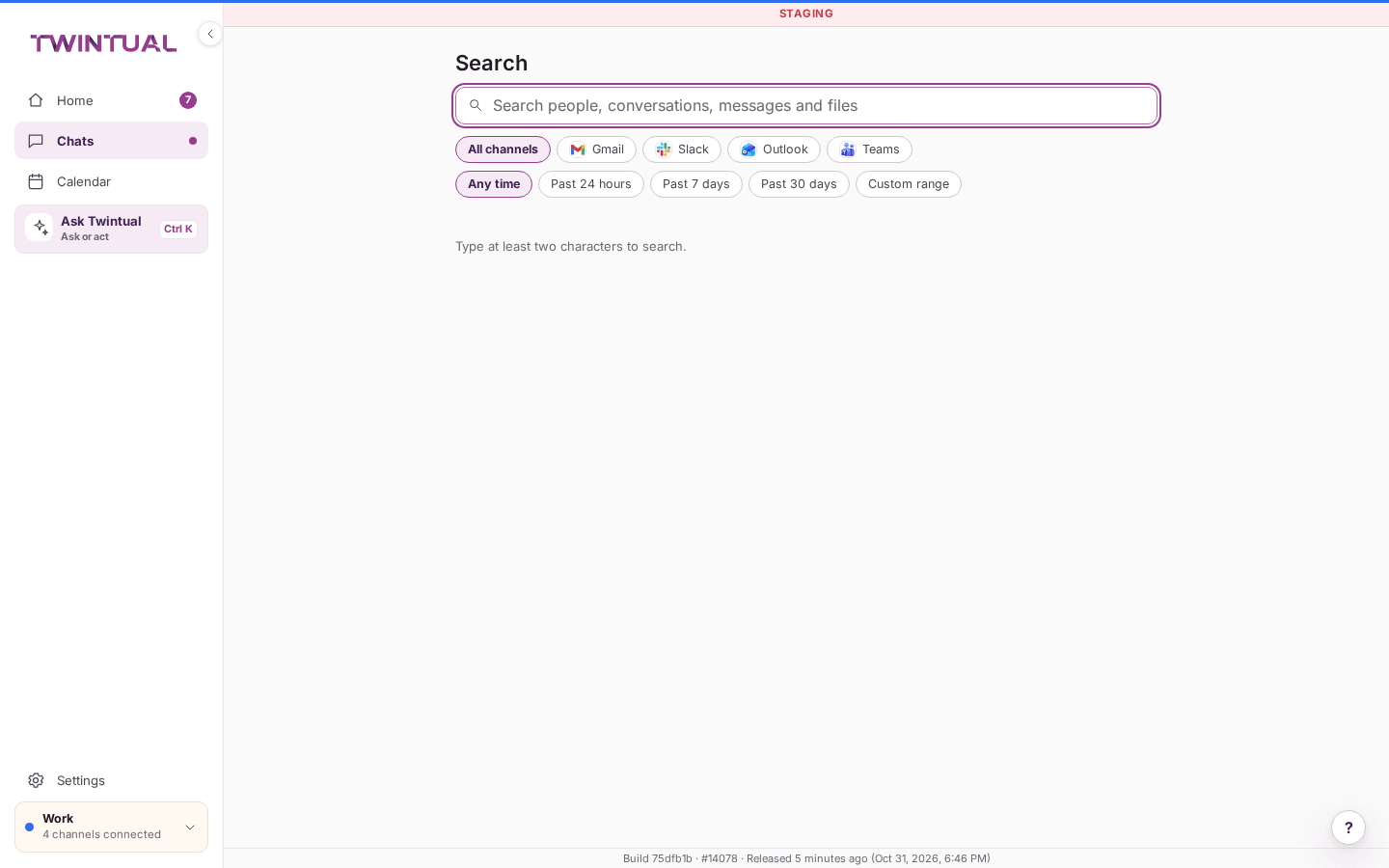
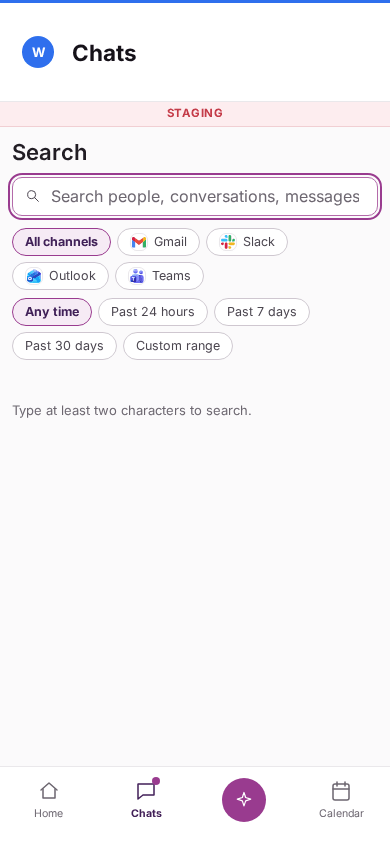
You can reach Search in two ways.
- Press
/on your keyboard, from almost any screen. It opens Search with the cursor ready in the Search everything field. - On Chats, type at least two characters in the chats search box. A link appears below it that says Search everything for and your words. Select it to carry your words over.
Type at least two characters. Until then you see Type at least two characters to search. Results update as you type, and the page tells you how many it found, for example "12 results".
Search covers your active profile. To search another profile, switch to it first (see Profiles).
How do I read the results?#
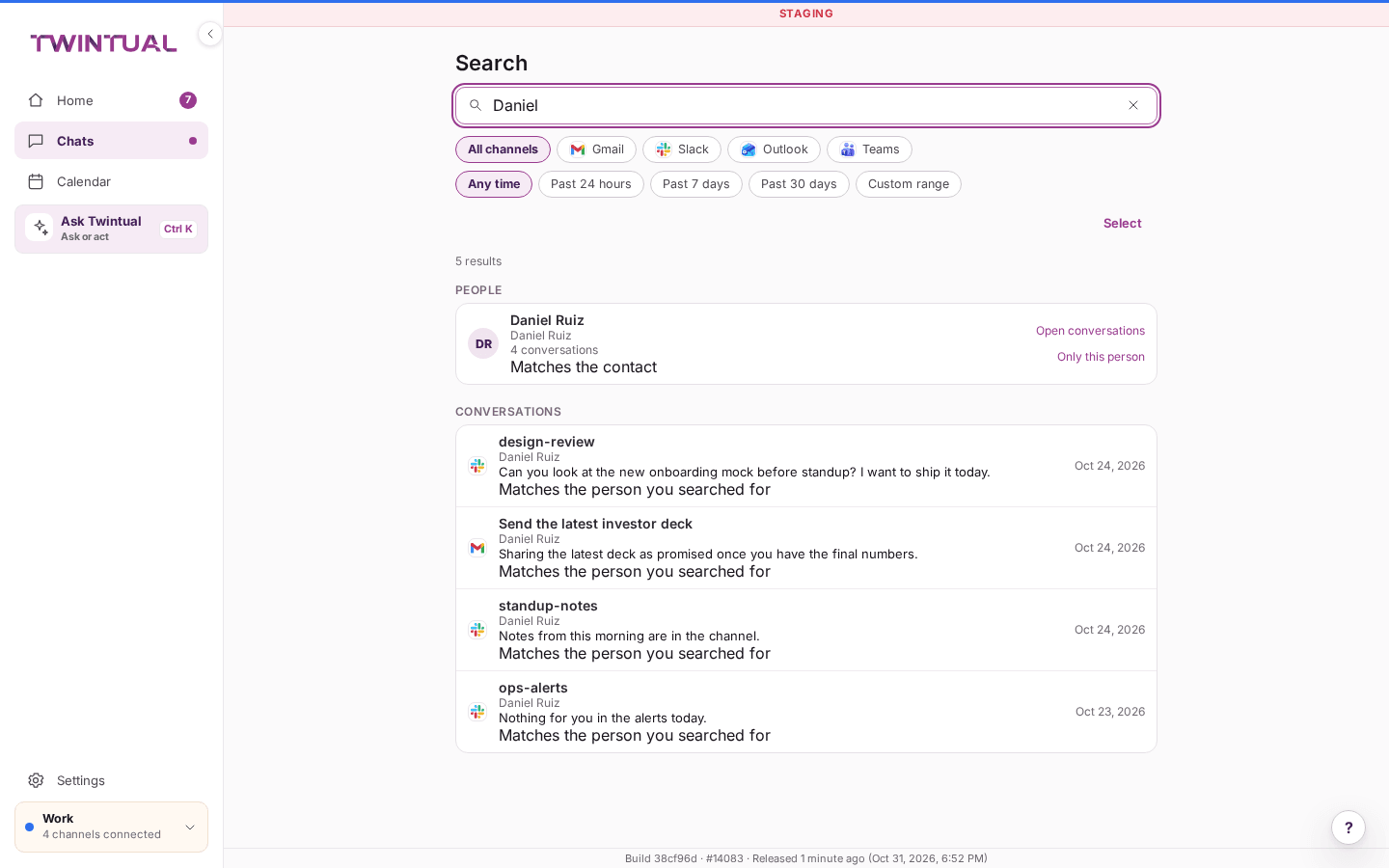
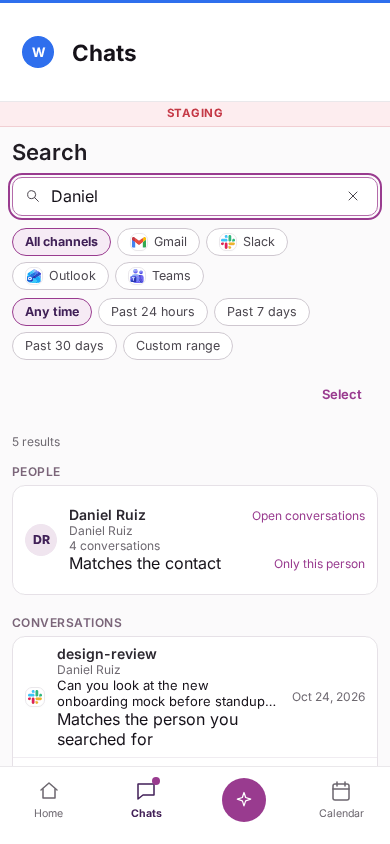
Results are grouped under People, Conversations, Messages and Files. A group only appears if it has something in it.
- Each row shows what matched and a short line saying why, for example Matches a message or Matches the file name.
- Select a conversation, message or file to open that conversation.
- On a person, select Open conversations to see their conversations, or Only this person to narrow the whole search to them.
- Each group shows its first few rows. If there are more, select Show all to see a longer list for that group, and Back to all results to return.
How do I narrow a search with filters?#
Under the field you find Filter results.
- Channel: choose one channel, or leave All channels. This row appears when your profile has more than one channel connected.
- Date: choose Any time, Past 24 hours, Past 7 days, Past 30 days or Custom range. With Custom range, pick a From and a To date.
- Person: after you select Only this person, a Person chip appears. Select its remove button (Remove the person filter) to search everyone again.
Your search and filters are kept in the page address, so you can bookmark a search or come back to it.
What if nothing is found, or search does not load?#
If nothing matches, you see Nothing found for your words, with the hint Check the spelling, or loosen a filter. Select Clear filters to remove every filter at once.
If you see Search did not load., nothing was changed. Select Try again.
Which keyboard shortcuts are there?#
Press ? on your keyboard, or open Help and select Keyboard shortcuts, to see the sheet for the screen you are on.
- Ask Twintual:
Ctrl+Kon Windows and Linux,Cmd+Kon a Mac. It takes you to Ask from any screen. - Search:
/. - Show this sheet:
?. - On Chats only:
jfor the next conversation,kfor the previous one,oorEnterto open a conversation,uto go back to the list,rto reply andeto archive.
Single-key shortcuts pause while you type in a field or while a dialog is open. If they clash with your screen reader or other tools, open the sheet and turn off Single-key shortcuts. Ctrl+K and Cmd+K are not affected by that switch. With single-key shortcuts off, open the sheet again from Help.
How do I get help or send feedback?#
Open the profile menu and select Help. The window offers:
- Help with this screen, when there is an article for the screen you are on, and Open the Help Center for all articles.
- A short list of Frequently asked questions.
- Keyboard shortcuts.
- Send feedback: write what went wrong or what would help in Your feedback. Twintual attaches the page you were on and the app version. You can include a screenshot of the page, with text, form fields and images blurred before anything leaves your browser, and you can select Remove screenshot to send none.
- Contact support if something is not working or you cannot find what you need.
How do I contact support or talk to a person?#
There are two ways to reach a person, and they work a little differently.
- From the Help Center: open Help from the profile menu, or go to the Help Center, and select Contact support. Write what happened in the message box and send it. Twintual attaches the screen you were on, your app version and plan automatically, so you do not have to describe your setup. You hear back by email at help@twintual.com. This does not open a ticket, so if you need to follow up, reply to that email.
- From the help chat: ask your question in the chat first. If the answer you get does not solve it, select Talk to a person. The chat confirms with Ticket … opened. Select My tickets on the Help Center to see it, read replies and send more messages right from the thread. You also get an email from support@twintual.com, and replying to it adds to the same ticket.
Either way, Twintual reads every message - there is no fixed reply time.
Where do I see everything Twintual did?#
Open Settings, then Trust & privacy, and select See everything Twintual did. That history of what Twintual did on its own, with the reason, Undo and Not like this, is covered in Autopilot and rules. It is a separate list from search.
What is the What's new page?#
What's new shows the release notes Twintual publishes, one note per line, in a window you close with Close. If there are no notes in your list, it says Nothing new to show. If it cannot load, you see This did not load with a Try again button, or You are offline until your connection is back.
Where should I go next?#
Related reading.
- Ask Twintual to ask a question instead of searching for it.
- Autopilot, rules and automations to see everything Twintual did on its own.
- Privacy basics to what Twintual reads and keeps private.