
Get started
Getting started
Create your account, set up your twin in five short steps and find your way around Home.
Go to this screenTwintual gives you a digital twin that reads your inboxes and drafts replies in your voice. You stay in charge. Nothing is sent until you approve it, unless you turn on Autopilot for certain low-risk replies. See Autopilot, rules and automations.
What is Twintual and what does my twin do?#
Twintual is a digital twin for your inboxes. You connect the places where people write to you, such as email and chat apps. Your twin reads what comes in, works out what needs you, and drafts replies that sound like you.
- It gathers your channels in one place.
- It drafts replies in your tone.
- It tells you what needs your attention, so you do not have to dig for it.
- It never sends a message without your approval.
Everything you connect belongs to a profile, so work and personal life can stay separate. You can read more in Profiles.
How do I create my account?#
Open Twintual and choose Sign up. If you already have an account, choose Login instead.
- Choose Continue with Google, Continue with Apple or Continue with Facebook. Or choose Sign up with email.
- If you use email, enter your address and select Email me a verification code. Twintual sends you a 6-digit code.
- Enter the code and select Verify and continue.
- On Help Twintual get to know you, enter your Full name and your Phone number. Add a Referral code if you have one. Then select Next.
Your phone number is used later if you connect WhatsApp. It is never shown to your contacts.
New accounts start with a free trial of the Basic plan, and you do not need a card to begin. To see what each plan includes, read Billing and plans.
What happens during setup?#
After you sign up, Twintual walks you through Set up your twin. It takes five short steps, and each screen shows where you are, for example "Step 2 of 5".
- Choose profile: pick where your first twin lives.
- Connect channels: connect your first inbox.
- Set your tone: check that drafts sound like you.
- Meet the mic: try dictating a change to a draft.
- First sync: your twin reads your recent messages.
Use Back to return to an earlier step and Continue to move on. You can change every choice later in Settings.
How do I choose my first profile?#
On the first step, Choose profile, you see the question "Where should your first twin live?". Pick one of these:
- Work for your work inboxes. This one is selected to start.
- Personal for your own life.
- Family for family and household messages.
- + Create a custom profile if none of them fits. You give it your own name.
Then select Continue with followed by the profile name. A profile keeps its own channels, contacts and tone, so nothing mixes between them. You can add more profiles later in Settings, under Channels & profiles. See Profiles for how they work.
How do I connect my first channel?#
On the second step, Connect channels, you connect at least one inbox. The channels are grouped under EMAIL and MESSAGING.
- Find the channel you want.
- Select Connect and sign in with the provider.
- When it shows as connected, select Continue.
If a channel shows Coming soon, it is not available yet. You need to connect one channel to continue. The text on screen says "Connect one channel to continue."
Twintual uses the provider's official sign-in. It never sees your password. Whatever you connect here goes into the profile you chose in step 1, so connect your personal channels to your Personal profile later. For each channel, see Connect your channels.
How do I make drafts sound like me?#
On the third step, Set your tone, Twintual shows a sample reply written from your own sent messages. Check whether it sounds like you.
- Choose the traits that fit: Concise, Detailed, Warm, Formal or Emoji OK.
- Or write an instruction in the text box, in your own words.
- Select Sounds like me when it is right.
- Select Use default tone if you would rather not decide now.
The sample is never sent to anyone. When you correct a draft later, Twintual turns your corrections into tone rules, so drafts get closer to your voice over time.
What is the mic step?#
On the fourth step, Meet the mic, you try dictating a change to a practice draft. You do not need to do it to move on.
- Hold the mic button and say what you want to change.
- Release the button to apply it.
On the phone app you can also tap once to start and tap again to apply.
Your voice is turned into text, applied, and then the audio is deleted. Only the text stays, in your draft history. If you would rather type, select Skip, I'll type.
What is the first sync?#
On the last step, First sync, Twintual reads your recent messages. You see "Your twin is reading up" and a progress line for each channel you connected.
When your twin finds something that needs you, a FIRST FIND card appears with a draft marked Draft ready · Review. You can continue as soon as something is found. If nothing shows up, you can continue after about a minute.
Select Go to Home to finish. The sync keeps going in the background, so you do not have to wait for it.
What does Home show?#
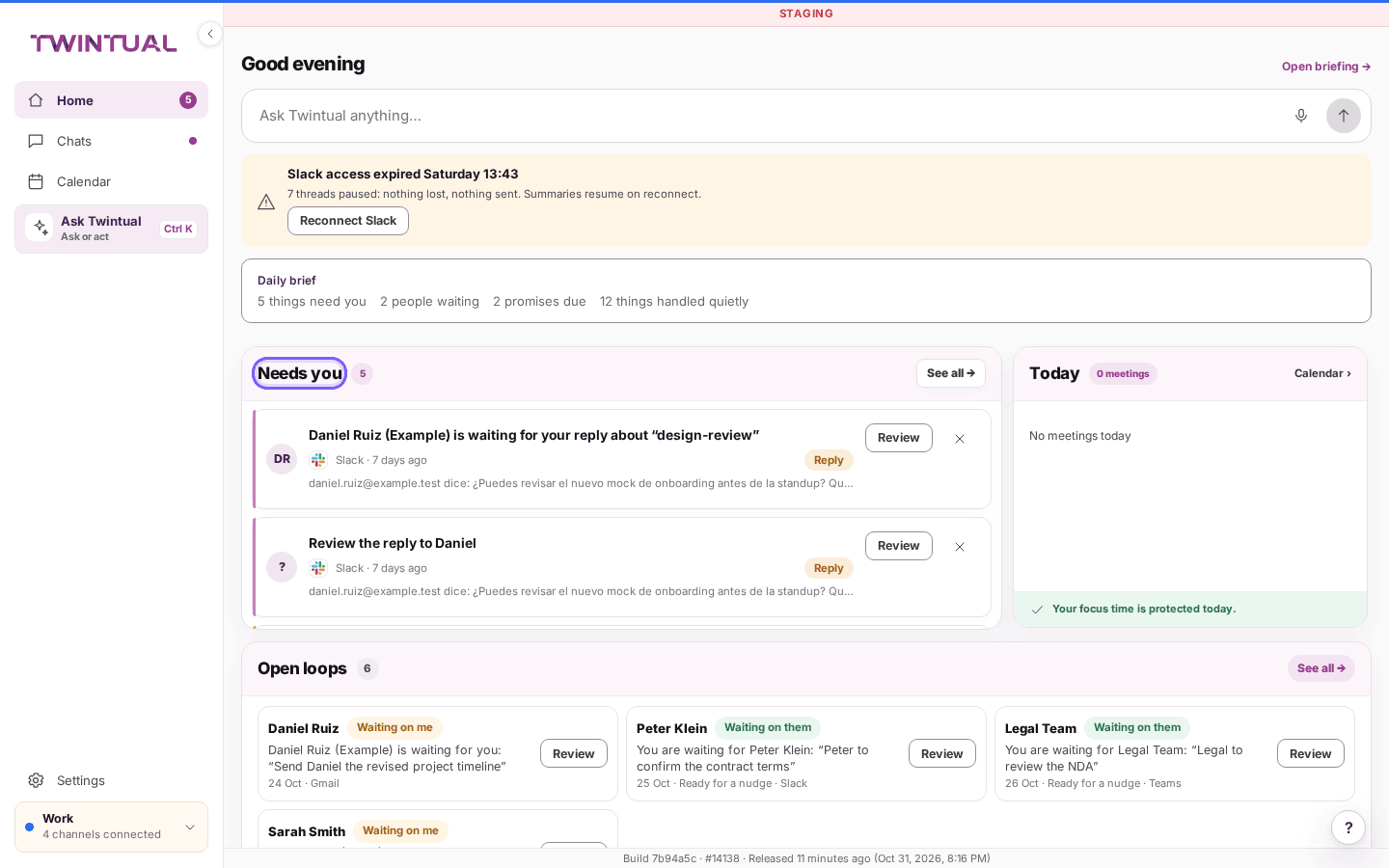
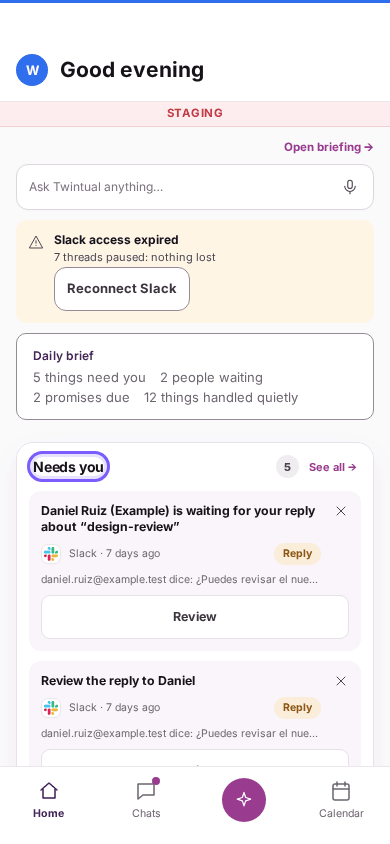
Home is your starting screen. It greets you by time of day and gathers what matters.
- Needs you lists the messages that wait for your decision. Select Review to open one, Dismiss to clear one, or See all for the full list.
- Open loops shows conversations still waiting. Use All and Decisions to filter, and see whether it is Waiting on me or Waiting on them.
- Today shows your day. Select Calendar › to open the full view.
- Ask Twintual anything… lets you type a question or request right from Home.
- Open briefing → opens your briefing.
- + Add widget lets you add more to the page.
If you have not connected anything yet, you see Nothing is connected yet with a Connect a channel button. While the first sync runs, Home says Your twin is reading up.
On the phone app, the bar at the bottom has Home, Chats, an Ask button and Calendar. On the web, the left menu has Home, Chats, Calendar, Ask Twintual and Settings.
How do I change the app language?#
- Go to Settings, then General.
- Next to Language, open the menu and choose your language, for example English or Español.
Twintual saves it straight away and shows Language saved. The language applies to the app and to the drafts Twintual writes for you. If one person writes to you in another language, you can set theirs on their contact card instead. See How do I edit a contact?. Below Language, Timezone sets the time zone used for scheduling, deadlines and briefings.
Where should I go next?#
Once you are on Home, these guides help most.
- Connect your channels to add more inboxes.
- Needs you and drafts to see what lands in your list and why.
- Approve and send to review a draft and send it.
- Calendar to connect your calendar and book meetings.
- Ask to ask your twin questions.
- Profiles to keep work and personal life apart.
- Privacy basics to see how your data is handled.