
Daily use
Autopilot, rules and automations
Let Twintual handle more on its own and keep control. Set Autopilot levels, create rules, tune the noise filter so a filtered message never looks like it just never arrived, find scheduled items, and see, undo or correct anything Twintual did.
Go to this screenBy default Twintual drafts and you decide. If you want it to do more on its own, you can: turn on Autopilot, add rules for incoming messages, and tune the noise filter. Everything stays visible and most of it can be undone. This article covers the controls, what Autopilot will and will not do, and how to see and correct what Twintual did.
What is Autopilot and what do its levels mean?#
Autopilot decides how much Twintual does for you, one contact and one kind of message at a time. It is off until you turn it on, and when it is off Twintual does nothing here, whatever the rules say.
For each rule you pick one of four levels:
- Nothing: Twintual does not touch these messages.
- Prepare a draft: a draft is ready when you open the conversation.
- Send with one tap: you get a notification and send the draft with one tap (Approve and send).
- Send low-risk replies: short acknowledgements and times you already agreed go out by themselves, after a short pause you can undo.
The kinds of message you can choose are Everything, Thanks and acknowledgements, Scheduling confirmations, Receipts, Newsletters and Other messages. Each kind has a highest level it can reach, and the screen only offers the levels that are allowed:
- Everything, Thanks and acknowledgements and Scheduling confirmations can go up to Send low-risk replies.
- Receipts and Other messages stop at Send with one tap.
- Newsletters stop at Prepare a draft.
Only Send low-risk replies sends without a tap from you, and only if you have done both of these: switched Autopilot On for that profile, and set a rule to that level. The other levels always wait for you. For ordinary approvals, see Approve and send.
How do I turn Autopilot on and set it up?#
- Open Settings, then Rules & Training, and select Autopilot.
- If you have more than one profile, choose one under Profile. Autopilot is set per profile. See Profiles.
- Switch Autopilot for that profile to On.
- Set the Daily limit, the most messages Autopilot handles in a day for this profile. You can choose from 1 to 50 a day.
- Under Rules, select Add a rule. Pick Who (a contact you search for, or Everyone), the Kind of message, and What Twintual does, then select Save rule.
Until you add a rule, Autopilot does nothing. A rule for one person is more specific than a rule for everyone, and the most specific rule wins. To change a rule, change its level in the list. To remove one, select Remove.
Under Suggestions, Twintual may notice that you keep sending its drafts to someone unchanged and offer to move them up a level, for example "You sent 3 drafts to Ana unchanged (Receipts). Move to "Send with one tap"?" Select Yes, do it or Not now. Nothing changes until you choose.
What does Autopilot never do, and what always needs my approval?#
Autopilot never sends anything about money, legal matters or commitments. It never sends attachments or links, never writes to someone new, and never acts on a message that looks like an attack. These limits apply at every level.
At Send low-risk replies, a message is also held back for you when, for example:
- it asks a question, or is longer than a short acknowledgement;
- the time was not already agreed;
- you reached your daily limit, or Twintual already replied to that person or in that conversation today;
- Twintual does not yet imitate your voice well enough.
A held-back message is not lost: it waits for you like any other. The log on the Autopilot page says why, for example "You reached the daily limit" or "It asks a question". Anything that is not a low-risk reply goes through the normal draft and approval flow. See Needs you and drafts.
How do I see what Twintual did on its own?#
There are two places:
- Autopilot page: the What Twintual did list shows each Autopilot outcome, such as Prepared a draft, Asked you to approve a reply, Sent a reply, Held back for you or Could not finish.
- Everything else: open Settings, then Trust & privacy, and select See everything Twintual did. It lists every automatic action with the reason: quietly filed items, summaries, follow-ups, rules applied, drafts prepared, contacts merged and calendar changes. You can filter by profile, day and type. Select Why on a row for the reason and Sources for what it was based on.
For the basics of what Twintual reads and does, see What does Twintual do with what it reads?. Items filed without alerting you are explained in What are FYI and quietly handled items?.
How do I undo something, or say "Not like this"?#
On each row of See everything Twintual did:
- Undo reverses the action, and you see Undone. Some actions cannot be reversed, and then the row says This cannot be undone. If you are too late, you see This can no longer be undone.
- Not like this opens a short form. Optionally describe What was wrong (optional), then select Save. Twintual adds a note to that profile in Rules and Training, so it does it differently next time. Tick Also undo this to reverse the action at the same time.
If the profile already has as many training notes as can be kept, the form tells you the note was not added. You can review or forget notes any time, see How do I see, change or forget what my twin knows?.
To undo a message Autopilot sent, use Undo on its row in the What Twintual did list on the Autopilot page. If it already went out you see "Too late to undo. It has already gone out." To undo a message you sent yourself, see How do I undo a message I just sent?. How long you get to undo is set in Settings, then General, under Undo window.
How do I create a rule for incoming messages?#
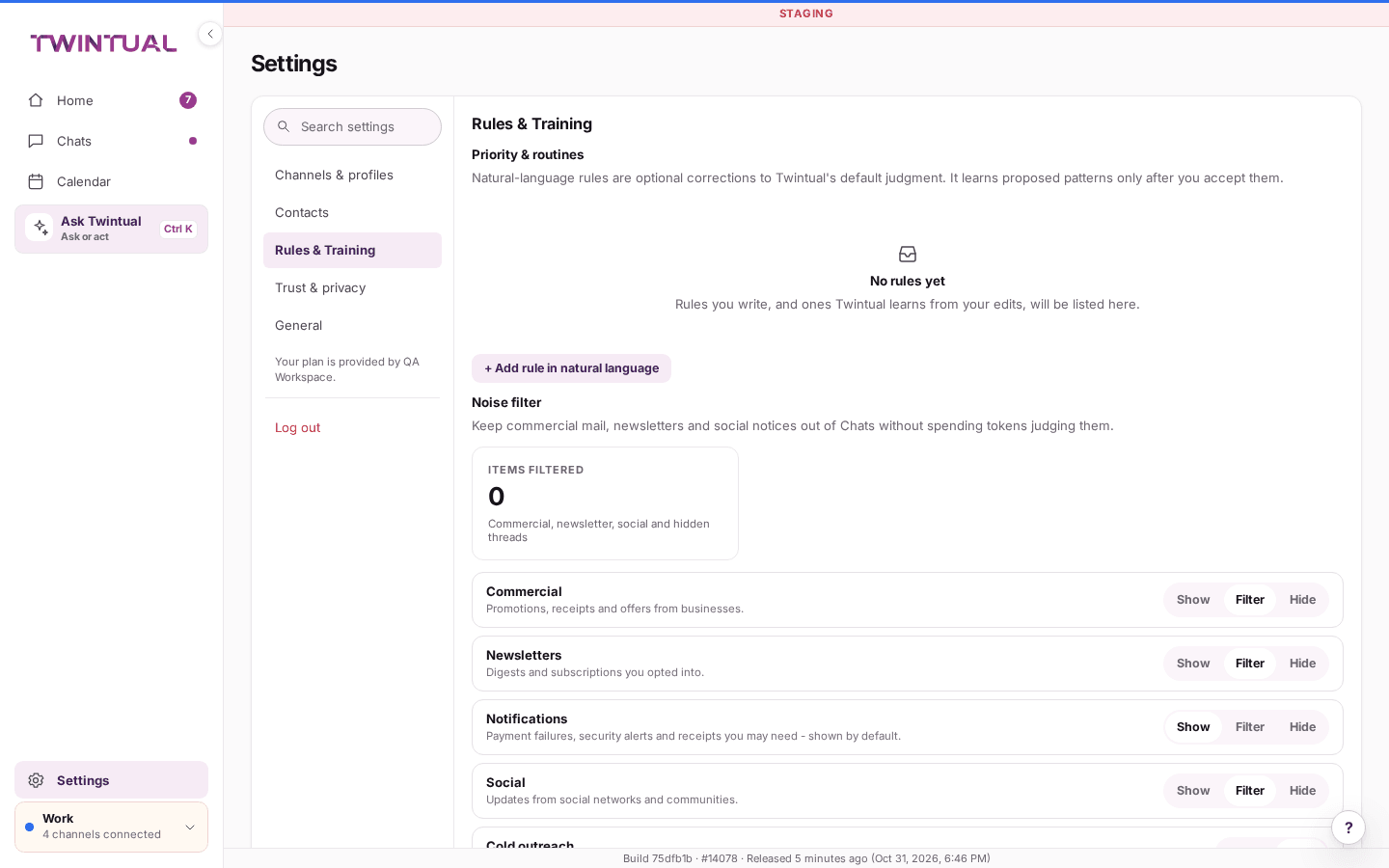
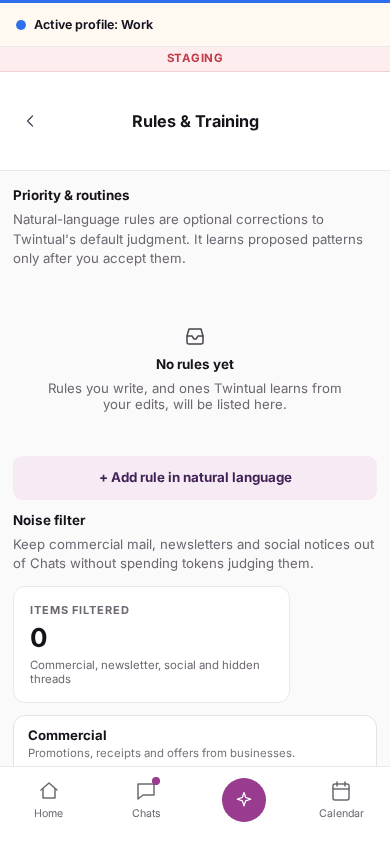
Open Settings, then Rules & Training. The page has a few parts:
- Priority & routines: rules written in plain language. Select Add rule in natural language. Twintual only learns patterns it proposes after you accept them. See How does my twin learn from my corrections?.
- Autopilot: the link described above.
- Noise filter: see below.
- Automatic actions for incoming messages: a rule builder with conditions, exceptions and actions that run in order. This is the part described here.
To build a rule, select Add rule, then:
- Give it a Rule name, for example "Archive newsletters".
- Under Match, choose All conditions or Any condition.
- Under If, select Add condition. Pick a Field (for example Sender, Subject, Body, Has an attachment or Is a VIP contact), an operator and a Value. Separate several values with commas. A time-of-day condition (Time of day) is set with From (UTC hour) and To (UTC hour).
- Optionally add Except when conditions for the cases the rule should skip.
- Under Then, select Add action and choose what to do.
- Optionally turn on Stop processing more rules, so no later rule runs when this one matches.
- Select Save. A rule needs at least one action.
Select Test to see how many of your most recent messages would match, and Run now on existing messages to apply the rule to them after you confirm. Active rules are also checked as new messages arrive.
Not every action is connected yet. At the moment, Archive, Flag and Add a note about this contact are applied. If an action shows Not applied yet (the badge also appears on the rule in the list), it does nothing for now, and Run now skips it. Actions such as Draft a reply and Forward to are marked Drafts for your approval: Twintual never sends these automatically and always waits for your approval first. If a field shows "No signal for this yet", a condition on it will never match.
How do I edit, pause, reorder or delete a rule?#
In the rule list, each rule shows On or Off, a summary such as "When all conditions match", and Stops other rules if that option is on.
- Pause or resume: use the rule's on and off switch, or open it and change Rule enabled. A paused rule stays in the list and shows Off.
- Edit: open the rule's menu and select Edit, change what you need, then Save.
- Reorder: rules run in the order shown. Use the move up and move down buttons on the rule.
- See what it did: select View activity on the rule to see the messages it found each time you used Run now.
- Delete: open the menu, select Delete, and confirm. This cannot be undone.
If you have several profiles, the Profile switch at the top of the list chooses whose rules you are editing.
How does the noise filter work?#
The noise filter keeps commercial mail, newsletters and social updates out of Chats without Twintual spending effort on them. Open Settings, then Rules & Training, and find Noise filter.
For each category, Commercial, Newsletters, Notifications and Social, choose:
- Show: the conversations appear in Chats as normal.
- Filter: they are held back and listed under the Filtered chip in Chats.
- Hide: they are held back and not listed. They are only counted.
Filtered and hidden conversations are kept, but they stay out of Chats, Needs you, drafts, summaries and Ask. A new account starts with Commercial, Newsletters and Social set to Filter, and Notifications set to Show, because those can include payment failures and security alerts.
Under Always allow or filter, select Add rule to decide for one Sender address, Domain or Keyword: Always allow (never filtered), Always filter or Always hide. An allow rule beats a filter rule.
What if something I wanted was filtered?#
If an email or message you were expecting never showed up, it almost always ended up here, not lost: held back by the noise filter above. Open Chats and select the Filtered chip to see what was held back. Then:
- Open the conversation's menu (More actions) and select Never filter this sender. It takes you to the noise filter rules, where you add an Always allow rule for that sender or domain.
- Or set that category to Show in the noise filter.
- If you marked a conversation with Mark as noise, the same menu now shows Not noise, which puts it back. Marking something as noise also adds a sender rule marked "learned from Mark as noise". Remove that rule in the noise filter list if you change your mind.
Conversations set to Hide do not appear under Filtered, so change that category to Filter or Show to see them again.
Where do I find scheduled sends, snoozes and reminders?#
Open Chats and select the Scheduled chip. It has three tabs:
- Scheduled sends: messages set to go out later. For each, select Edit time or Cancel send. Cancelling keeps the draft but it will not go out on its own.
- Snoozed: conversations set aside until a chosen time. Select Unsnooze to bring one back now.
- Reminders: nudges for when nobody replies. Select Cancel reminder to remove one.
To schedule a send, use Send later in the reply field, see Can I send a message later?. To snooze, use Snooze on a conversation or item, and to be reminded, turn on Remind me if no reply on the draft.
Where should I go next?#
Related reading.
- Needs you and drafts to what still lands in your list even with Autopilot on.
- Approve and send to approve and send a draft by hand.
- Search and what's new to search everything, including what was filtered.