
Daily use
People and contacts
Find the people Twintual knows, see and correct what it remembers about each one, merge duplicates, mark VIPs, and use the Contact briefing from Chats.
Go to this screenTwintual keeps one record for each person you write with, even when they reach you on Gmail, Slack, Teams and other channels. This article covers where those records live, what each one holds, how to correct what Twintual has learned about a person, and how to open a quick Contact briefing from a conversation. Nothing here sends a message, and a draft still needs your approval.
Where do I find my contacts?#
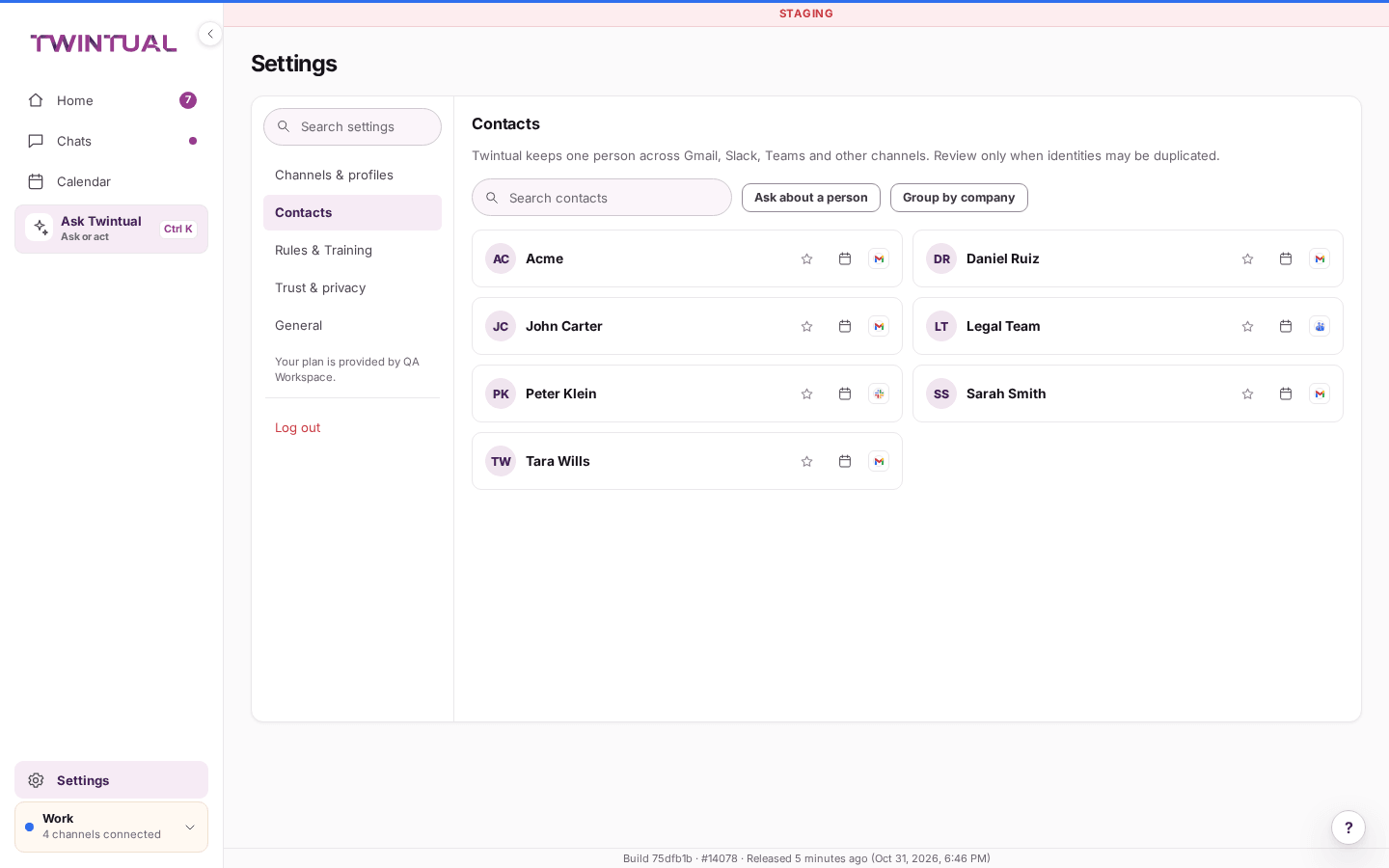
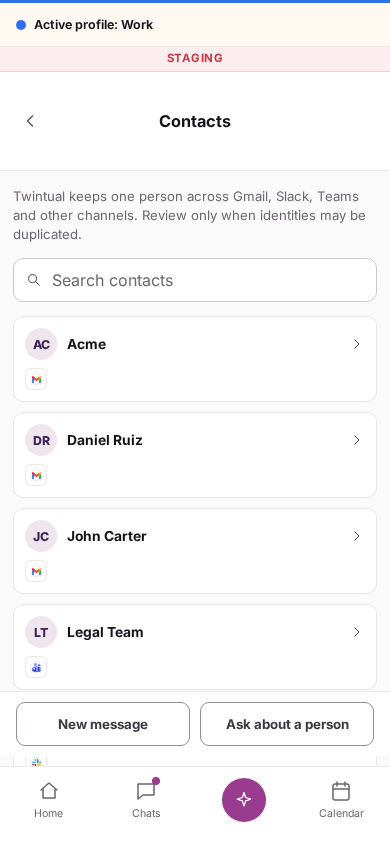
Open Settings, then Contacts. The page lists the people in your current profile as cards. Each card shows the name, their role if known, the channels they reach you on, and a short line Twintual has remembered about them. Contacts are kept per profile, so switch profiles to see another profile's people. See Profiles.
- Type in Search contacts to narrow the list by name.
- Select a person's name to open their contact card.
- Select Ask about a person to open Ask Twintual and ask what you need to know about someone. See Ask Twintual.
- If you see "No contacts found.", connect a channel first: Twintual lists the people you write with once a channel is connected. Channels & profiles takes you there.
What does a contact record hold?#
Select a name to open the card. From top to bottom it can show:
- Relationship memory: a short summary of your history with the person.
- Communication style: how they usually write.
- Remembered about them: the facts Twintual has learned, plus any you added. More on this below.
- Language: the language they write in.
- How you write to them: the language, register (Formal, Neutral or Casual), greeting, sign-off and usual length that Twintual has learned from messages you sent them. Until it has seen enough, it says drafts follow your general style.
- Also known as: nicknames. More on this below.
- Identities · kept as one person: each address or handle, with its channel and the profile it belongs to.
- VIP and Priority settings. More on this below.
- Follow-ups: how many conversations are waiting on you or on them. Select View to open those open loops on Home.
At the bottom, Ask about the person and Open conversations take you to Ask Twintual or to their conversations in Chats. If a section has nothing yet, the card says so, for example "Twintual has nothing on this relationship yet. Press Edit to write it yourself."
How do I edit a contact?#
- Open the contact card and select Edit.
- Change Name, Role · company, Relationship memory or Communication style.
- Under Identities, fix an address, select Remove on a row, or add one with a button such as + Outlook or + WhatsApp (shown for channels the person does not have yet). A contact always keeps at least one identity.
- Select Save contact. Cancel or closing the card leaves everything as it was.
Nothing changes until you save. If you see "Address already in use", that address belongs to another contact: merge the two contacts instead, or use another address. If you see "This contact changed", the contact was merged or removed in the meantime. Close the card and open it again.
The Edit button, and every other change on the card, is switched off when your account is read-only. The card tells you why.
What does Twintual remember about a person?#
Under Remembered about the person's name you see short facts, for example "prefers a short call to a long email". Under each fact is where it came from, Learned by Twintual or Added by you, and the date. Twintual adds facts as it reads your conversations, and you decide what stays.
- Add a fact: type it in the box ("Add something to remember about" the person) in a few words, up to 200 characters, and select Remember.
- Change a fact: select Edit, reword it, then Save. Cancel leaves it as it was.
- Remove a fact: select Forget. A fact you forget is not learned again.
- Share across profiles: if the same person appears in more than one of your profiles, facts stay in the profile where they were learned. Turn on Share with other profiles for a fact to let it inform that person's other profiles too. Facts you add yourself are true in every profile.
- Language: under Language, pick the language the person writes in. Replies to them are drafted in that language, with a preview in yours. A language you choose is not overridden by what Twintual learns later.
If a fact will not save, the card tells you why: it was empty or too long, it is already remembered, or the contact already has as many facts as can be kept. Forget one first in that case.
To fill in a person quickly, select Train about this contact. Twintual asks five short questions: how you know them, how they like to be addressed and in what language, what you are working on together, anything sensitive to keep in mind, and how and when they prefer to be reached. Type or speak each answer, Skip any you prefer not to share, and select Next and then Done. Each answer is saved as a fact you can edit or forget later.
How do nicknames work?#
Also known as lists other names a person goes by. Twintual uses them to recognise who is who in your messages and to greet the person the way you do. Type a name under Add a nickname and select Add, or select Remove on one you do not want. When Twintual notices a possible nickname, it asks "Is 'Cris' Cristina?" and you answer Yes or No.
How do I merge duplicate contacts?#
Sometimes one person shows up twice, for example under a Gmail address and a Slack handle. Twintual watches for this and counts the suggestions in Possible duplicates, shown with a number. The button is only there while at least one suggestion is waiting.
- Select Possible duplicates. A review opens with the title "We think these are the same person".
- Compare the two cards. Why we think it's a match shows how many signals point to the same person.
- Select Merge if they are the same person, Keep separate if not, or Skip to decide later.
To accept the waiting suggestions in one step, select Merge all next to the button. On the phone, the same two actions sit in a banner at the top of the list, with Review to open the review.
You can also merge by hand. Open one contact, go to Identities · kept as one person, select Merge with…, search for the other contact by name, and select Merge next to it.
A merge only changes Twintual's identity layer: conversations and context stay together, and nothing is deleted from your channels. After a merge, the merged contact's card shows how many identities were merged, with an Undo button, so you can undo it later from there.
How do I mark someone as VIP?#
On the Contacts page, select the star on a person's card. A VIP tag appears. Select the star again to remove it. A failed change tells you nothing was changed.
VIP is set per profile. On the contact card there is a VIP switch for each profile the person is in, with a note under it. The card also has a Priority row per profile:
- Choose Critical, High, Normal or Low. Critical and High count as VIP.
- Choose a reply deadline, which is how long a reply may wait before it is late: Within 1 hour, Within 24 hours, Within 3 days or Within 7 days. Leave it as No deadline to use your own default.
How VIP changes your notifications is covered with your notification settings, not here.
What is the Contact briefing?#
The Contact briefing is a quick read on one person without leaving Chats. In Chats, open a person's conversations and select their name at the top. The briefing opens beside the conversation. Select the close button to hide it. See Needs you and drafts.
It shows:
- Quick briefing: a short summary of the relationship. If Twintual has none yet, it says so.
- What matters now: how many conversations are Needs you and Waiting, and the ones that Need your reply. Select one to open it.
- Communication style: how the person writes.
- Open loops: what is still open between you, or "No open loops."
- Connected across: the channels you reach them on.
Three buttons sit at the bottom. Ask Twintual asks about the person, Open full contact opens their contact card, and View contacts goes to Settings, then Contacts. If the briefing fails to load, you see "The briefing did not load." and what the conversations show is still there.
Who can see my contact data?#
Twintual builds contacts only from the channels you connect. See Privacy basics. A few points about the contact data itself:
- Facts are used when Twintual drafts replies to that person, and a draft still waits for your approval. See Approve and send.
- The Across all profiles reading on a card is only shown to you there. It is not used in drafts.
- You can correct or forget anything Twintual remembered. A fact you forget is not learned again.
- Merging contacts changes how Twintual groups identities. It does not delete anything from Gmail, Slack or your other channels.
- Contacts belong to a profile. Removing a profile removes its contacts from Twintual. See Profiles.
Where should I go next?#
Related reading.
- Profiles to how channels and contacts split across profiles.
- Personalize your twin: tone and voice to teach Twintual how you write to someone.
- Meetings: prep, briefings and follow-ups to a quick picture of someone before you meet them.