
Daily use
Profiles
Keep work, personal and family life apart with profiles, each with its own channels, hours, quiet time and booking link.
Go to this screenA profile is a separate space inside Twintual. Each profile keeps its own channels, calendars, contacts and tone, so your work and your personal life never mix.
What is a profile and why would I use more than one?#
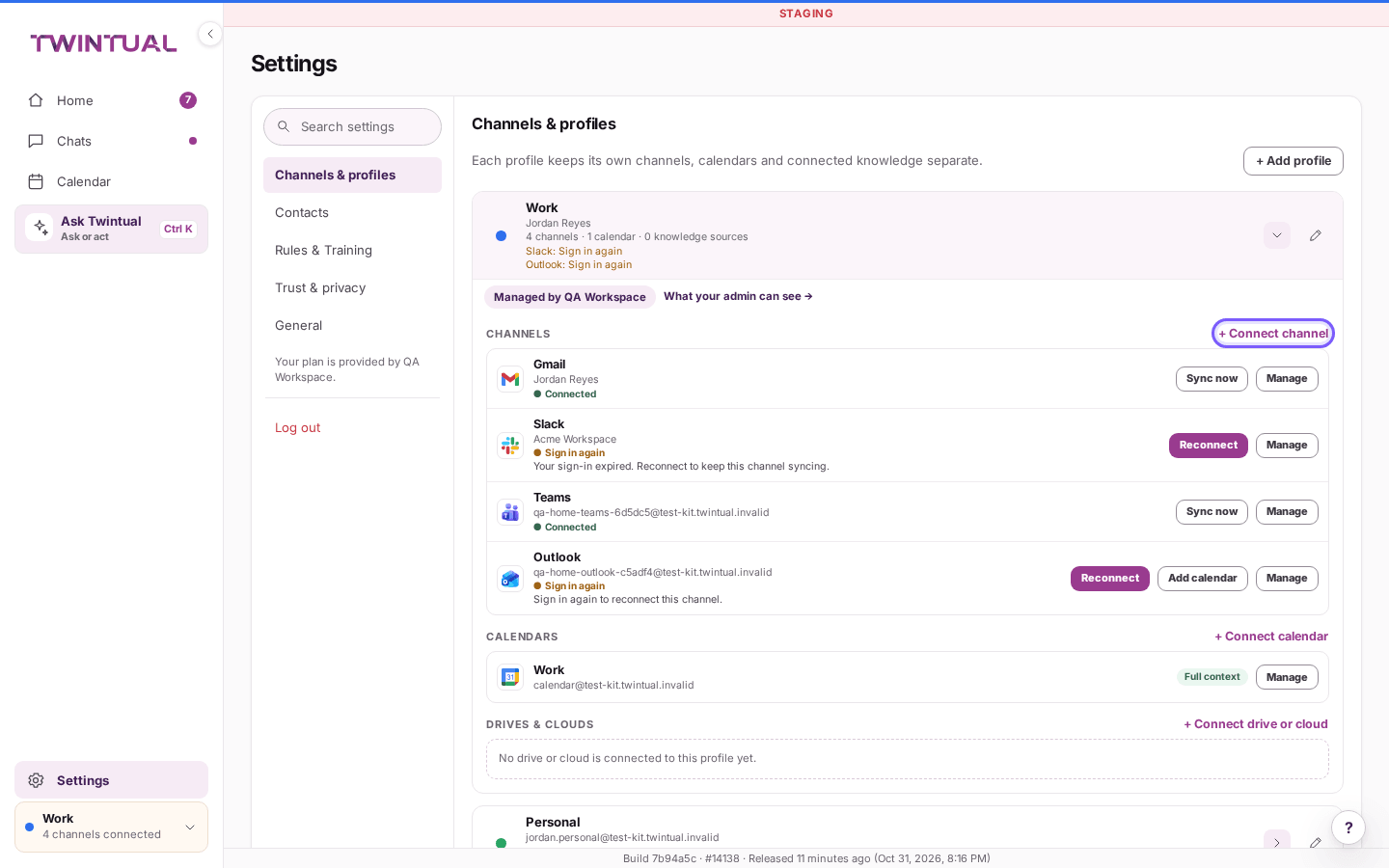
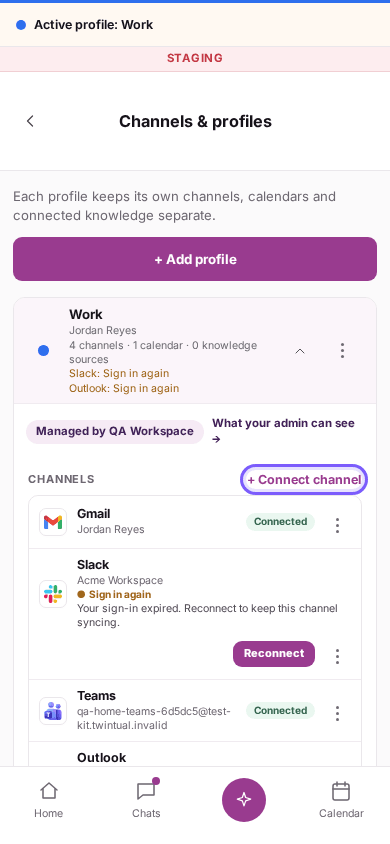
A profile groups everything that belongs to one part of your life. Your work email, your work chats and your work calendar can live in one profile. Your personal email and WhatsApp can live in another.
Each profile has its own:
- channels and calendars
- conversations, open loops and drafts
- contacts and tone rules
- availability hours, quiet hours and booking link
Your twin only shows you what belongs to the profile you are using. That keeps drafts in the right voice and keeps work messages out of your evenings. During setup you pick your first profile. See Getting started.
Should I use a Work profile or a Personal profile?#
Choose by who writes to you and when you want to hear from them.
- Work is for work inboxes and chats. It is the default pick during setup. It is the profile that notifies you during working hours.
- Personal is for your own life, such as private email or WhatsApp. It is quiet by default, so it does not interrupt you with notifications. See the question about the silent Personal profile below.
- Family is for family and household messages.
- A custom profile is for anything else, such as a side project. You give it a name.
You can have more than one. If you are not sure, start with Work and add the others later.
How do I switch between profiles?#
On the web, use the profile card in the sidebar.
- Select the profile card in the sidebar. The Profiles and account window opens.
- You see each profile with how many channels are connected to it. The one you are using has an Active badge.
- Select Switch next to the profile you want.
Screens that depend on the profile, such as your chats, Needs you and open loops, reload for the new profile.
On the phone app, tap your profile circle, or the strip that says "Active profile" followed by the name. A sheet opens with your profiles, Settings, help and log out.
How do I add a new profile?#
- Open Settings, then Channels & profiles.
- Select + Add profile.
- On Choose a profile, pick Work, Personal or Family, or select Create a custom profile and type a name. Profiles that already exist are marked Already created.
- Select Continue and add channels to connect channels now. Or select Connect channels later to do it afterwards.
Names must be different from your other profiles. Your plan sets how many profiles you can have. If you reach the limit, you see "Your plan has reached its profile limit". Select See plans or read Billing and plans. If you are a workspace member, ask your admin.
How do I rename, recolor or remove a profile?#
Open Settings, then Channels & profiles. Each profile has its own section with its name and color. You can rename the profile and change its color there.
To remove a profile, open its section and select Remove profile, then confirm in the window "Remove" followed by the profile name. This does the following:
- Its channels, calendars and knowledge sources are disconnected.
- Its conversations, contacts and rules are removed from Twintual.
- Nothing is deleted in your connected tools, such as your email account.
You cannot remove your only profile. You also cannot remove a profile that your workspace governs. The window tells you when that is the case.
Which channels belong to which profile?#
Every channel belongs to exactly one profile. You choose it when you connect the channel. Each profile's section in Settings, under Channels & profiles, lists its CHANNELS, CALENDARS and DRIVES & CLOUDS.
The same account cannot be connected twice. If you try, Twintual tells you which profile already has it. Each profile keeps its own channels, calendars and connected knowledge separate.
On the Profiles and account window you also see how many channels each profile has.
How do I move a channel to a different profile?#
You do not need to disconnect and reconnect. Moving keeps the channel signed in and syncing.
- Open Settings, then Channels & profiles.
- Find the channel and open Manage.
- Select Move to profile.
- Choose the profile in Move to, or select + New profile to create one as part of the move.
- Confirm with Move to followed by the profile name.
The channel takes its conversations, open loops, drafts and rules with it.
Can each profile have its own availability hours?#
Yes. In Settings, under Channels & profiles, each profile has an Availability button. It opens the hours for that profile.
You set three kinds of hours:
- Meetings: when Twintual may offer or accept meetings.
- Focus: your focus time.
- Replies: when replies and notifications may come through.
You can also set a Time zone per profile, add Dates off such as holidays or trips, and use I'm travelling when you are away. A channel can have its own hours too. If a channel has none, it follows its profile. If the profile has none, it follows your default hours, and then Twintual's starting hours.
Nothing changes unless you change it here. For meetings, see Calendar.
How do push window and quiet hours work for each profile?#
Every profile has its own notification schedule. You see it in Settings, then General, under Notifications: select Manage. On Notification settings, each profile has a card titled "When" plus the profile name plus "can reach you", for example "When Work can reach you". If you have more than one profile, use the tabs to switch between them.
- Push window is when that profile may send you push notifications.
- Quiet hours is when nothing from that profile should disturb you.
Select Edit to change either one. Quiet hours run overnight by default, for every profile.
Some alerts always get through, even in quiet hours. They cover security, a failed payment, and a channel losing its connection. A meeting about to start, or a late change to a meeting, comes through only on a profile whose push is on.
Items that arrive outside your hours are not lost. They wait for you in Needs you. A draft that finishes after the window waits there too.
Why is my Personal profile silent?#
Personal and Family profiles do not send push notifications by default. This is on purpose: your private life should not buzz your phone. Work is the profile that notifies you during working hours.
Silent does not mean ignored. Your twin still reads the Personal profile and drafts replies. What lands there waits in Needs you until you open Twintual and look. The daily brief also sends push notifications for Work only by default.
To change this, go to Settings, then General, under Notifications, select Manage, pick the Personal profile and edit its Push window.
How do I set up a booking link for a profile?#
A booking link lets other people pick a time to meet you. Each profile can have its own. It follows that profile's Availability hours.
- Open Settings, then Channels & profiles.
- In the profile's section, select Booking link.
- Select Create booking link.
- Set the details, such as the title, the meeting length, buffers and how much notice you need.
- Choose how requests are handled.
For requests, pick I approve each request, which is recommended. You see each request and approve or decline it. Or pick Confirm automatically, which books without asking you. Twintual shows a warning before you choose it.
You can Pause link and Resume link at any time, or Revoke link to turn it off for good. Requests that are waiting for you stay there until you approve or decline them. See Calendar for more on meetings.
Who can see my Personal profile if I am in a workspace?#
If you belong to a workspace, your Personal profile is yours. It is shown as "Yours, not visible to your workspace", so your workspace does not see it. A Work profile that your workspace governs follows its rules, and your admin may need to approve its channels. If you leave a workspace, you stay signed in on your Personal profile.
For more on how your data is handled, read Privacy basics.
Where should I go next?#
Related reading.
- Connect your channels to connect a channel to a profile.
- Notifications and availability hours to set availability hours for a profile.
- Invite a friend and team workspaces to profiles inside a team workspace.