
Daily use
Ask Twintual
Ask your twin questions about your mail, messages, meetings and files by typing or voice, check its sources, and approve or cancel the actions it proposes.
Go to this screenAsk Twintual is where you talk to your twin. You ask about your messages, meetings, people and files, and it answers from what you have connected. If you want something done, it prepares the action and waits for your approval.
How do I open Ask Twintual?#
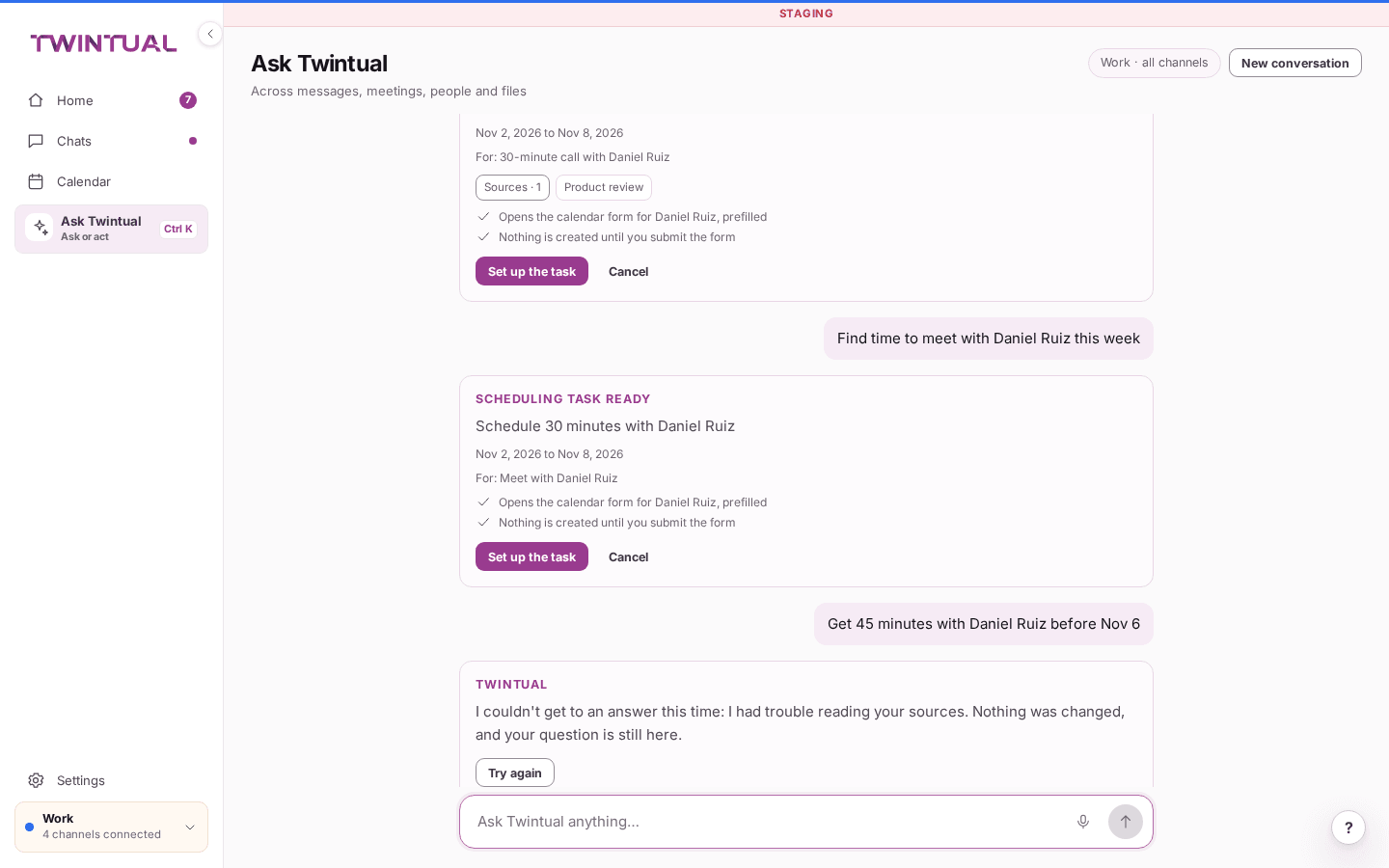
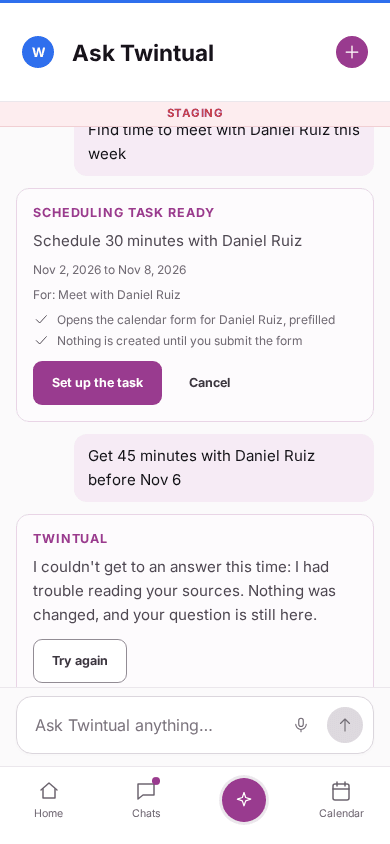
There are three ways to open it on the web.
- Select Ask Twintual in the sidebar.
- Press Ctrl+K (or ⌘K on a Mac) on any screen.
- Type a question in the Ask Twintual anything… field on Home and send it. It opens the Ask page and your question is the first message.
Ask always opens as its own page, never as a pop-up. At the top you see which profile it is working for, as a profile name followed by all channels.
If nothing is connected yet, you see Nothing is connected yet and a Connect a channel button. Connect a channel so Twintual has your work to answer from. See Connect your channels.
How do I ask by typing or by voice?#
To type, click the field that says Ask Twintual anything…, write your question and send it.
To use your voice:
- Select the microphone button (Start voice input).
- Speak naturally. You see Listening…, and then Transcribing….
- Release the microphone, or select it again (Stop voice input) when you are done.
- Your words appear in the field. Read them, correct them if needed, and send.
Twintual does not keep a recording of your voice. If your browser blocks the microphone, you see a message telling you to allow it for this site in the browser settings. Until you do, you can still type your question. If voice is not available, you see a message saying so.
What can I ask?#
You can ask in your own words about your connected work. For example:
- What needs your attention right now.
- What you missed while you were away.
- What you are waiting on from other people.
- What a person or a conversation is about.
- What is on your calendar, or what to prepare for a meeting.
When the page is empty, three suggestions are shown: What needs me?, What did I miss? and What am I waiting on? Select one to put the question in the field. It is not sent until you send it.
You can also ask for something to be done, such as sending a reply or moving a meeting. Twintual prepares it as a proposed action. See How do I approve or cancel an action Twintual proposes?.
Twintual answers from the profile you have open, so a question about your work profile does not use your other profiles. Counts in its answers match what you see in Needs you on Home at that moment.
How do I read an answer and check its sources?#
Each answer is labelled TWINTUAL and is usually a few sentences. While it works you see Thinking….
Under an answer you may see buttons that open what it is talking about, such as Open Needs you →, Open briefing →, Open in Chats or Open in Calendar.
To see where an answer comes from, select Sources (shown with a count). A panel opens with the messages, events or files used. Twintual only uses sources you can already open.
If an answer does not look right, open the sources and check. You can then ask again in different words.
How do I approve or cancel an action Twintual proposes?#
When you ask for something to be done, Twintual shows a card marked ACTION READY. It tells you what will happen, to whom and when. If the action sends a message, you see the message in a field you can edit. Under Checked against your calendars and preferences, it also tells you whether a time fits.
At the bottom of the card, it says Nothing is booked or sent until you approve. You have these choices:
- Approve & send (or Approve & book) does the action. The button is off while the message field is empty.
- Edit lets you change the message first.
- Cancel drops the proposal. You see Cancelled and Nothing was sent or changed. Select Edit if you change your mind.
- For a meeting request you want to turn down, the button is Decline request. The other person is not notified.
After you approve, the card shows Action approved with the time, and the sent text can no longer be edited. A Done message confirms the result, for example that your message is on its way, and gives you a button to open it. For a short time you also get Undo.
If the situation changed while you were deciding, for example the meeting time moved, Twintual does not approve anything. It tells you what changed and shows you the current proposal. If the action fails, nothing is changed, your message stays on the card, and you can select Try again.
If your account is read-only, Twintual says sending and booking are paused and cannot prepare actions. It can still answer questions about your history. Select Review your plan to see why.
Why can't Twintual see something I asked about?#
Twintual only uses the pages, files and messages that you can already open, and never writes to them without your approval. If you ask about something you do not have access to, for example a page in SharePoint that has not been shared with you, it tells you that you do not have access. It does not reveal what is inside.
To fix this, ask the owner to share the page or file with you. Then ask again.
If Twintual says it could not find anything, it only looked in the channels you have connected. Check that the channel is connected and that the profile you have open is the right one.
What if Twintual could not answer my question?#
Sometimes Twintual cannot reach an answer, for example when it has trouble reading your sources. You see a message that it could not get to an answer this time. Nothing was changed, and your question is still there.
Select Try again to ask the same question again.
If you have no connection, you see You need a connection to send a question. What is on screen stays, and nothing is queued, so send the question again when you are back online.
Is my Ask conversation saved?#
Yes. Your conversation with Twintual for each profile is kept turn by turn. If you leave the page, reload it or sign in again, it is all still there.
To start fresh, select New conversation. The page is emptied without asking you to confirm. The button is off while there is nothing to clear. On the phone, it is the + at the top once you have asked something.
If the conversation does not load, you see This didn't load, and a message that nothing has changed and your conversation is still kept.
Where should I go next?#
Related reading.
- Search and what's new to search your own messages and files directly.
- Needs you and drafts to what Twintual surfaces for you without being asked.
- Meetings: prep, briefings and follow-ups to ask Twintual about an upcoming meeting.