
Daily use
Meetings: prep, briefings and follow-ups
Get ready for a meeting with the prep card, ask Twintual about it, see what is open with the people coming, and keep track of what you promised.
Go to this screenBeyond booking, Twintual helps you walk into a meeting knowing what is going on. It reads the meeting on your calendar together with your recent conversations with the people coming, and puts the useful parts in one place. To book a meeting or answer an invitation, see Calendar. This guide covers everything around the meeting itself.
Twintual only works from what you have connected. Asking about a meeting only answers: nothing is sent or booked unless you approve it.
Where do I find my next meeting and its prep?#
There are three places.
- Home: the Today card lists your meetings for the day. Each row shows the time, the title and a line such as "45 min · External · 4 attendees". Select Details to open the meeting page, or Prepare me to open its full prep. Under the card, the Before this meeting card appears for your next meeting once Twintual has prepared it.
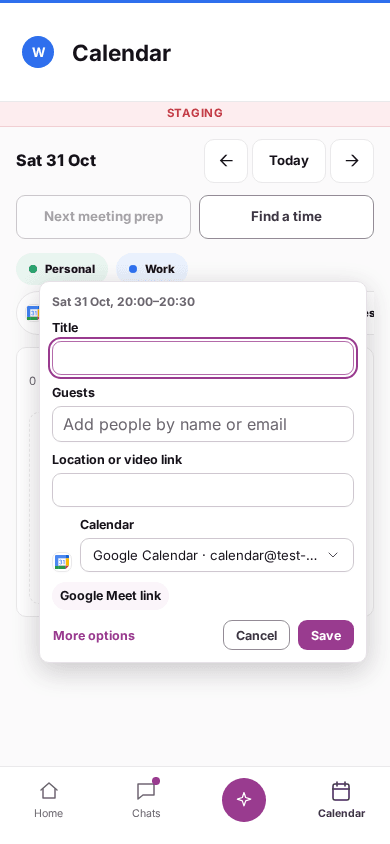
- Calendar: the same Before this meeting card sits next to your calendar. Select any event to open its meeting page.
- Phone app: Home and the Calendar agenda show a MEETING PREP card for the next meeting, with Open prep and Catch me up.
For an internal meeting with nothing to prepare, the Today row says "no prep needed" and has no Prepare me button. If you have nothing on your calendar today, the Today card may not appear at all.
What is on the meeting page?#
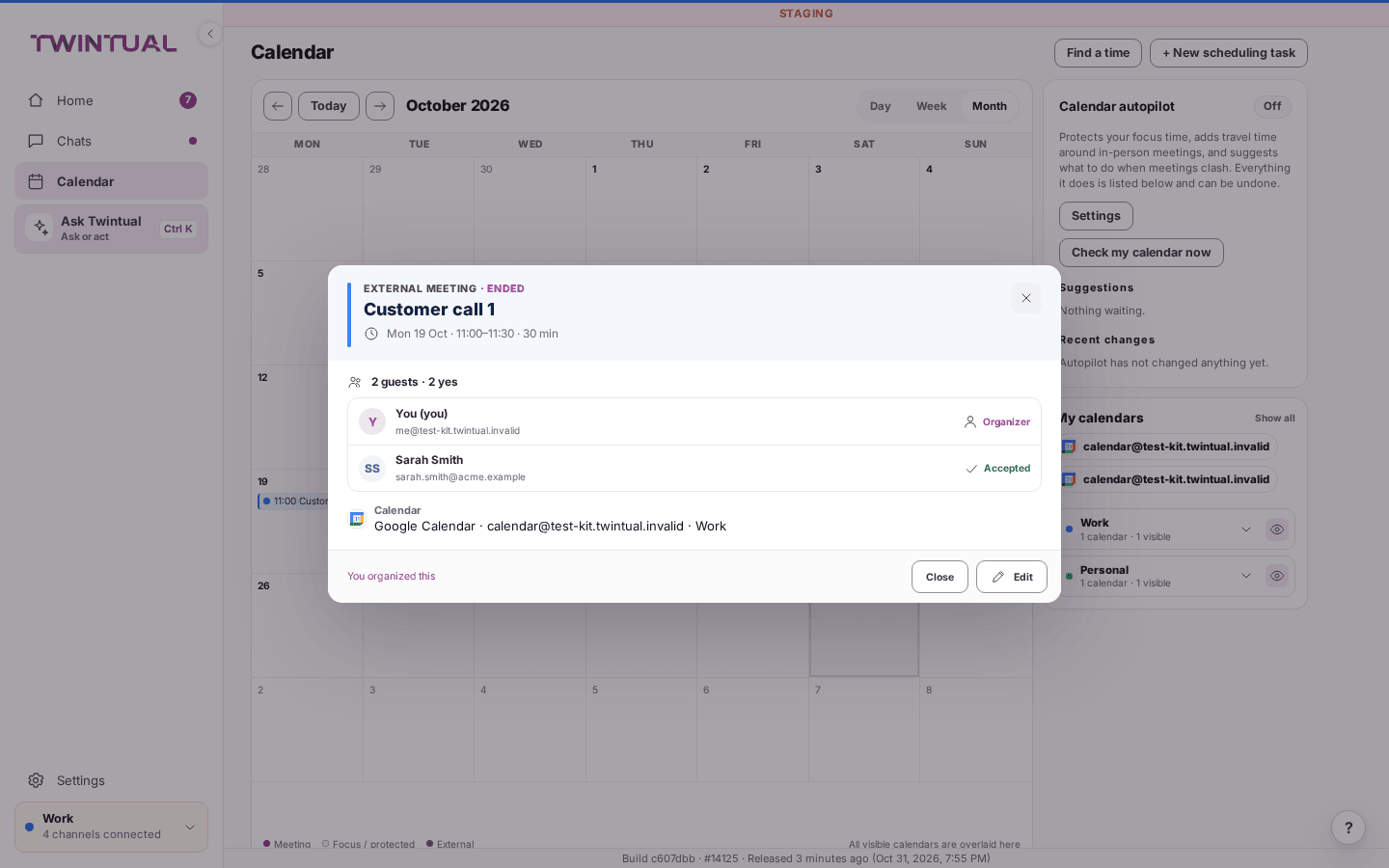
Select a meeting in Calendar, or Details on Home, to open its page. At the top you see what kind of meeting it is (EXTERNAL MEETING, MEETING or FOCUS BLOCK), how long until it starts, the title, the day, the time and the length. If the meeting was set in another time zone, you also see the time in both zones.
Below that, when they apply:
- A join button such as Join Zoom meeting, with the link and Copy meeting link.
- TWINTUAL BRIEF: a short headline and up to three lines about the meeting. Select Why? to see why Twintual highlighted them and the sources behind them.
- The guests, with a count such as "4 guests · 3 yes · 1 awaiting" and each person's answer: Accepted, Declined, Maybe or Awaiting.
- The location, the agenda, any attachments and the calendar the meeting belongs to.
At the bottom you can answer an invitation, and Prepare me opens the full prep. Moved and cancelled meetings, and answering invitations, work as described in Calendar.
What do Prepare me and the full prep show?#
Prepare me opens the full prep, titled with the meeting and its time and marked Prep ready when it is ready. From Home or Calendar you can also select Open full prep on the Before this meeting card.
The prep gathers:
- Agenda: the text from the invitation, without the video-call join details.
- Suggested talking points: up to three, each with Sources you can open to see where it came from.
- Open items: what is open between you and the people coming. See the next section.
- Who is coming: each guest, with a line on who they are when Twintual knows, and their latest conversations with you (the title, the channel and the date). Select a name to see your chats with that person, or a conversation to open it.
- LATEST, NEED FROM THEM and YOU OWE: short notes on the most recent exchange, what you are waiting for and what you promised.
On Home and Calendar the card is shorter: up to four people, one recent conversation each, and a +2 more line if there are more guests. The card has no empty state. If Twintual has nothing to prepare, you see "Nothing to prepare for this meeting yet." on the prep page, and no card elsewhere.
Under the prep card you can also accept, say Maybe, decline or cancel the meeting, with the same options as in Calendar.
What are "You owe", "Waiting on them" and "To decide"?#
Open items are the loose ends between you and the people in the meeting. Twintual groups them in this order:
- You owe: something you said you would do or send.
- Waiting on them: something you are waiting to receive from them.
- To decide: a decision that is still open.
Each item can show a due date, such as "due 5 Mar". Select an item to open the conversation it comes from. A group with nothing in it is left out. If nothing is open, the whole Open items section is missing.
Can I ask Twintual about a meeting?#
Yes. Open the full prep with Prepare me, and use the field under ASK TWINTUAL ABOUT THIS MEETING.
- Type your question in the field that says "Ask anything about the meeting…". On the web you can also select the mic button, speak, and select it again to use what you said.
- Press Enter, or select Send question. Use Shift and Enter for a new line.
- The answer appears under the field. A new question replaces the previous one.
If Twintual has nothing on it, you see "I have nothing on that in this meeting's threads." If it could not answer, you see "Twintual could not answer just now." When you are offline, you can ask again once your connection is back.
The answer is only words. Asking does not send a message or change your calendar. For wider questions, use Ask.
What does Catch me up do?#
Catch me up is a link at the bottom of the Before this meeting card. It opens your briefing for Today, not a summary of one meeting. You can also open it any time with Open briefing → on Home.
The briefing is titled "Only what changed, and what you may have missed". Use Since last check, Today or Week to change the period. It shows:
- What changed and You may have missed
- Needs you, with the number of decisions and approvals waiting
- Open loops, with how many are waiting on you, waiting on others and waiting for a decision
- You promised, when you have open commitments (see below)
- A Sources line showing how many messages and events it used, which opens the list
- Ask Twintual what I missed, which takes you to Ask with that question
If you are offline, you see the last briefing with its time. If your plan is read-only, you see the last briefing that was generated.
How do I get a quick picture of someone coming to my meeting?#
Use the Contact briefing in Chats.
- In the prep, select the person's name under Who is coming. Chats opens on that person.
- Select their name at the top of the conversation. The Contact briefing opens.
It shows a Quick briefing, What matters now (how many conversations Needs you and are Waiting, and which ones Needs your reply), their Communication style, Open loops and where you reach them (Connected across). Use Ask Twintual, Open full contact or View contacts to go further.
It is based only on what is already available to Twintual from that person's connected conversations. If Twintual does not know someone yet, the briefing says so. Read more about drafts and conversations in Needs you and drafts.
What are Your commitments?#
Your commitments is a card on Home (and on the phone's Home) that lists what you promised in messages you sent, such as "I'll send it Friday". It is the easiest way to remember what you owe after a meeting.
Each row shows a status (Overdue, Due today, Upcoming or No date), the due date, what you promised, and who it was to and on which channel. A count such as "3 open" shows at the top. For each commitment you can:
- Select Done when you have kept it.
- Select Snooze to be reminded tomorrow morning.
- Select Not a commitment if Twintual got it wrong. It is removed and Twintual learns from it.
When you have none, the card says "Nothing promised right now." Commitments also show up in your briefing under You promised.
What happens after a meeting ends?#
The meeting page shows ENDED next to the kind of meeting. The prep and the meeting page work from your calendar and your conversations, not from a recording of the call. If you want a transcript of what was actually said, connect a meeting-notes channel - see Can Twintual bring in notes from my calls?.
To follow up:
- Answer or write to people in Chats. Anything you promise in a message is picked up in Your commitments.
- Check Needs you on Home for replies that are waiting for you. See Needs you and drafts.
- To set up the next meeting, see How do I find a meeting time with someone? below.
Twintual drafts messages for you to review. Nothing is sent until you approve it, unless you turn on Autopilot for certain low-risk replies. See Autopilot, rules and automations.
How do I find a meeting time with someone?#
Use Find a time. Twintual drafts a message with your free slots, and you review it before anything goes out.
- Select Find a time at the top of Calendar and make sure Meeting is chosen. You can also start from a person's contact card with Schedule, or from a conversation in Chats with Schedule a time.
- In TO, search for and select one or more people. Add a TOPIC, choose the DURATION, and under WHEN pick This week, Next week or Custom.
- Check the MESSAGE Twintual drafted: it lists your free slots, and shows each person as Checked (Twintual could see their calendar too) or Not checked. Edit it, or use Make shorter or Regenerate.
- Select Ask for availability. Nothing is sent until you do; if it does not go out you see Nothing was sent and your text is kept.
Once the other person agrees on a time, a Scheduling suggestion card appears next to your calendar. Select Review & book, check the time, then Approve & book - the meeting is only booked on your calendar once you select that. See Calendar for every option (focus blocks, changing a proposed slot, approval modes for follow-ups) and How do I approve and book a suggested meeting? for the full booking flow.
Can Twintual bring in notes from my calls?#
Twintual can connect to a meeting-notes service, such as Fathom or Fireflies, that already sits on your calls and produces a transcript. Once connected, each call it notes becomes a conversation in Chats, with the plain-text transcript as the message. It is not shown on the meeting page or the prep card, and Twintual never stores or plays back the recording itself.
- Open Settings, then Channels & profiles.
- Under the MEETINGS heading, select Fathom or Fireflies.
- Enter your Fathom API key or Fireflies API key (find it in that service, under Settings > API keys for Fathom or Integrations > Fireflies API for Fireflies) and select Connect.
If a provider shows Coming soon instead, it is not switched on for your account yet. For other kinds of channels, see Connect your channels.
How do I make new Fireflies meetings arrive straight away?#
Out of the box, Twintual checks Fireflies from time to time for new transcripts. If you want each meeting to arrive as soon as Fireflies finishes it, add a webhook in Fireflies that points at your Twintual connection.
- In Twintual, open Settings, then Channels & profiles. Select Connect on Fireflies (or Reconnect if it is already connected).
- Enter your Fireflies API key. In Webhook signing secret (optional), enter the signing secret you will set on the Fireflies webhook. Pick any long random string, and keep a copy for step 4.
- Select Connect. Twintual shows the Webhook address for this connection, with a Copy address button. The address ends with this connection's own ID, so it works for this connection only.
- In Fireflies, add a webhook for finished transcripts. Paste the address as the webhook URL and enter the same signing secret.
Things to know:
- Older webhooks stopped working. A Fireflies webhook that points at an earlier Twintual address no longer delivers anything. Change its URL to the address from your connection, and set the signing secret as above.
- Reconnecting without a secret removes the saved one. Each time you select Reconnect, enter the signing secret again, even if you only came to change the API key. If you leave it empty, the saved secret is deleted and the webhook stops working until you enter it again. Twintual goes back to checking Fireflies from time to time, so no meetings are lost.
- No secret, no webhook. Twintual only accepts a webhook that is signed with the secret saved on that connection.
Why is there no prep for a meeting?#
Some meetings never get a prep:
- Focus blocks and cancelled meetings.
- Internal meetings with nothing to prepare, which read "no prep needed" on Home.
- Meetings on a calendar where you chose Hide event titles & details, because Twintual cannot read the details. See What can Twintual see in my calendar?.
- Meetings where Twintual has no recent conversations or open items to draw on yet.
If a meeting page does not open, you see "This meeting is not available" (it is not on your calendar, or you cannot open it) or "This meeting could not be loaded". For the second, check your connection and try again. If you have nothing coming up, the prep page says "No meeting coming up".
Where should I go next?#
Related reading.
- Calendar to connect a calendar and ask for a time that works.
- People and contacts to what Twintual remembers about the people in a meeting.
- Daily brief, Pulse and weekly review to see today's meetings alongside everything else.