
Daily use
Files and knowledge sources
Connect OneDrive, SharePoint, Notion and other drives as read-only sources, choose what Twintual may read, and see how your files help in answers, drafts and meeting prep.
Go to this screenTwintual can read the documents you keep in a drive or a workspace tool, so it can use them when it answers a question, writes a draft or prepares you for a meeting. You decide which files and pages it may read, it never changes them, and you can disconnect at any time.
What is a knowledge source?#
A knowledge source is a drive or cloud tool you connect so Twintual can read some of its files or pages. It is separate from your channels. A channel is where people write to you. A knowledge source is where your documents live.
Each knowledge source belongs to one profile. What you connect to your Work profile is available only to that profile, and Twintual does not use it for your other profiles.
Connecting a source does not mean Twintual reads everything in it. Nothing is read until you pick it.
Which drives and clouds can I connect?#
The options are in Settings, under Channels & profiles, in the DRIVES & CLOUDS section of each profile. The list can include:
- OneDrive: Microsoft files and folders.
- SharePoint: sites and document libraries.
- Notion: pages and databases.
- Google Drive: files and folders you choose.
You see only what is available to you. Connect appears next to a source you can connect now. A source marked Coming soon is not available yet, and Not approved by your admin means your workspace admin has not allowed it for that profile. Google Drive appears in the list when it is available for your account.
How do I connect a drive or cloud?#
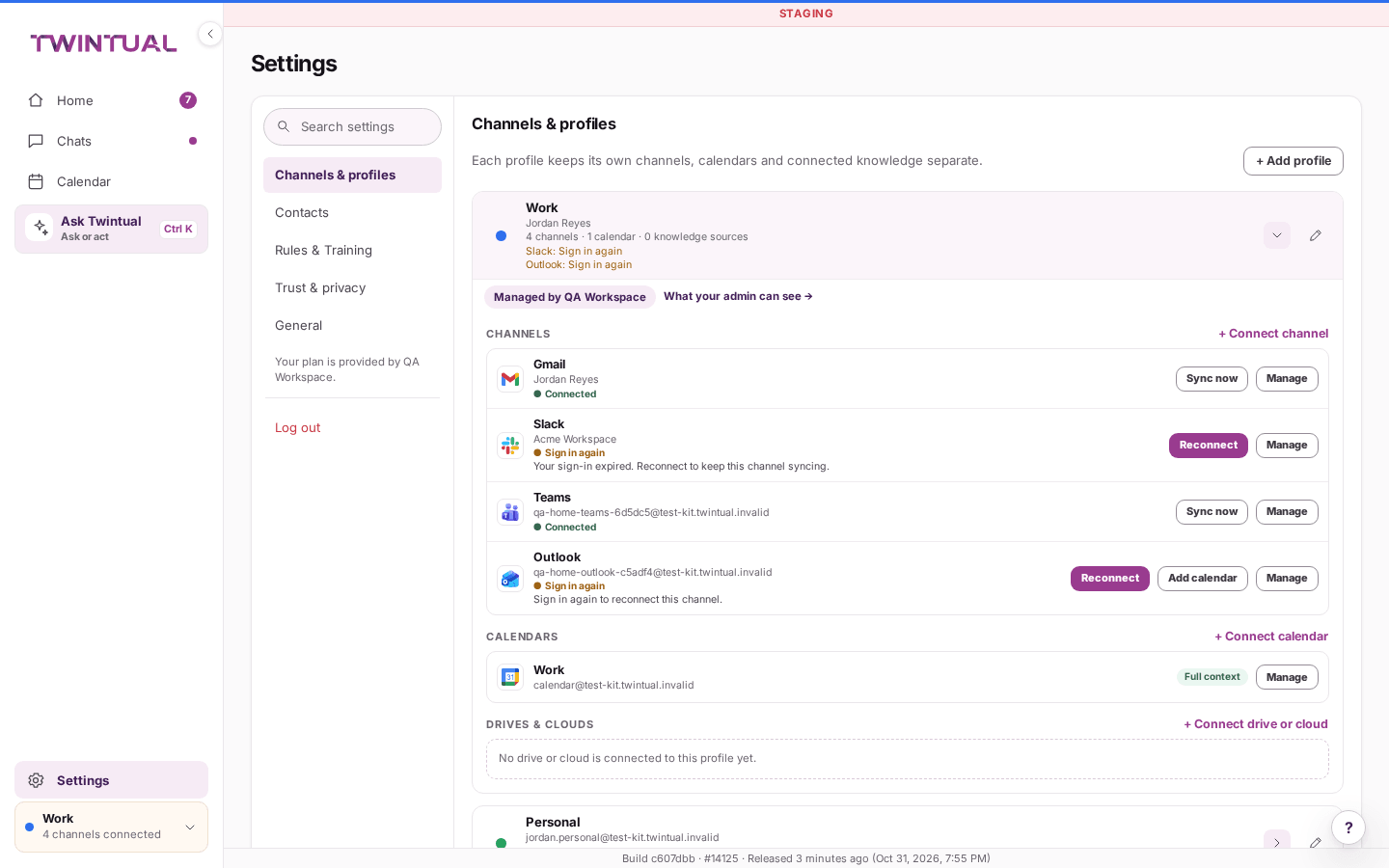
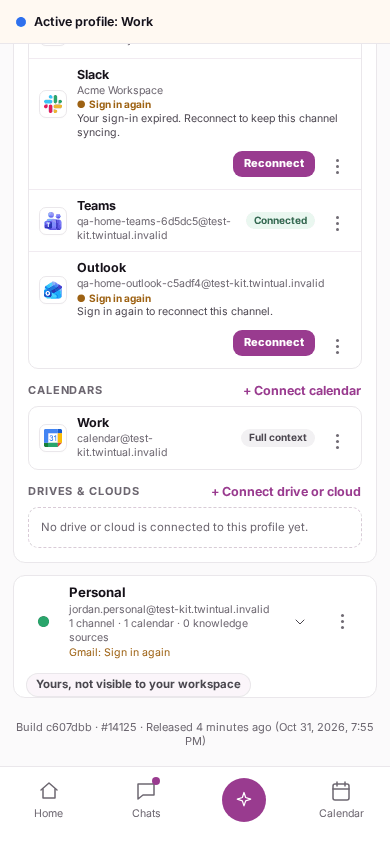
- Open Settings, then Channels & profiles.
- Find the profile the files should belong to.
- In the DRIVES & CLOUDS section, select + Connect drive or cloud. If nothing is connected yet, the section says No drive or cloud is connected to this profile yet.
- Choose the source and select Connect.
- Sign in with the provider and approve access. You come back to Twintual when you are done.
- Choose what Twintual may read. See the next question.
Twintual uses the provider's official sign-in and never sees your password. If the sign-in does not finish, you see We couldn't connect followed by the name, nothing is saved, and you can select Try again. Each account can only be connected once. For more on sign-in problems, see What if I cannot connect a channel?.
How do I choose what Twintual reads?#
Right after you sign in, a window opens called Choose what Twintual reads in followed by the source name, for example Choose what Twintual reads in OneDrive.
- Wait for the list to load. For OneDrive it is FILES AND FOLDERS, for SharePoint SITES AND LIBRARIES, and for Notion PAGES AND DATABASES.
- Tick the items you want Twintual to read. Each one shows what it is, such as Page, Database, Folder, File or Site. Use Select all or Clear if it helps. A counter shows how many are selected.
- Select Save. You see a message such as OneDrive selection saved.
If you are not ready, select Choose later. The source stays connected with Nothing selected yet, and nothing is read.
To change your choice later, select Choose items on the source's row in DRIVES & CLOUDS. Items you untick are no longer used, and Twintual also drops anything that was deleted or is no longer shared with you.
With Notion, the list shows only the pages you shared with the Twintual connection. If you see No pages were shared with Twintual yet, open the page in Notion, add the Twintual connection to it, then reload the list.
What happens after I save my choice?#
Twintual reads your selection so it can search it. The row shows the progress, for example Indexing 3 of 12, and a line saying Read only. Your files are never changed. When it finishes, the row says Indexed with when it last synced.
This can take a little while. You can keep using Twintual meanwhile. The row updates by itself.
How does Twintual use my files?#
Twintual looks in the items you chose, and only in the profile you are using, when they match what you are doing. Today that means:
- Answers in Ask Twintual. If a file or page helps answer your question, it can be used and shown under Sources. When the source provides a link, you can open the file or page where it lives. See How do I read an answer and check its sources?.
- Drafts. When your twin writes a reply, it can draw on a matching document. Select Why? on the draft to see what it used. See Needs you and drafts.
- Meeting prep. The preparation for a meeting can include a document that relates to the topic. See How does Twintual help me prepare for a meeting?.
A document is only used when it matches the question, the conversation or the meeting. Nothing is sent anywhere because of it: drafts still wait for your approval, as always. If your twin cannot find a matching document, it simply works without one.
Can I attach a file from a drive to a reply?#
Attaching a file is separate from connecting a knowledge source. On the web, Attach file (the paperclip next to the reply field) opens the file chooser on your device. See How do I edit or shorten a draft?.
What does read-only mean?#
Twintual only reads. It does not create, edit, move or delete anything in your drive or workspace tool.
- It uses only the pages and files you can already open, and never writes to them.
- It reads only the items you picked.
- If you ask about something you cannot open yourself, Twintual says you do not have access instead of showing what is inside. See Why can't Twintual see something I asked about?.
For how Twintual handles your data in general, read Privacy basics.
What if a source shows an error or is out of date?#
Look at the status on the source's row, and at the line under it.
- Sign in again: the sign-in ended. Select Reconnect and sign in with the provider. What is already indexed stays.
- Sync stalled: indexing stopped making progress. Select Sync now.
- Sync failed: the last indexing run did not finish. Select Sync now. If it keeps failing, try Reconnect.
- Connecting: the connection is being set up. Wait a moment.
If an item you expected is missing from the picker, check that you can open it in the provider, then select Choose items to reload the list. If the list does not load, you see a message such as We couldn't load your OneDrive files. Try again. Select Try again.
Your account must be active to add a source. If you see Your account is read-only, nothing can be added until that changes. See Billing and plans.
How do I disconnect a drive or cloud?#
- Open Settings, then Channels & profiles.
- Find the source in DRIVES & CLOUDS under its profile.
- Select Disconnect on its row.
- Confirm. The window asks Disconnect followed by the source name.
Twintual stops reading the source and removes everything it indexed from it, so it can no longer use those files. Your files and pages are never changed, and you can reconnect later. Removing a whole profile also disconnects its knowledge sources. To disconnect channels instead, see How do I disconnect a channel?.
Where should I go next?#
More on what Twintual reads and how.
- Connect your channels to connect the channels your knowledge sources sit alongside.
- Privacy basics to the fuller picture of what Twintual reads and keeps private.
- Ask Twintual to ask Twintual a question that draws on a connected file.