
Daily use
Daily brief, Pulse and weekly review
Find your morning brief, change when it arrives or turn it off, understand what Pulse is, and read your weekly review. None of them sends anything for you.
Go to this screenTwintual gives you a few regular summaries so you do not have to hunt for what matters: a daily brief each morning, a weekly review on Mondays, and, if you work in a team, Pulse for progress updates. They only show you things. Nothing in them is sent to anyone until you approve it.
What is in my daily brief?#
Your daily brief is a short morning digest for one profile. At the top you see a headline and a summary, followed by counts such as "3 things need you" or "2 meetings today". Below that, it can include:
- Needs you: the conversations waiting on a decision or reply from you, with who they are from and when they are due.
- Waiting on you: people who have been waiting for you, and for how long.
- Today's meetings: the time, who you are meeting, your Last conversation with them and any Open items. Select Prepare for followed by the meeting name to open its prep.
- Promises due: what is overdue or due today, marked Owed to you, You owe or Decision.
- Worth knowing: informational items (FYIs).
- Handled quietly: how many things Twintual dealt with without bothering you. Select See what Twintual did to review them.
Under Based on you see the conversations and meetings the brief came from. On a quiet morning you see Nothing needs you this morning.
The brief only reads what you have connected. See Needs you and drafts for the list it summarises and Calendar for meeting prep.
Where do I open the daily brief?#
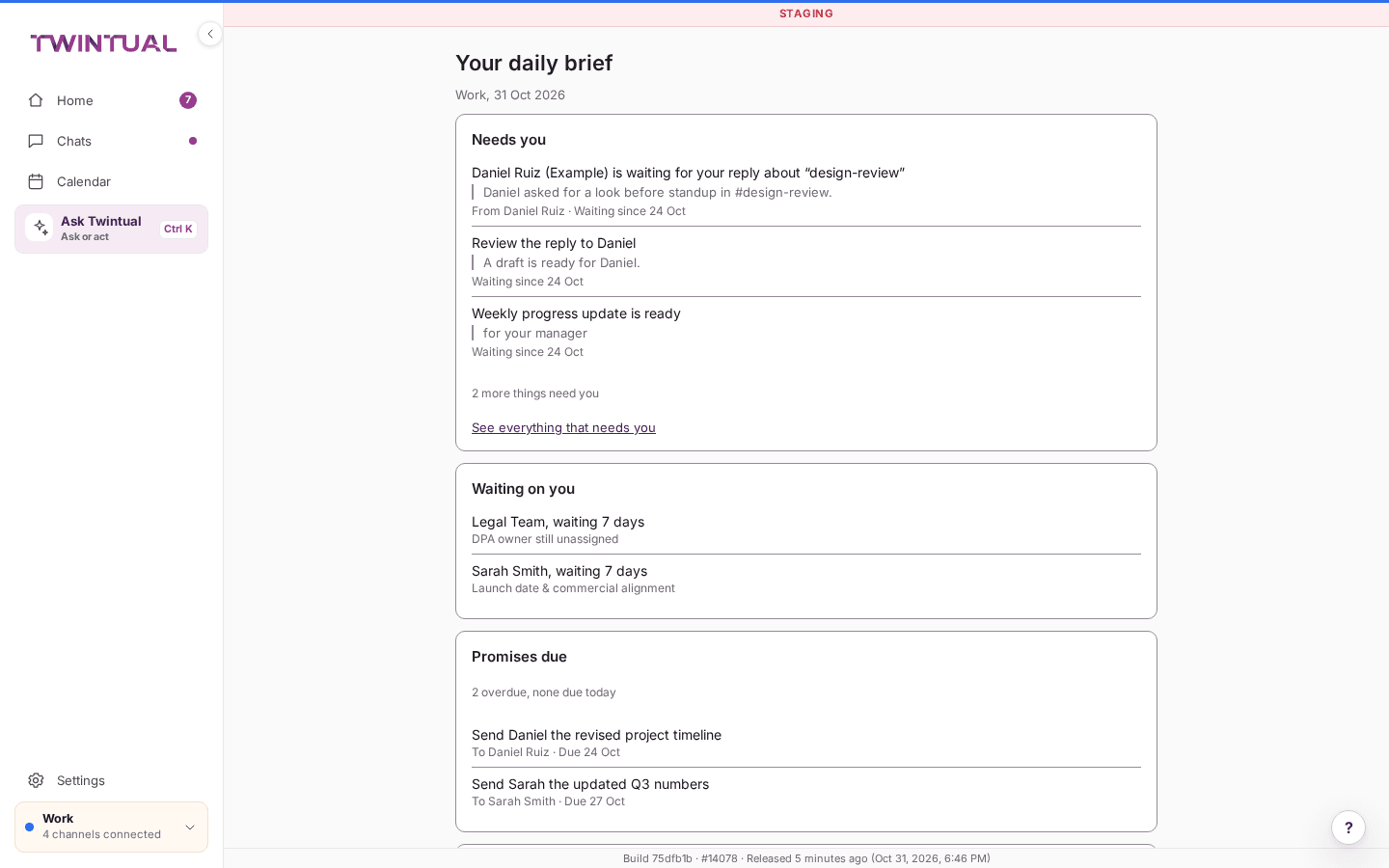
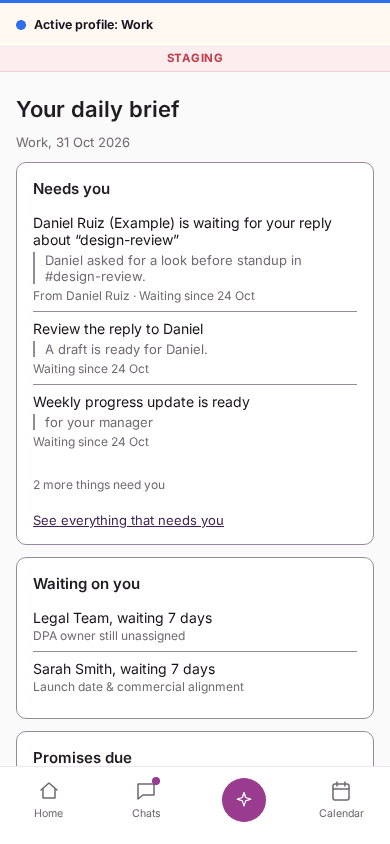
You can open it from two places:
- On Home, select the Daily brief card at the top.
- Select the Your daily brief notification when it arrives on your device.
Either one opens the full page, titled Your daily brief.
When you open it, the brief is built from what is current at that moment, so it is up to date even if you open it later in the day.
The Open briefing → link on Home is something different. It opens a catch-up for Since last check, Today or Week, and lets you select Ask Twintual what I missed. It is not the daily brief.
When does the daily brief arrive?#
By default the brief is set for 8:30 in the morning, Monday to Friday, in the time zone of your account. It arrives once a day as a push notification titled Your daily brief, for example "3 things need you today."
A few things to know:
- By default only your Work profile sends a brief. Personal and Family profiles stay silent unless you change it. See Profiles.
- If there is nothing to tell you, Twintual does not send a notification.
- The brief is not held back by your push window, so you still get it at the time you chose. Quiet hours and the push window for everything else are explained in Profiles.
- If notifications are off on this device, the brief is still waiting for you on Home and on the Your daily brief page.
- An emailed brief is optional and off by default. See the next question.
How do I change the time of my daily brief, or turn it off?#
- Go to Settings, then General.
- Under Notifications, select Manage.
- On Notification settings, choose the profile you want (use the tabs if you have more than one).
- On the Daily brief card, select Edit.
- Change the Time, choose the days, or switch Push off.
- Select Save.
You must keep at least one day selected, or you see "Choose at least one day." Switching Push off stops the scheduled brief for that profile. You can still open the brief yourself from Home at any time.
To get the brief by email as well, make sure Product news is on in Email preferences (go to Settings, General, Notifications, Manage, then Open next to Email preferences), and turn on Email for the Your daily brief row on Notification settings. Optional email is off until you turn it on. See Privacy basics.
What is Pulse?#
Team Pulse shows what's moving, what's blocked and what needs a decision, for a manager's whole team. Pulse is not a personal summary like the daily brief. It is a way for a manager to ask the team for a progress update and see the answers in one place.
- A manager requests a progress pulse from the people they choose.
- Each person's Twintual prepares a draft update from the work that person has allowed it to use.
- The person reads it, edits it if they want, and approves it. Only then does the manager see it.
Managers do not receive anyone's emails, chats or files, only the summary each person approves. Team Pulse is for managers: if you work on your own, or you are not a manager, you will not have a Team Pulse screen, but you can still receive and answer requests (see the next question). The daily brief and the weekly review do not depend on it.
How do I approve a progress update my manager asked for?#
When your manager requests a pulse, a card appears in Needs you on Home with your manager's name and "requested a progress pulse". It tells you that your twin has already prepared the update and that only the summary you approve is shared.
- Select Review update. The window Share your weekly update? opens.
- Read the draft. It is organised into Completed, In progress, Blockers and Next.
- Select Why? if you want to see what the draft was based on.
- Edit the text if you want to change anything.
- Select Approve & send to send it to your manager.
To skip it for now, close the window. Nothing is sent, and the request stays waiting for you. If Twintual cannot find a manager for you, you see No manager on record and nothing is sent.
If you see a My progress pulse or Weekly update widget on Home (on a computer), Send a pulse and Review & send open this same window, so you can also send an update without being asked.
How do I request and read a Pulse as a manager?#
Open Team Pulse from the menu. If nothing has been requested yet you see No pulse requested yet.
- Select Request pulse.
- Under Who should receive it?, choose the whole team (Select all) or only the people you need.
- Keep the suggested Prompt or write your own.
- Choose a Deadline.
- Select Request pulse.
As people approve their updates, the header shows how many have arrived, for example "Current pulse · 3 of 5 updates received". You can see:
- Team: each person, marked Waiting for update until they approve something.
- Updates received, Open blockers, Decisions needed and Unblocked this pulse.
- Needs your attention: items where you can Decide, Assign or Ask.
Select Request update to nudge only the people who have not replied yet. Everything shown comes from updates the team has approved.
What does the weekly review show?#
The weekly review looks back at the last full week, Monday to Sunday, for one profile. It is read-only: you read it, and there is nothing to approve. It covers:
- How fast you reply: how many replies you sent and your median reply time, compared with the week before.
- Waiting on you longest: who has waited the longest.
- Commitments: what is overdue or due in the next 7 days.
- Meetings and focus: hours in meetings and focus time.
- Top contacts: who you talked to most.
- What Twintual handled quietly: quiet actions, rule runs, drafts prepared and contacts merged. Select See what Twintual did to review them.
- One thing to try: a single suggestion for the coming week.
To open it, select Weekly review on Home, or select the Your weekly recap notification if you receive it. On a quiet week you see A quiet week, and your next review is ready on Monday. Names in the review link to the conversation in Chats, where you can reply or approve a draft as usual.
There is no setting to skip or postpone the weekly review. If you do not want to read it, you can simply ignore it. Recap emails are optional and off until you turn them on in Email preferences.
What do these summaries never do?#
- They never send a message on your behalf. The daily brief and the weekly review only show you information. Any reply starts as a draft and needs your approval. See Approve and send.
- A Pulse update is never shared without your approval. Your manager sees only the summary you press Approve & send on, not your emails, chats or files. Closing the window sends nothing.
- They do not pull you in with streaks, usage goals or nagging. Twintual notifies you when a decision is waiting for you, not to tell you it has been busy.
- They only use what you have connected. See Privacy basics.
Where should I go next?#
Related reading.
- Needs you and drafts to what lands in your list and why.
- Meetings: prep, briefings and follow-ups to prep and follow-ups for your meetings.
- Notifications and availability hours to choose when your brief arrives.