
Get started
Step-by-step guide
The full first-run path through Twintual, from creating your account to asking your twin a question.
Go to this screenThis is the one path every new customer follows. Work through it once, in order, with the app open beside it.
What you will learn#
- Create your account and sign in.
- Connect your email and calendar.
- Connect a chat app and choose what Twintual reads.
- Review a draft and send it.
- Read your daily brief.
- Ask Twintual a question.
How do I create my account and sign in?#
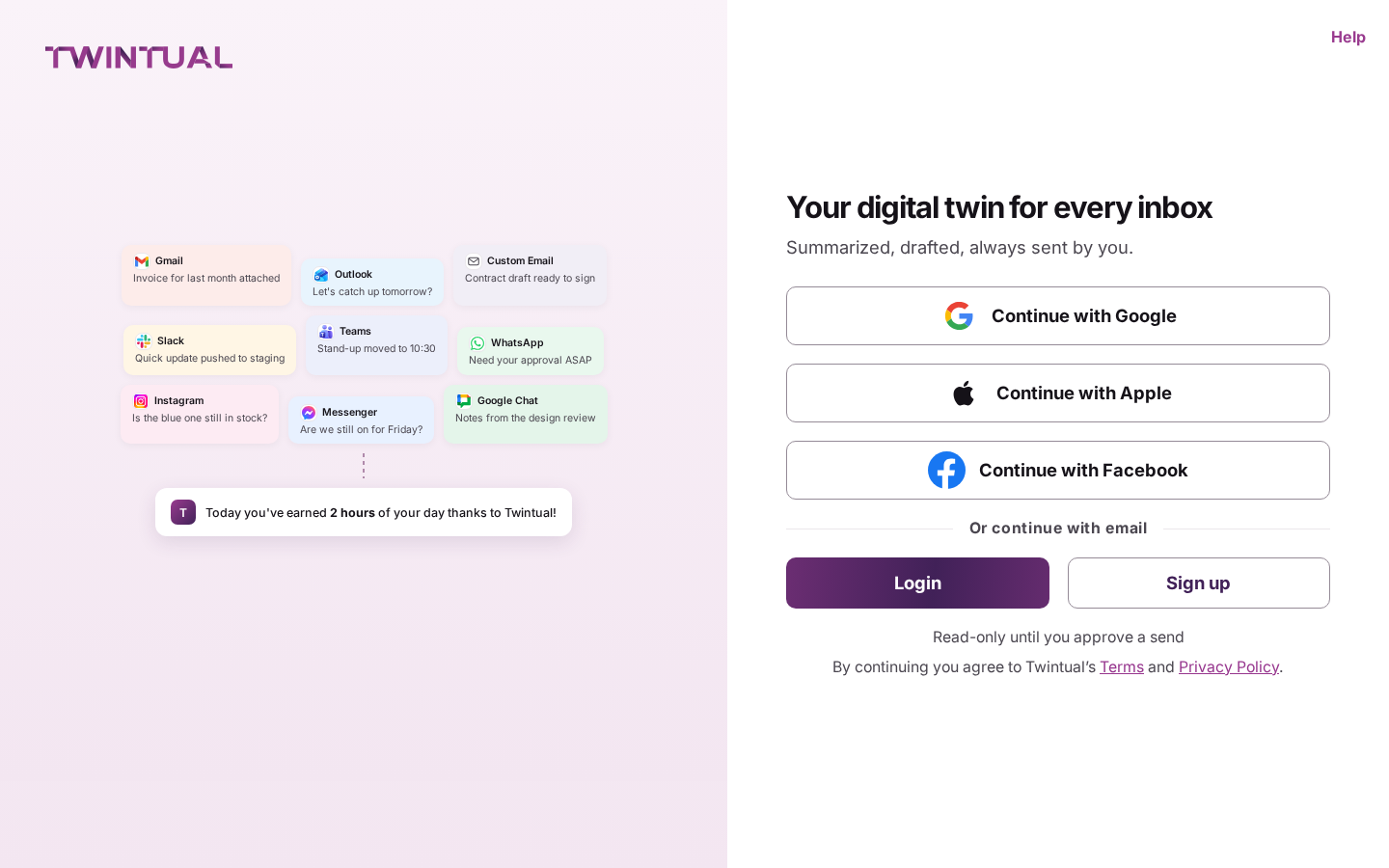
Open Twintual. If you already have an account, select Login. If you are new, select Sign up.
- Choose Continue with Google, Continue with Apple or Continue with Facebook, or choose Sign up with email.
- If you use email, enter your address and select Email me a verification code.
- Enter the 6-digit code and select Verify and continue.
- On Help Twintual get to know you, enter your Full name and Phone number, then select Next.
Twintual never sees your password when you use Google, Apple or Facebook. A new account starts on a free trial and does not need a card.
How do I connect my email and calendar?#
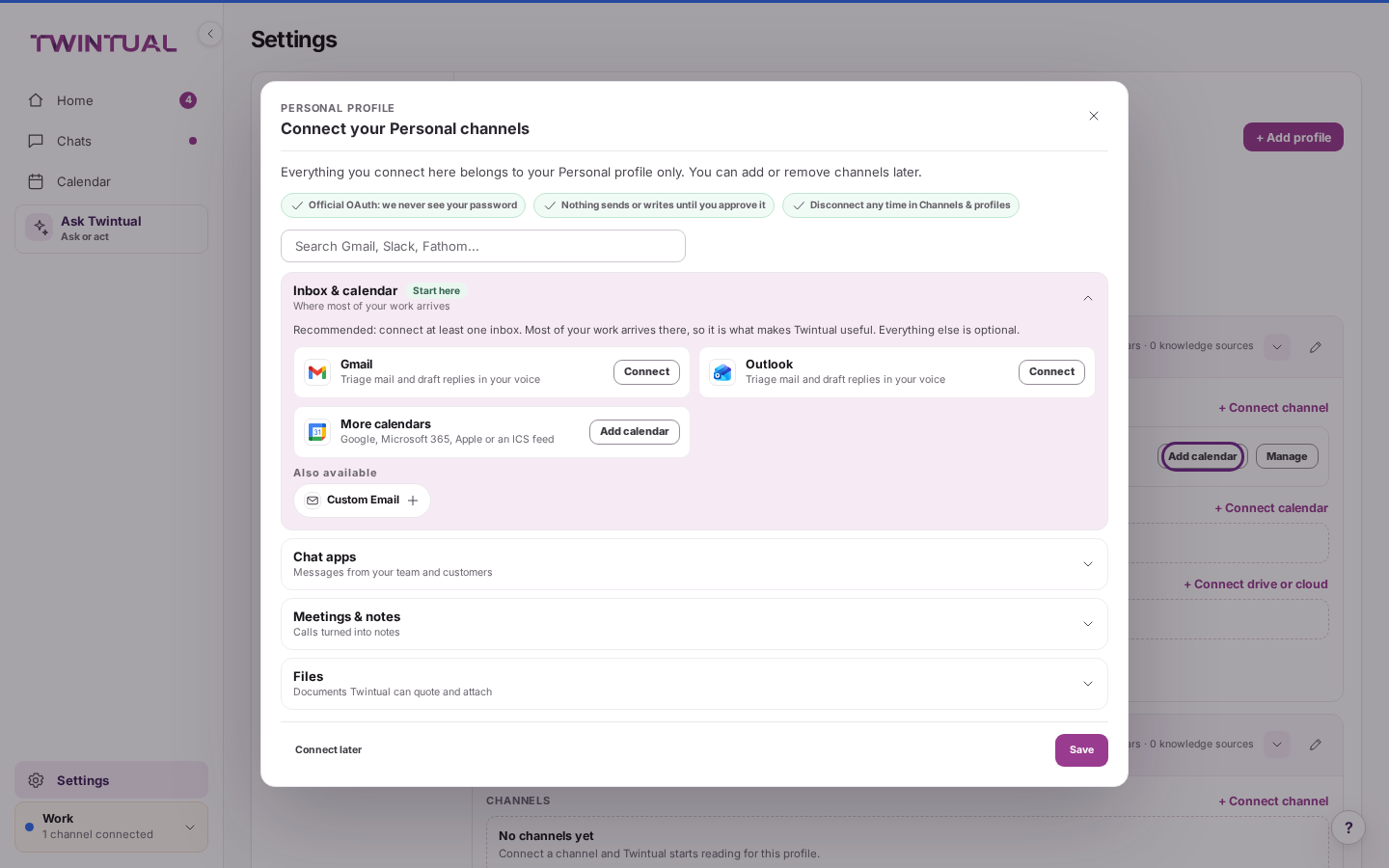
- Open Settings, then Channels & profiles.
- Next to the profile you want, select + Connect channel.
- Under Inbox & calendar, choose Gmail, Outlook or Custom Email, then select Connect and sign in with the provider.
- Next to More calendars, select Add calendar to connect Google Calendar, Microsoft 365, Apple iCloud Calendar or a read-only ICS feed.
Twintual uses the provider's own sign-in page and never sees your password. Nothing sends or writes until you approve it, and you can disconnect any channel later in Channels & profiles.
How do I connect a chat app and choose what Twintual reads?#
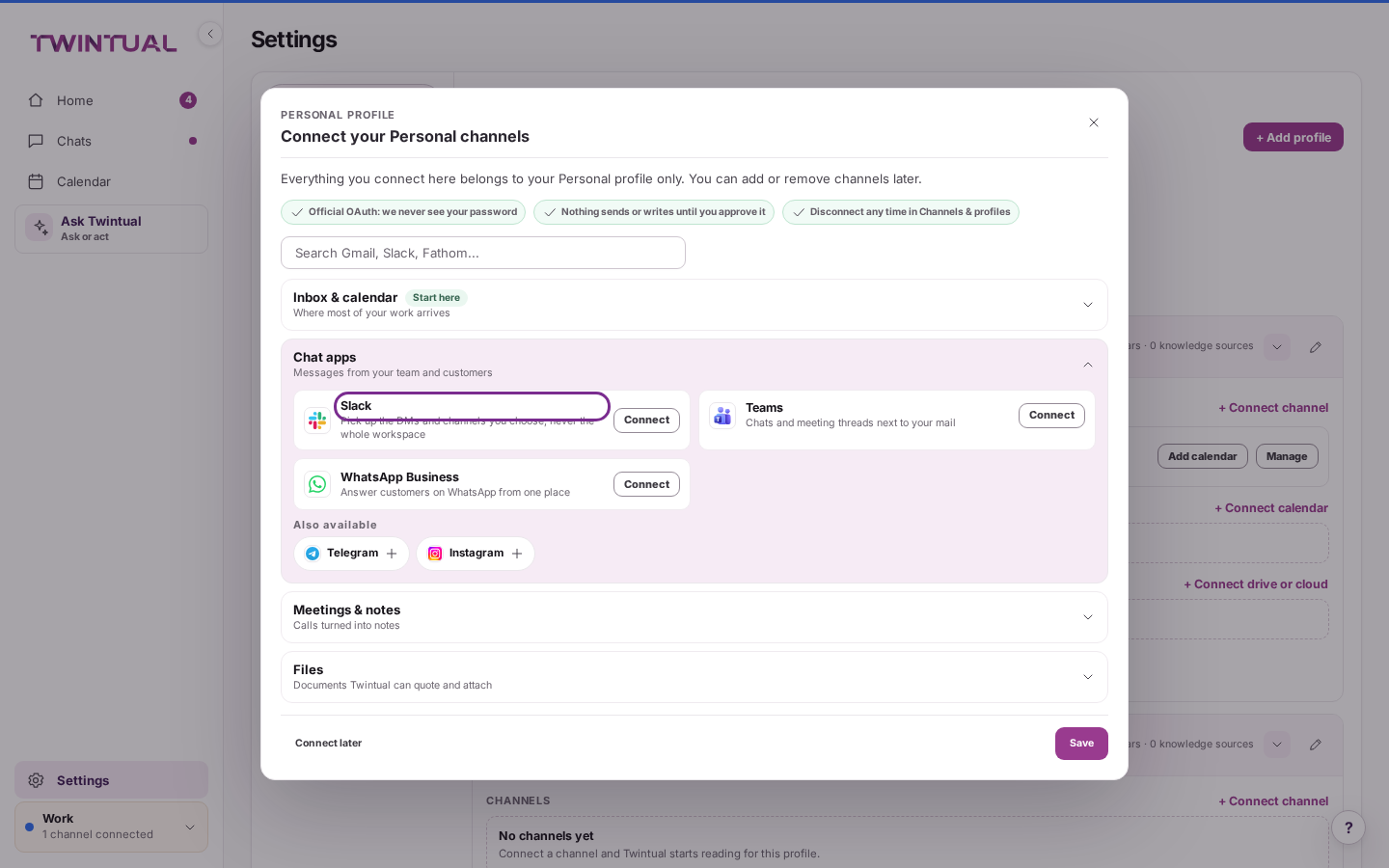
- In the same dialog, open Chat apps.
- Choose Slack, Teams or WhatsApp Business, then select Connect and sign in.
- When Twintual asks what to read, tick the direct messages and channels you want.
Anything you leave unticked stays unread. You can change your choice at any time from the channel's Manage panel in Channels & profiles.
How do I review and approve a draft?#
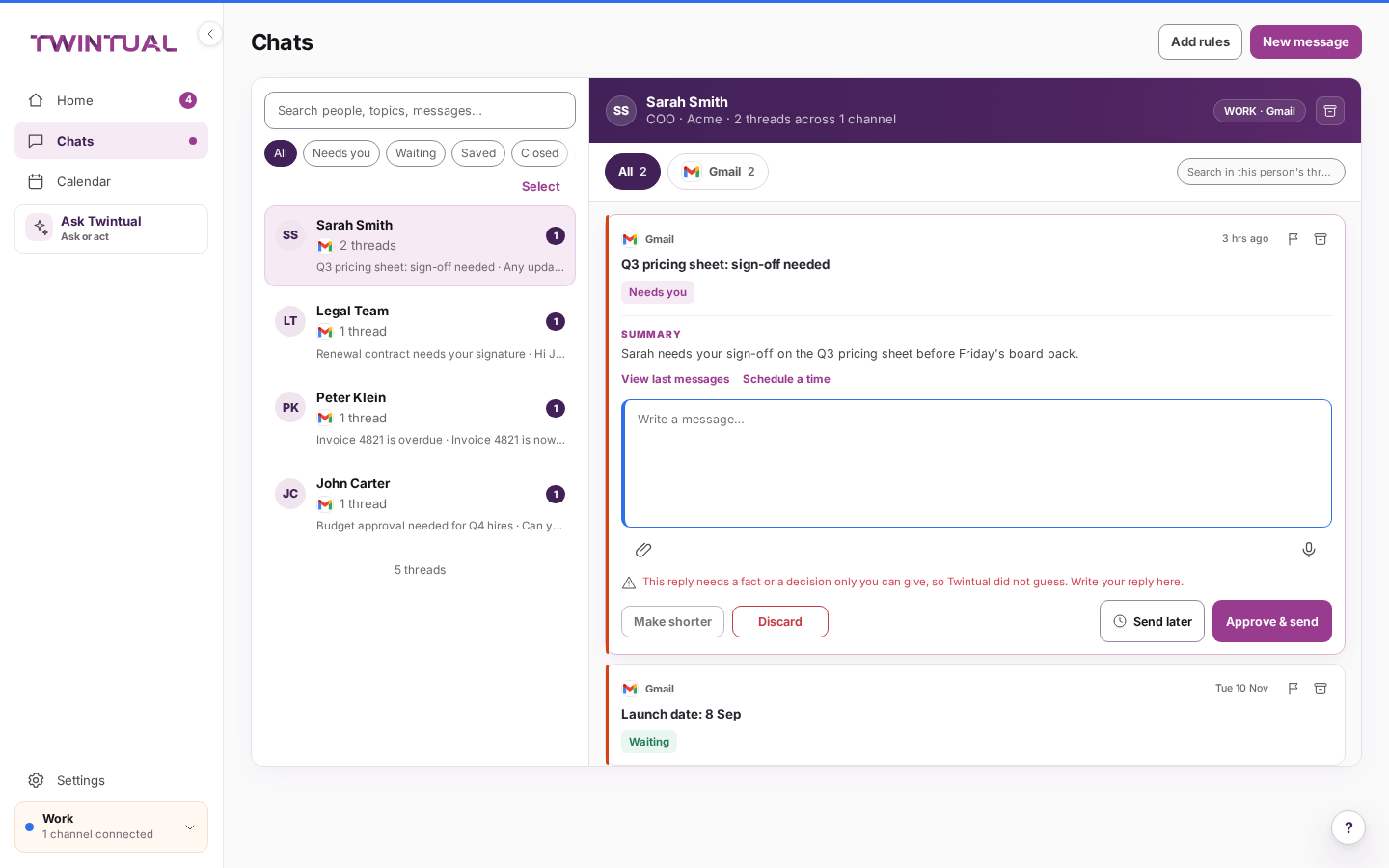
- On Home, open an item in the Needs you card, or open Chats and select Reply with Twintual on a conversation.
- Read the draft. It sits in an editable field, already written from what your twin read.
- Edit it if you want, or select Make shorter to have Twintual tighten it.
- Select Approve & send.
Nothing leaves your account before that last step. Right after you send, a short window with an Undo button lets you take it back. If the item is not yours to answer, select Discard instead: nothing is sent, and you can undo that too.
How do I read my daily brief?#
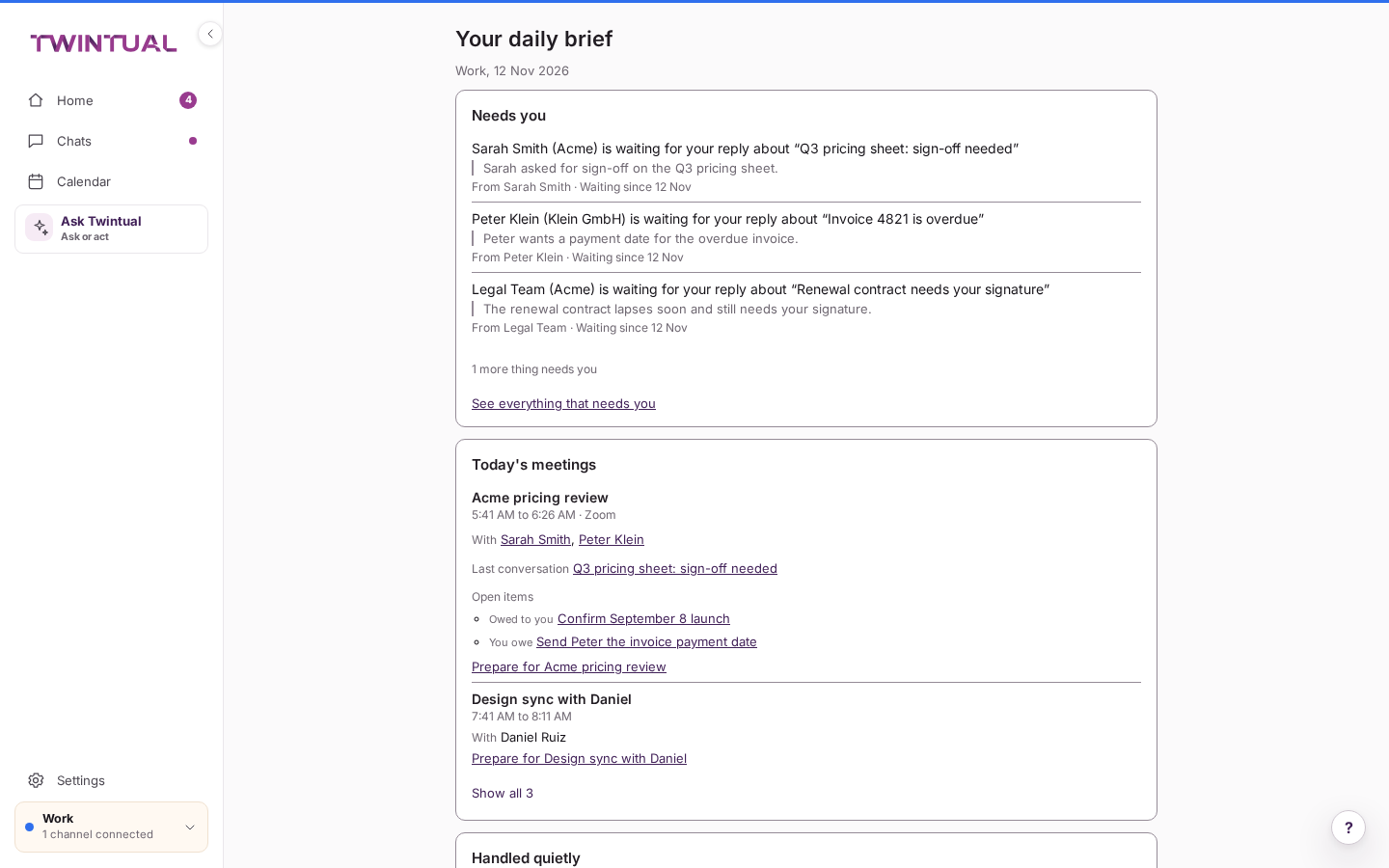
- On Home, select the Daily brief card, or select the Your daily brief notification when it arrives.
- Read Needs you for what is waiting on a reply or a decision from you.
- Read Today's meetings for who you are meeting and what is still open.
- Read Handled quietly for what Twintual dealt with without bothering you.
By default the brief arrives at 8:30 each morning, Monday to Friday. To change the time or turn it off, go to Settings, then General, select Manage under Notifications, open the Daily brief card with Edit, make your change, then select Save.
How do I ask Twintual a question?#
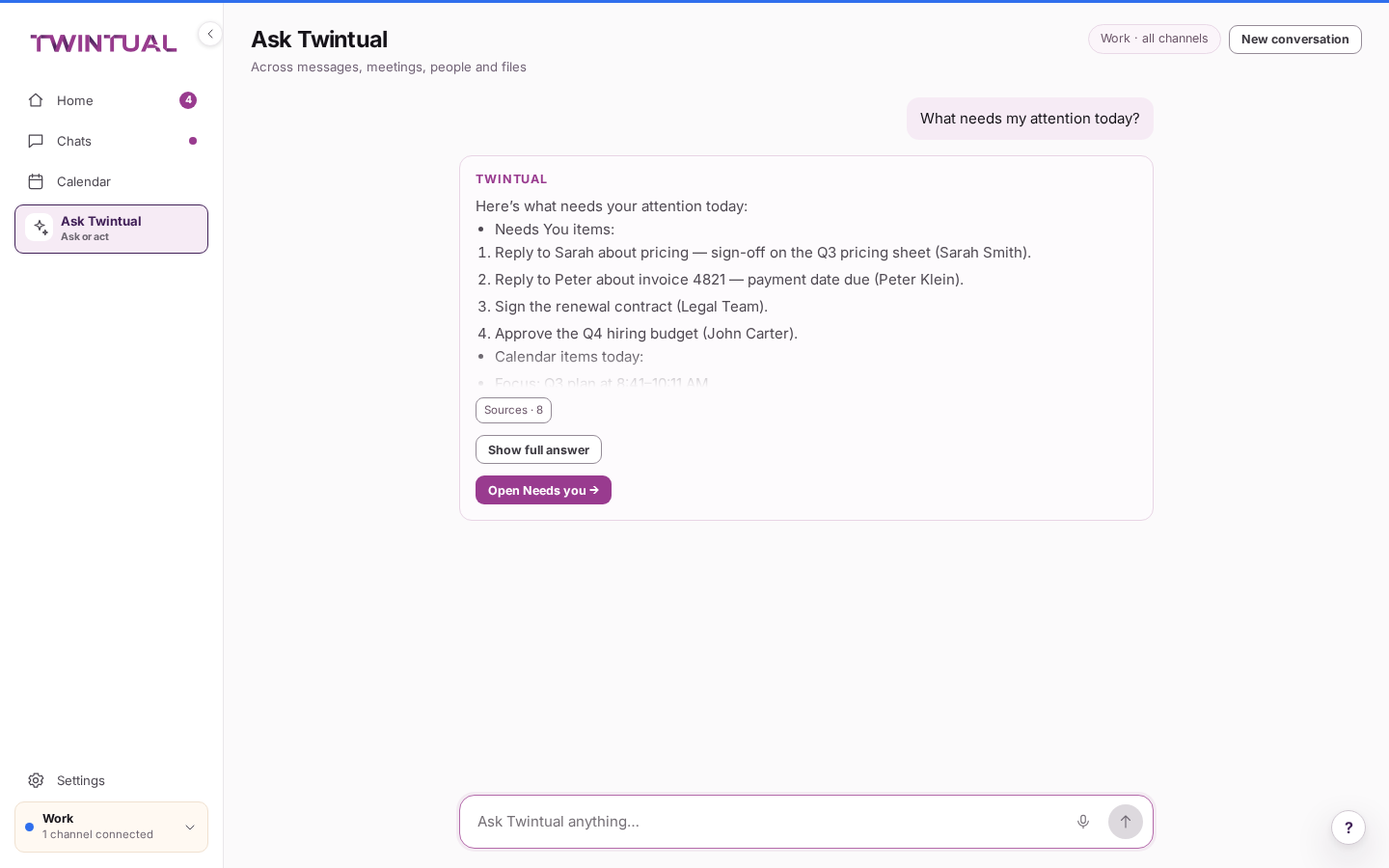
- Select Ask Twintual in the sidebar, or press Ctrl+K (⌘K on a Mac) on any screen.
- Type your question in the field, for example "What needs my attention today?", and send it.
- Read the answer. Select Sources to see what it is based on.
You can also ask for something to be done, such as replying to someone. Twintual prepares it as an action and waits for you to approve or cancel it before anything happens.
Verify the result#
You are done when you can sign in and reach Home, and at least one channel shows as connected. You have sent or discarded one draft, and you have seen your daily brief once. Ask Twintual anything, and it answers from what you connected, with real sources attached.
Troubleshooting#
Twintual says "This profile has reached its channel limit"#
Your plan limits how many channels one profile can hold, and this profile is already at that limit. Select See plans to upgrade, or connect the new channel to a different profile instead.
Connecting Teams or Outlook asks for admin approval#
Your Microsoft 365 organization requires an administrator to approve new apps before anyone can connect them. Ask your IT admin to approve Twintual, or to connect it once for the whole organization.
My twin could not write a draft#
Some messages are too open-ended for a draft to be prepared automatically. Open the conversation from Needs you or Chats, and type your own reply in the field that Twintual leaves ready for you.
Next steps#
- Connect your channels: every channel Twintual supports, and what to do if one will not connect.
- Needs you and drafts: the full detail on why something lands in your list.
- Approve and send: every way to edit, schedule, undo or retry a reply.
- Daily brief, Pulse and weekly review: what else your brief and your weekly review can show.
Need help?#
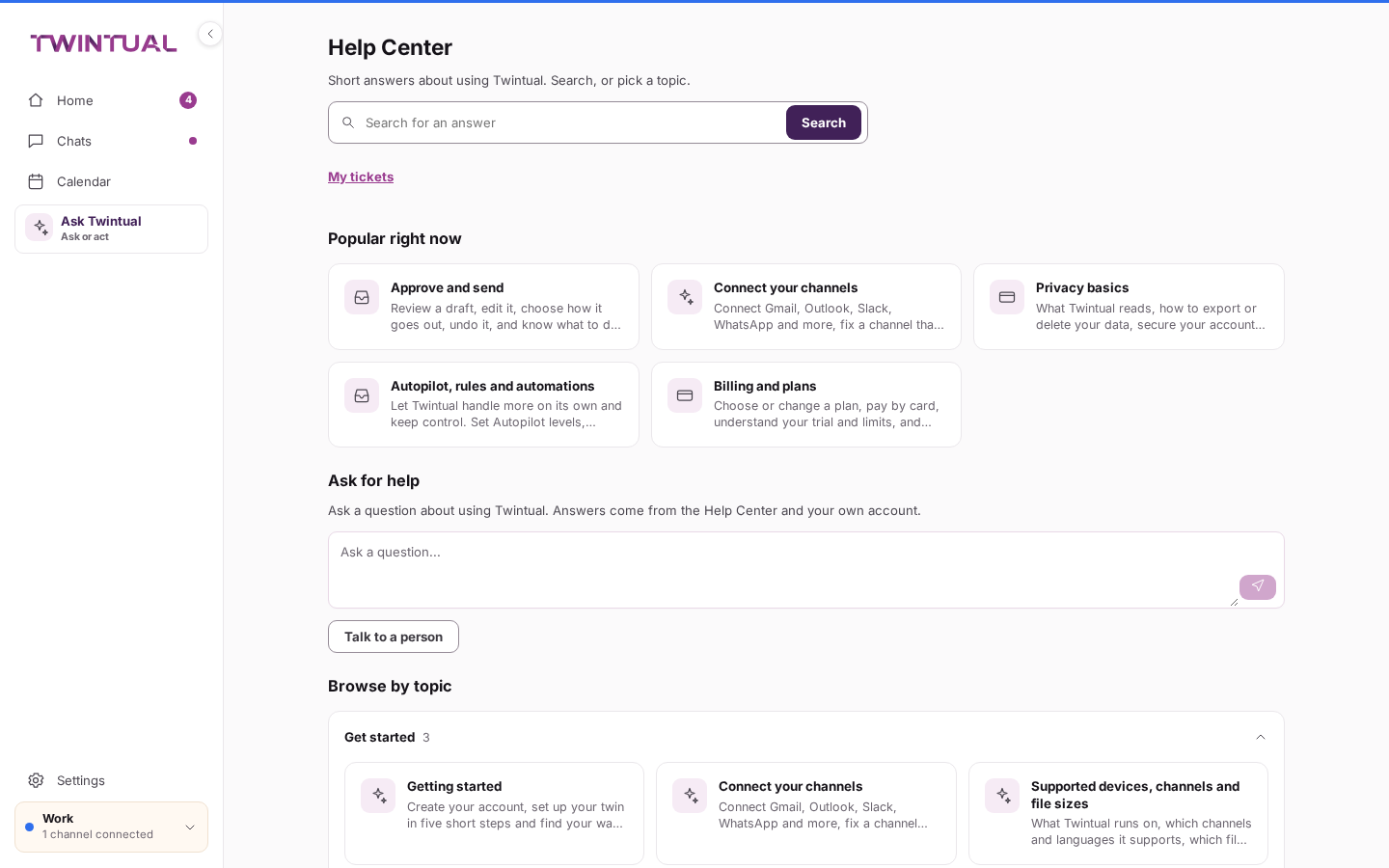
Select Help in the corner of any screen for a short answer about where you are, or open the full Help Center to search every article.
If the Help Center does not answer your question, select Talk to a person. Say what you were trying to do, what you expected to see, and what happened instead. Twintual attaches your screen, app version and plan automatically, so you do not have to describe them.