
Daily use
Change the app language
Switch the language of the Twintual interface and your generated drafts in Settings, General.
Go to this screenTwintual's interface and the drafts it writes for you can be shown in a different language. You change it in one place: Settings, then General.
How do I change the app language?#
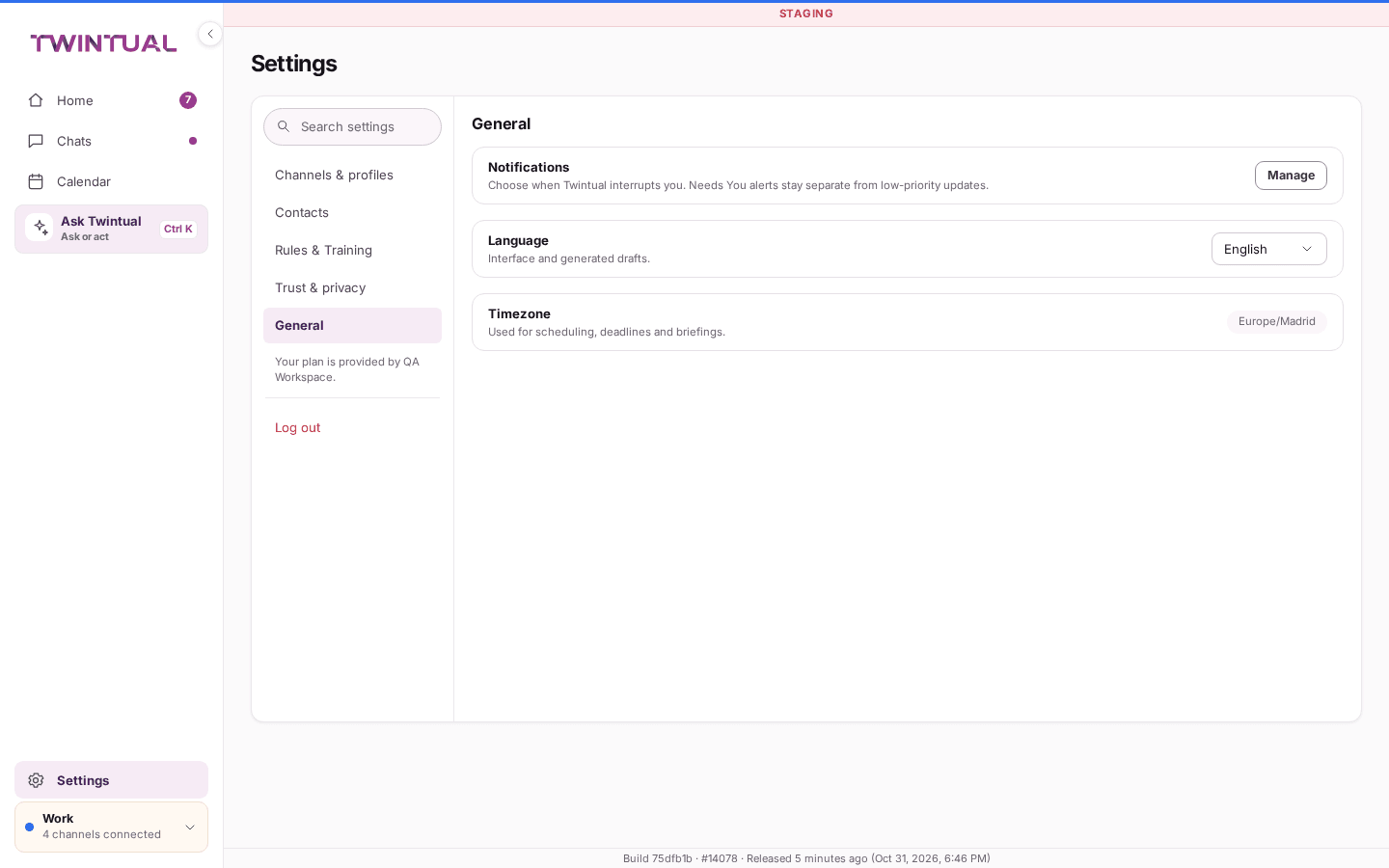
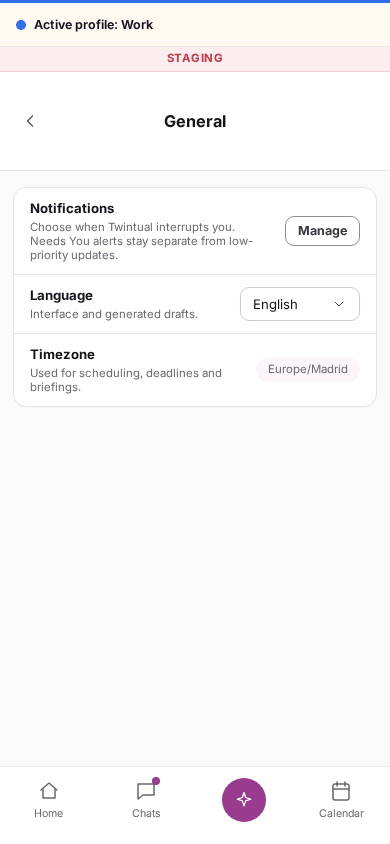
- Open Settings, then General.
- Find the Language row. Its description reads "Interface and generated drafts."
- Select the dropdown and choose a language.
The whole interface switches right away, before anything is saved. You do not need to reload the page or sign out.
Which languages are available?#
The dropdown only lists languages Twintual has fully translated. Today that is English and Español. More languages are added as their translations are completed; a language only appears once it is complete, so you never see a half-translated screen.
What does changing the language affect?#
Changing the language switches:
- the interface: menus, buttons, settings and help text
- new drafts your twin writes for you
A draft you already have open keeps its own text. Changing the language does not rewrite or translate it. It also does not change the language the people you talk to see; it only changes what you see.
What if the language does not change, or I see an error?#
If saving fails, Twintual puts the interface back to your previous language and shows a toast explaining why:
- You're offline. Language wasn't saved. Reconnect, then try again.
- Language couldn't be saved. Try again. Choose the language again. If it keeps failing, contact support.
If the dropdown is turned off, your account is read-only. Ask your admin, or see Billing and plans. When it works, you see Language saved.
Where should I go next?#
Related reading.
- Notifications and availability hours for the other settings on the same General page.
- Getting started for the rest of first-time setup.